
Termageddon for MainWP
Put Termageddon policy pages on your child sites and see which sites need action on their policies.

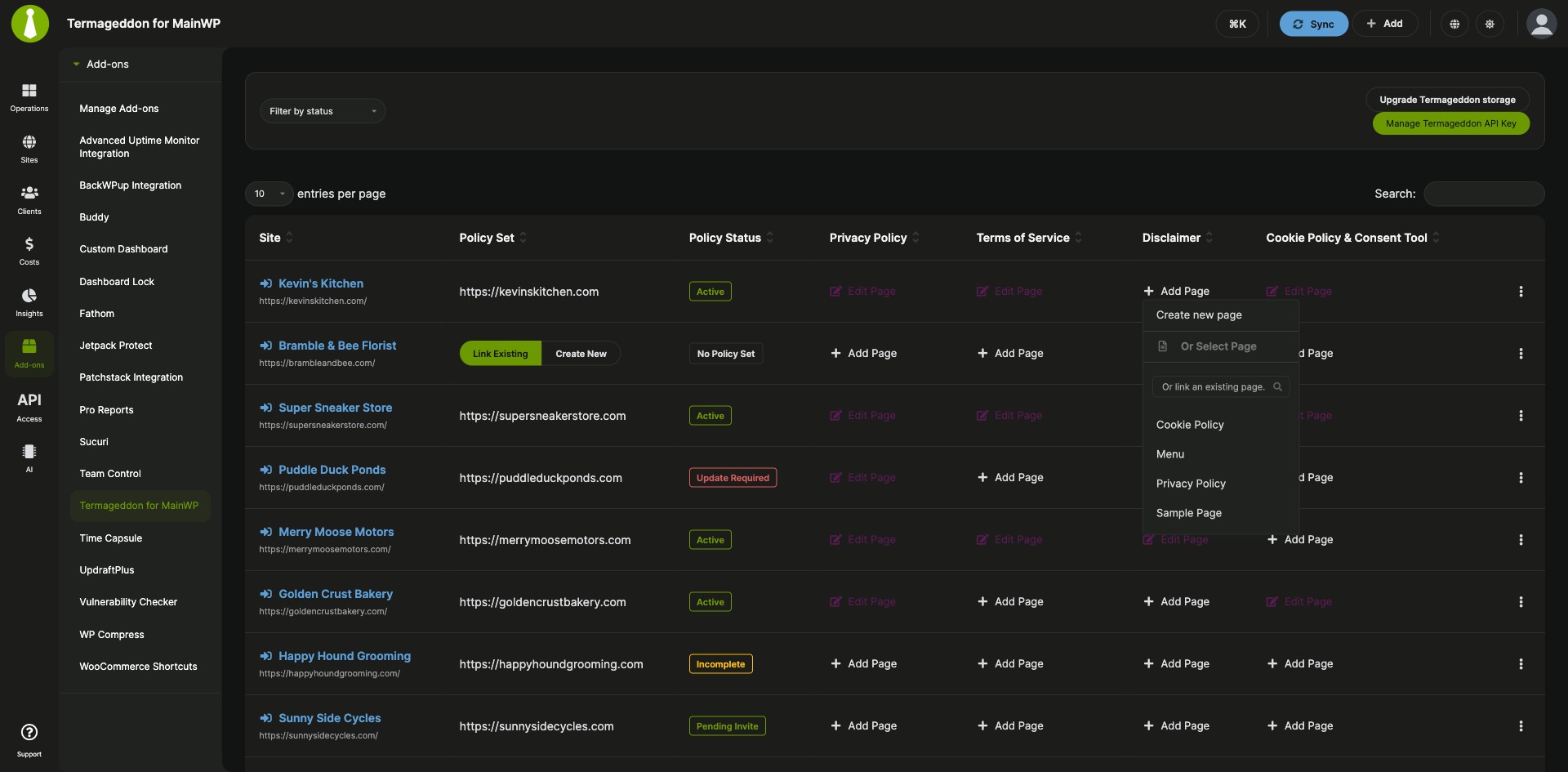
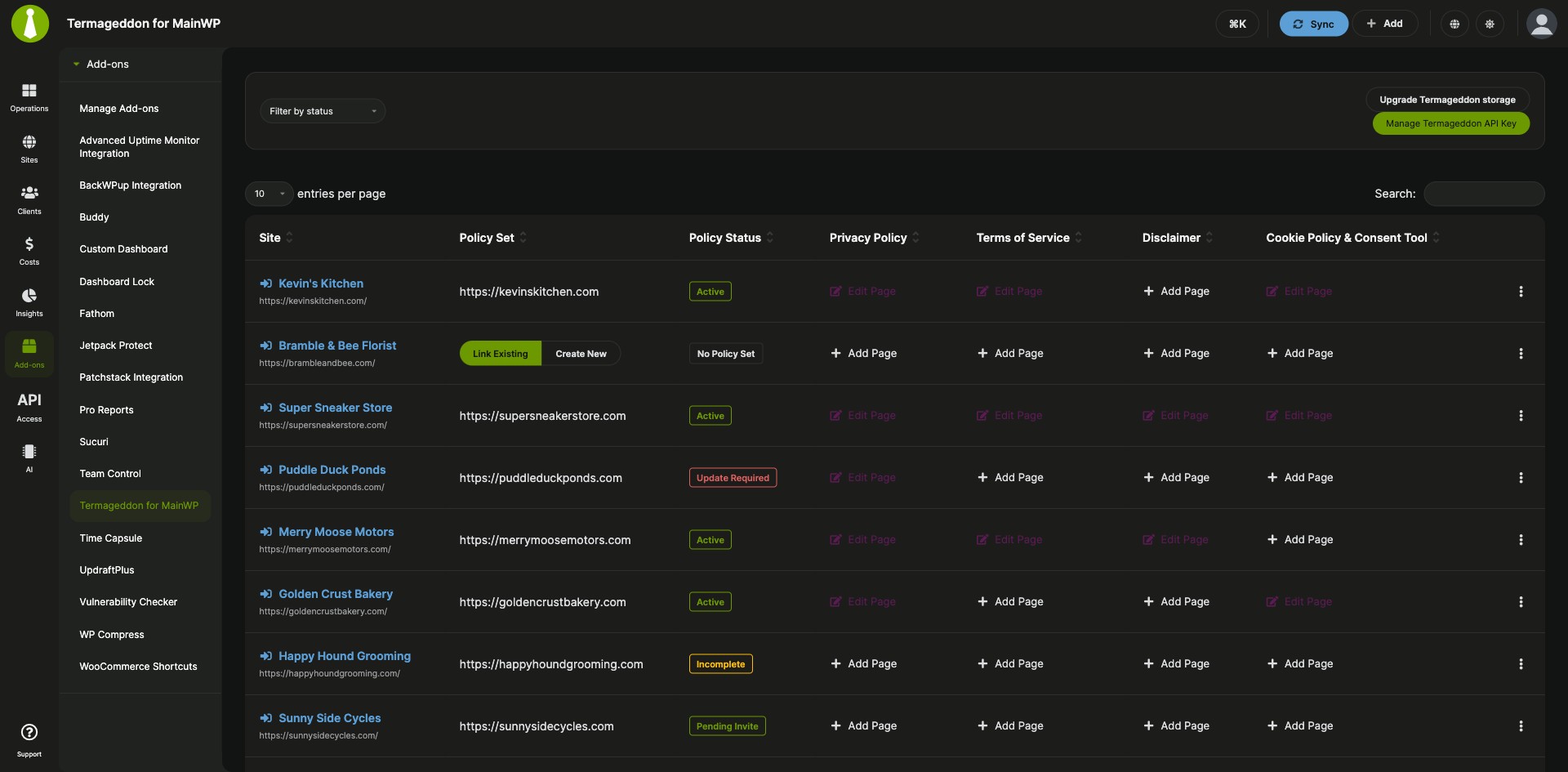

Publish and track Termageddon policies across client sites
Termageddon for MainWP is a free MainWP add-on that puts Termageddon policy pages on your child sites and shows in your MainWP Dashboard which sites need action on their policies. Through your Termageddon account, you create or link Privacy Policy, Terms of Service, Disclaimer, and Cookie Policy & Consent Tool pages and link each site to a Termageddon Policy Set. The Termageddon team develops it.
The policy page routine on each site
Setting up policy pages by hand means creating the page on each site, pasting the Termageddon embed code, and checking the Termageddon Dashboard to see which policies need attention. Termageddon for MainWP puts every child site, its policy pages and its Policy Set status in one table in your MainWP Dashboard, and publishes a policy page to several sites at once.
Features
Termageddon for MainWP handles policy pages, Policy Sets and policy status from one screen.
| Feature | What it means for you |
|---|---|
| Policy pages for every site | Add-ons > Termageddon for MainWP lists your child sites with a column for each policy type: Privacy Policy, Terms of Service, Disclaimer, and Cookie Policy & Consent Tool. |
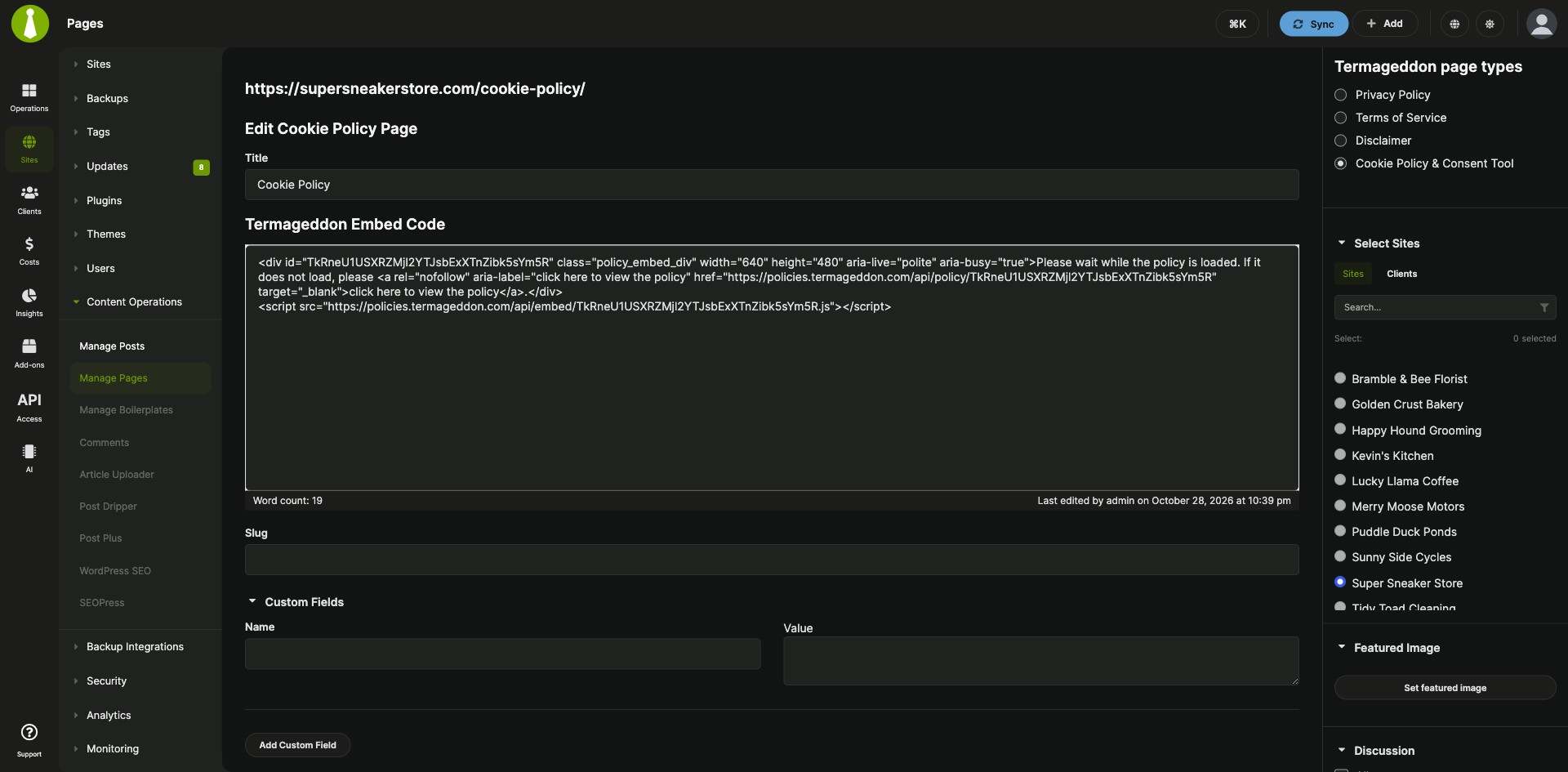
| Create new policy pages | Click Add Page, enter the page title, paste the Termageddon Embed Code, and publish. When you publish to several sites, the results list shows whether the page was created, updated or failed on each one. |
| Link existing pages | Use a page that is already published on the child site. Search the menu by page title and select it. |
| Edit, relink or unlink | Open a linked page in the policy page editor, point the policy at another published page, or unlink it. Unlinking keeps the page on the child site. |
| Policy Sets | Link a child site to a Policy Set you created in the Termageddon Dashboard, or open the Termageddon Dashboard to create a new one. |
| Policy status and filters | See each linked site’s Policy Status: Active, Update Required, Incomplete, or Pending Invite. Filter the table by status and narrow it further with the Search field. |
| Policy updates on the Updates Overview | The Updates Overview widget in your MainWP Dashboard shows how many child sites need policy updates. |
Requirements
Termageddon for MainWP is free, and it works with a paid Termageddon subscription.
| Item | Requirement |
|---|---|
| License | Free (partner add-on from Termageddon) |
| Termageddon account | An active Termageddon subscription and an API key generated in your Termageddon Dashboard |
| MainWP Dashboard | Termageddon for MainWP installed and activated on your Dashboard site |
| Policy Sets | A Policy Set created in the Termageddon Dashboard for each child site you want to track. A site shows a Policy Status once it is linked to one. |
Setup: API key, policy pages, Policy Sets
Setting up Termageddon for MainWP starts with your API key, then policy pages and Policy Sets for each site.
Install the add-on and add your API key
- In your MainWP Dashboard, go to Add-ons > Manage Add-ons and click Install Add-ons.
- Select Termageddon for MainWP, click Install, then click Activate Add-ons.
- Go to Add-ons > Termageddon for MainWP and click Add Termageddon API Key.
- Enter the API key from your Termageddon Dashboard and click Save API Key. Use Manage Termageddon API Key later to replace or remove it.
Create or link a policy page
- Go to Add-ons > Termageddon for MainWP and find the site.
- Click Add Page under Privacy Policy, Terms of Service, Disclaimer, or Cookie Policy & Consent Tool.
- To create a page, enter the page title, paste the Termageddon Embed Code, review the page options, and click Publish.
- To use an existing page, select a published page from the menu instead. The column then shows Edit Page for that policy type.
Link a child site to a Policy Set
- Create the Policy Set in the Termageddon Dashboard. Click Create New in the Policy Set column to open it.
- Click Link Existing in the Policy Set column. The child site’s edit screen opens at Termageddon Website Policies.
- Select the Policy Set under Link with policy set (optional) and click Save Settings.
Full instructions for policy pages, Policy Sets and filters: Termageddon for MainWP documentation.
How policy text and status reach your sites
Termageddon for MainWP runs on your MainWP Dashboard and connects to the Termageddon API with your API key. It creates or links policy pages on your child sites, and the policy text on each page comes from the Termageddon Embed Code. It also checks the status of each linked Policy Set, so you can see when one needs action.
Termageddon FAQ
What do I need to pay for?
Termageddon for MainWP is a free add-on, and it needs an active Termageddon subscription, which you get from Termageddon. The same Termageddon account gives you the API key, the Policy Sets and the embed code for policy pages.
Can I use policy pages that already exist on my child sites?
Termageddon for MainWP links any published page on a child site. Click Add Page in the policy type’s column and select the page from the menu.
What happens to the page when I unlink a policy?
Unlinking a policy page in Termageddon for MainWP removes the link and keeps the page on the child site. You can unlink from the Edit Page menu or from the menu at the end of the site’s row.
What does No Policy Set mean for a child site?
No Policy Set means the site is waiting to be linked to a Termageddon Policy Set. Click Link Existing in the Policy Set column, select the Policy Set, and click Save Settings. Termageddon then reports a Policy Status for the site.
Where do I get support?
The Termageddon team supports this add-on. Contact them through termageddon.com. MainWP’s support policy for third-party add-ons explains how support works for add-ons that other developers build.