
MainWP Dashboard Lock Extension
Limit your MainWP Dashboard login to the IP addresses you allow, add login locks and hide the frontend.

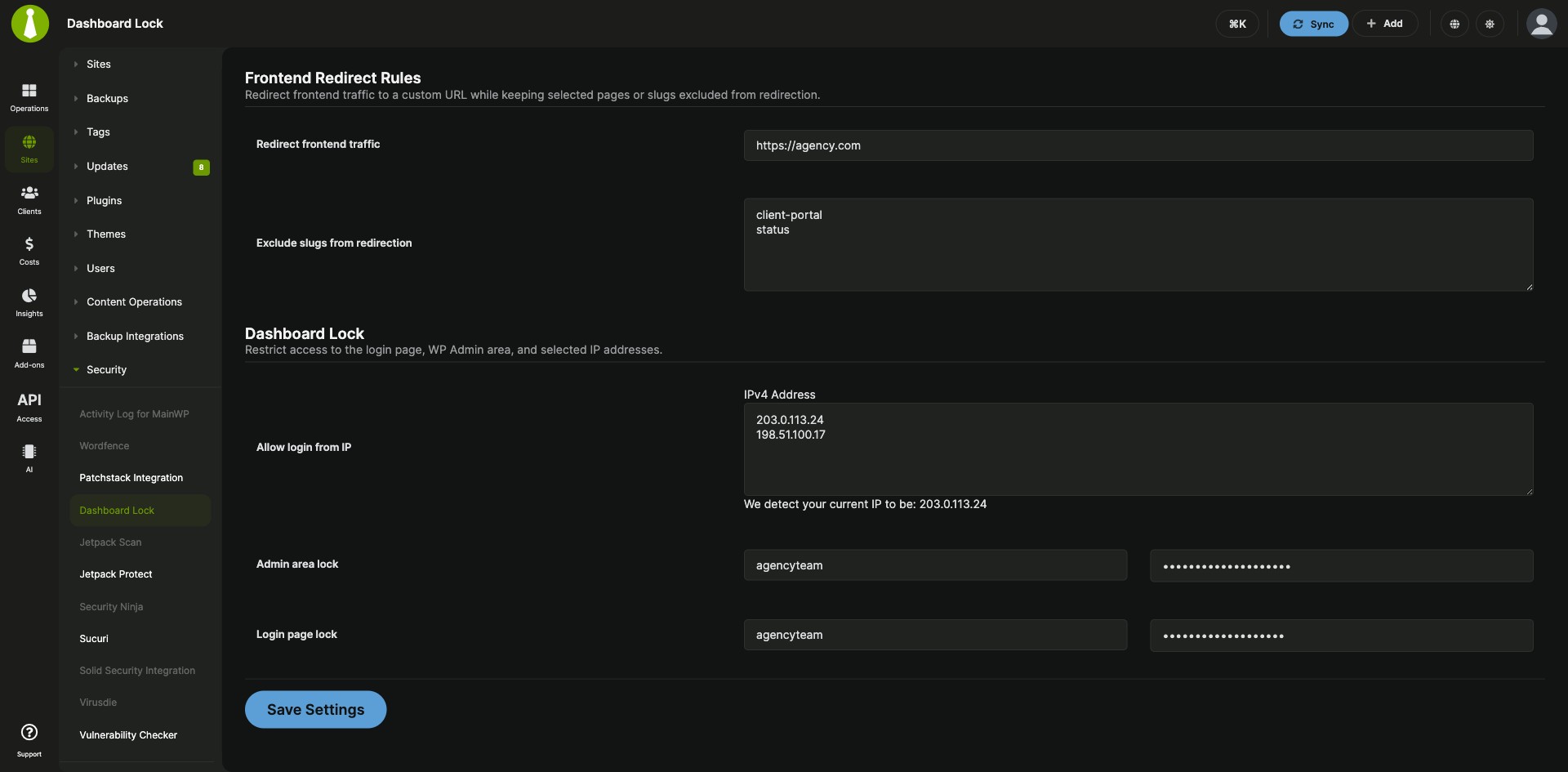
Lock the WordPress site your MainWP Dashboard runs on
The Dashboard Lock Extension is a free MainWP add-on that protects the WordPress site your MainWP Dashboard runs on. It restricts the login page to the IP addresses you allow, adds a second username and password in front of WP Admin and the login page, and redirects visitors away from the site’s frontend so your Dashboard stays out of view.
Hand-written .htaccess rules for wp-admin
Restricting wp-admin and wp-login.php by IP address or with HTTP Basic Authentication usually means editing .htaccess files by hand, and until those rules exist, anyone who finds the login page can try to sign in. The Dashboard Lock Extension writes the rules for you from one settings page: you enter IP addresses, credentials and a redirect URL, and one button removes the locks again.
Features
The Dashboard Lock Extension combines a frontend redirect with two ways to guard the login: an IP allow list and HTTP Basic Authentication.
| Feature | What it means for you |
|---|---|
| Frontend redirect | Set a redirect URL, and every visit to a page outside WP Admin goes there, so visitors see that page instead of your Dashboard site’s frontend. |
| Pages excluded from the redirect | List page slugs, one per line, that must stay reachable. Requests containing cron and /wp-json pass through automatically, along with the login page and the favicon. |
| IP allow list | Limit wp-login.php to specific IP addresses. Add one address per line if you log in from more than one location. |
| Admin area lock and Login page lock | Put a separate username and password, using HTTP Basic Authentication, in front of WP Admin pages, wp-login.php, or both. This helps when your IP address changes. Saved passwords show as masked placeholders with a hint of the last character. |
| Remove Locks button | Remove the allowed IP addresses, the Admin area lock and the Login page lock in one step from the settings page. |
Requirements
The Dashboard Lock Extension is installed on the site it protects, your MainWP Dashboard site, and its two login locks depend on your web server and host.
| Item | Requirement |
|---|---|
| License | Free, included in MainWP Essentials and MainWP Pro |
| MainWP Dashboard | The Dashboard Lock Extension installed and activated on your Dashboard site |
| Web server | A server that reads .htaccess files, for the Admin area lock and Login page lock (these two locks don’t work on nginx servers) |
| Hosting | HTTP Basic Authentication allowed by your host for the Admin area lock and Login page lock. On cPanel/WHM servers it may need to be turned on first. |
| Child sites | Nothing to install. The rules go into your Dashboard site’s .htaccess files. |
| Third-party plugins | None |
Setup: redirect, IP allow list, login locks
The Dashboard Lock Extension keeps all three protections on one page, MainWP > Add-ons > Security > Dashboard Lock.
Redirect frontend traffic
- Go to MainWP > Add-ons > Security > Dashboard Lock.
- In the Frontend Redirect Rules box, enter the URL you want to send visitors to in Redirect frontend traffic.
- To keep pages reachable, enter their slugs in Exclude slugs from redirection, one per line. Use the slug, for example
/sample-page/, rather than the full URL. - Click Save Settings.
Allow logins from your IP addresses
- On the same page, find Allow login from IP in the Dashboard Lock box.
- Enter one or more IP addresses, each on a new line.
- Click Save Settings. The login page now opens for the listed IP addresses and stays closed to everyone else.
Add a username and password to WP Admin and the login page
- In the Dashboard Lock box, enter a Username and Password under Admin area lock, Login page lock, or both.
- Click Save Settings.
- Your browser now asks for these credentials before it opens a WP Admin page or wp-login.php.
Full instructions, including how to remove locks by FTP: Dashboard Lock Extension documentation.
Where the lock rules are written
The Dashboard Lock Extension writes its rules on the site your MainWP Dashboard is installed on. The IP restrictions and the Login page lock go into the .htaccess file in the site’s root directory, and the Admin area lock goes into the .htaccess file in the wp-admin directory, each inside a block marked MainWP Secure and Clean. Version 5.1 refined the admin access rules so plugin ZIP uploads install smoothly.
Dashboard Lock FAQ
How do I remove Dashboard Lock’s locks by FTP?
To remove the Dashboard Lock Extension’s locks by FTP, download the .htaccess file from the site’s root directory, and from the wp-admin directory for the Admin area lock, delete the block that starts with # BEGIN MainWP Secure and Clean and ends at the matching # END line, and upload the file again. If you can reach the settings page, click Remove Locks instead.
What does the Admin area lock need from my host?
The Dashboard Lock Extension’s Admin area lock and Login page lock use HTTP Basic Authentication, so your host has to allow it. If a lock leads to an infinite redirect loop, remove both locks and ask your host to allow HTTP Basic Authentication. On cPanel/WHM servers, turn HTTP authentication on by setting skiphttpauth=0 in /var/cpanel/cpanel.config and restarting cPanel.
How do I keep a page on my Dashboard site reachable after turning on the redirect?
Add the page slug to the Dashboard Lock Extension’s Exclude slugs from redirection field, one slug per line. Requests containing cron and /wp-json already pass through, so scheduled tasks and the REST API keep working.
Can I allow logins from more than one location?
Yes, the Dashboard Lock Extension takes one IP address per line in Allow login from IP. If your IP address changes often, use the Admin area lock and Login page lock instead.