
MainWP Domain Monitor Extension
Get an email before a child site’s domain expires, and see every domain’s expiration status in one list.


Get warned before a client domain expires
The MainWP Domain Monitor Extension is a Pro MainWP add-on that checks the domain of every connected site and emails you when a domain is close to expiring. Each domain’s expiration status shows in one list, and the domain data can go into client reports with Pro Reports.
Keeping track of client domain renewals
Expiration dates for client domains sit with each registrar, so you look each domain up and note the dates somewhere, and a renewal that slips past its date can take the client’s site offline. The MainWP Domain Monitor Extension looks up every site’s domain on a schedule from your MainWP Dashboard, flags the ones running out, and emails you when the remaining days drop below the threshold you set.
Features
The MainWP Domain Monitor Extension covers the lookup, the alert and the places the results show up.
| Feature | What it means for you |
|---|---|
| Domain Monitor dashboard | See every monitored domain in one list. A green hourglass means 30 or more days left, yellow means fewer than 30, red means it expires today or has expired, and grey means no expiration data. Sites awaiting their first check are shaded yellow with a Not checked button. |
| Email expiration alerts | Set a Notifications threshold in days, and you get an email when a domain will expire within it. Any site can override the threshold, automatic checks and check frequency with its own settings. |
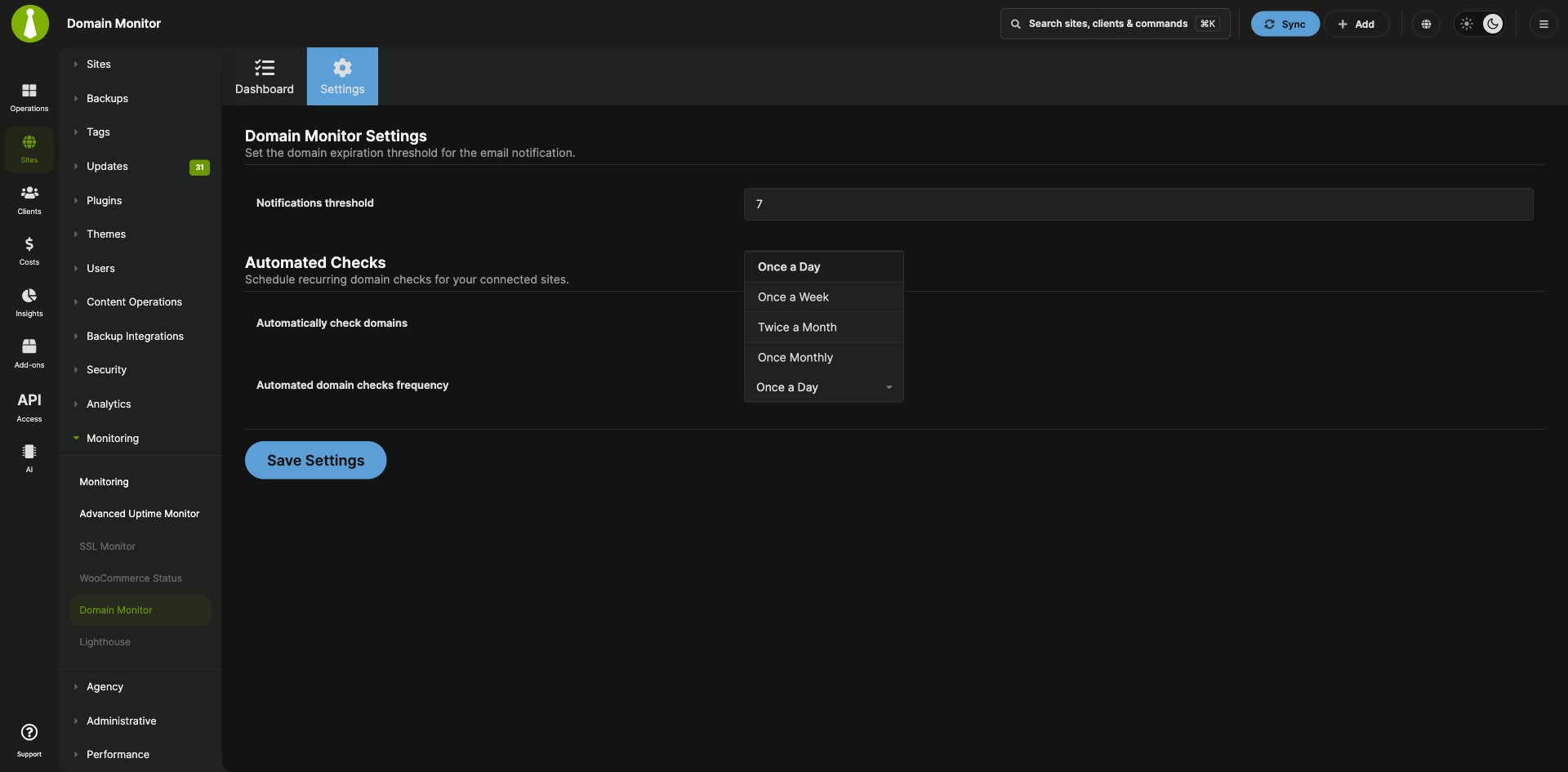
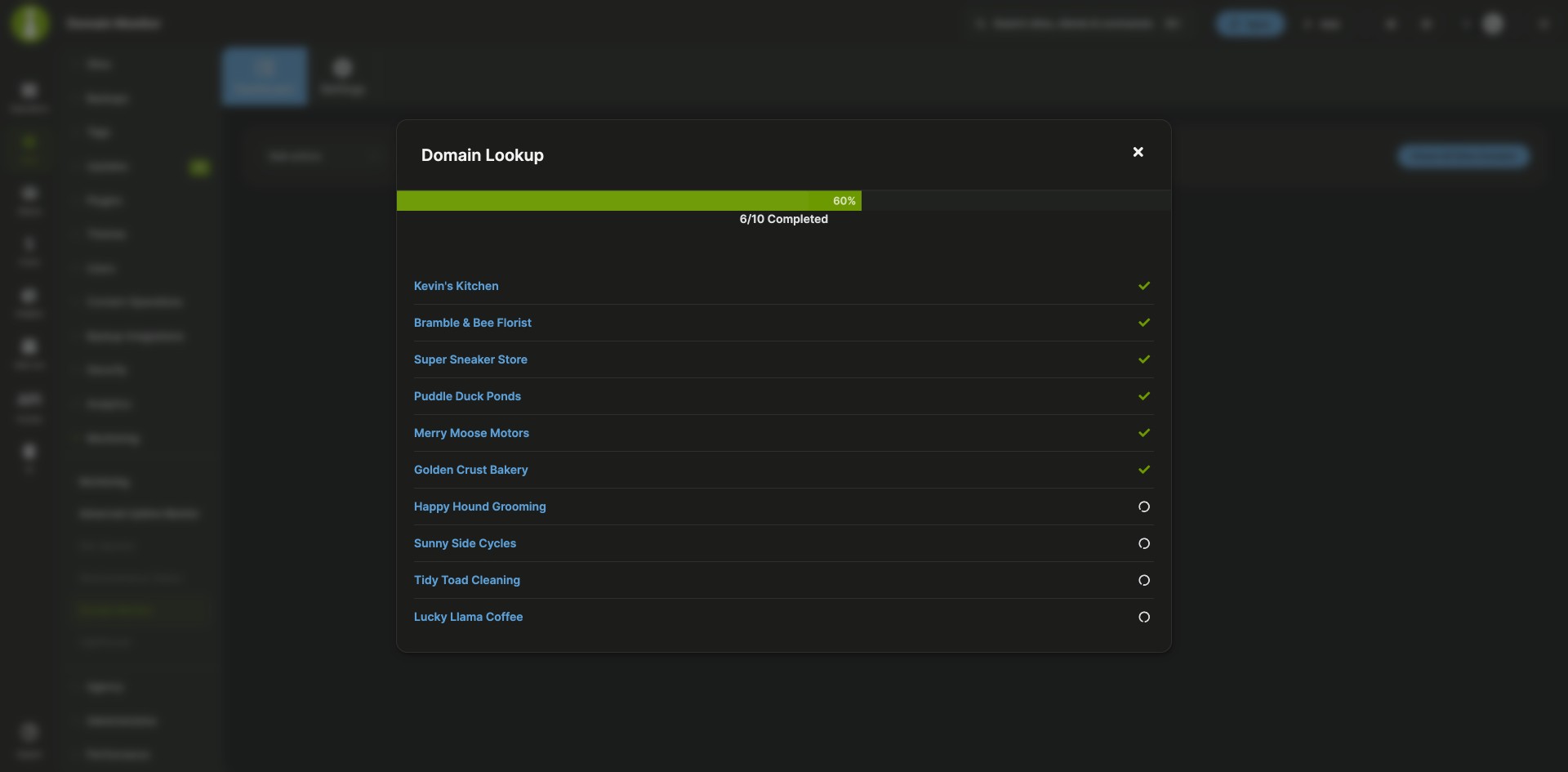
| Scheduled and manual checks | Run automated checks Once a Day, Once a Week, Twice a Month or Once Monthly. Click Check All Sites Domains, use the bulk actions menu, or use a site’s Check Domain action when you want results now. |
| New sites added automatically | From version 5.3, connecting a new site to your Dashboard creates its domain monitoring record. Your existing manual domain profiles and per-site settings stay as they are. |
| RDAP and WHOIS lookups | Lookups use RDAP first and the built-in WHOIS server map second. For a domain whose data neither source returns, enter the domain information by hand. |
| Overview widgets | The main Overview page lists all monitored domains with their expiration dates and status icons. Each site’s Overview page shows that site’s domain, its expiration status and the saved domain profile. |
| Pro Reports tokens | Add domain data to client reports with tokens such as [domain.monitor.domain.name], [domain.monitor.registrar], [domain.monitor.expiry.date], [domain.monitor.expires], [domain.monitor.status] and [domain.monitor.last.check]. |
| WP-CLI and REST API | Check one site, several sites or all sites with wp mainwp-domain-monitor check, read saved domain profiles with wp mainwp-domain-monitor results, or use the Domain Monitor endpoints in the MainWP REST API. |
Requirements
The MainWP Domain Monitor Extension works entirely from your MainWP Dashboard, reading public domain registry data, so child sites need nothing installed.
| Item | Requirement |
|---|---|
| License | MainWP Pro |
| Child sites | Nothing to install. The extension looks up each site’s domain from your Dashboard. |
| Domain data | Domain information available from RDAP or WHOIS for the domain’s TLD, or entered by hand on the site’s Domain Info page |
| Automated checks and retries | Background job processing running on your MainWP Dashboard |
| REST API checks (optional) | The MainWP REST API enabled, with an API key |
| Report tokens (optional) | Pro Reports |
Setup: automated checks, first check, manual data
The MainWP Domain Monitor Extension needs a threshold and a check schedule, then one full check to fill the list.
Turn on automated checks
- Go to Add-ons > Monitoring > Domain Monitor > Settings and set the Notifications threshold.
- Enable Automatically check domains and choose the Automated domain checks frequency.
- Click Save Settings.
Run the first check
- Go to Add-ons > Monitoring > Domain Monitor > Dashboard.
- Click Check All Sites Domains and wait until the check completes.
Enter domain information by hand
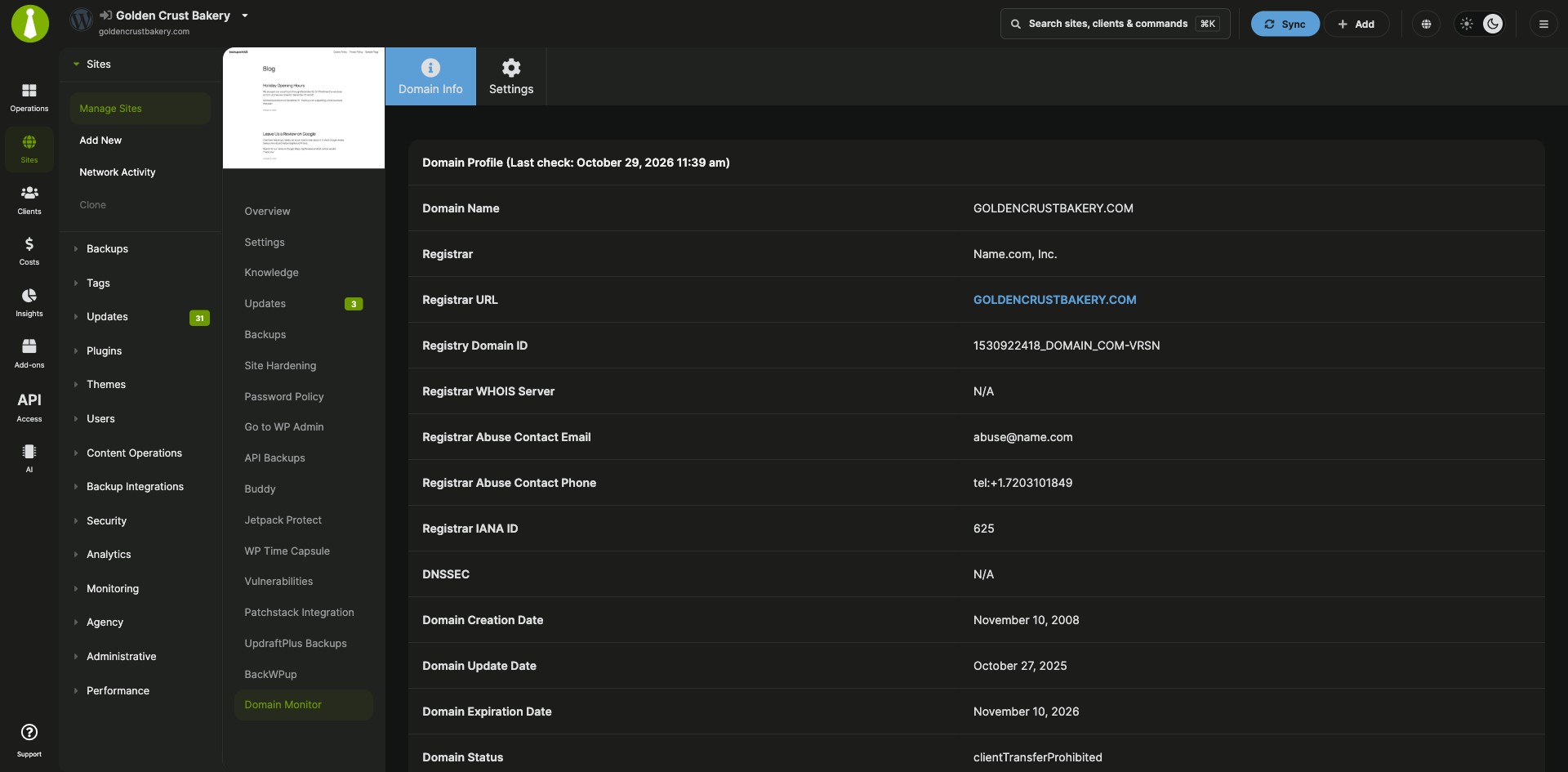
- On the Domain Monitor Dashboard, choose Domain Info from the site’s Actions menu.
- Open the Settings tab, turn on Manual domain information entry and click Save Settings.
- Open the Edit Domain Info tab, enter the information and click Save Settings.
Full instructions for checks, alerts, per-site settings and WP-CLI: MainWP Domain Monitor Extension documentation.
Where the domain data comes from
The MainWP Domain Monitor Extension looks up each child site’s domain in domain registry data from your MainWP Dashboard, through RDAP first and WHOIS second. It saves the result as a domain profile on your Dashboard and sends an expiration alert after a successful check that returns a valid expiration date. Version 5.4 reduced repeated database queries in REST API, WP-CLI and site reconciliation operations on larger dashboards.
Domain Monitor FAQ
How does Domain Monitor warn me before a domain expires?
The MainWP Domain Monitor Extension emails you when a domain will expire within the Notifications threshold you set. An alert follows a successful latest check with a valid expiration date, and eligible lookups that come back empty are normally retried after one hour.
Can I enter domain information by hand?
Yes, the MainWP Domain Monitor Extension accepts domain information entered by hand, which helps with TLDs that restrict or withhold RDAP and WHOIS data. Open Domain Info from the site’s Actions menu, turn on Manual domain information entry on the Settings tab, and fill in the Edit Domain Info tab.
Are new child sites added to Domain Monitor automatically?
Yes, from version 5.3 the MainWP Domain Monitor Extension adds new child sites on its own: connecting a new site creates its domain monitoring record, and the scheduler runs the first lookup when automated checks are on. To see the data right away, use the site’s Check Domain action.
Can I include domain expiration dates in client reports?
Yes, the MainWP Domain Monitor Extension provides Pro Reports tokens such as [domain.monitor.expiry.date] for the expiry date and [domain.monitor.expires] for the days left before the domain expires.