
Fathom Integration
Check Fathom Analytics views, visitors and traffic sources for every child site in your MainWP Dashboard.


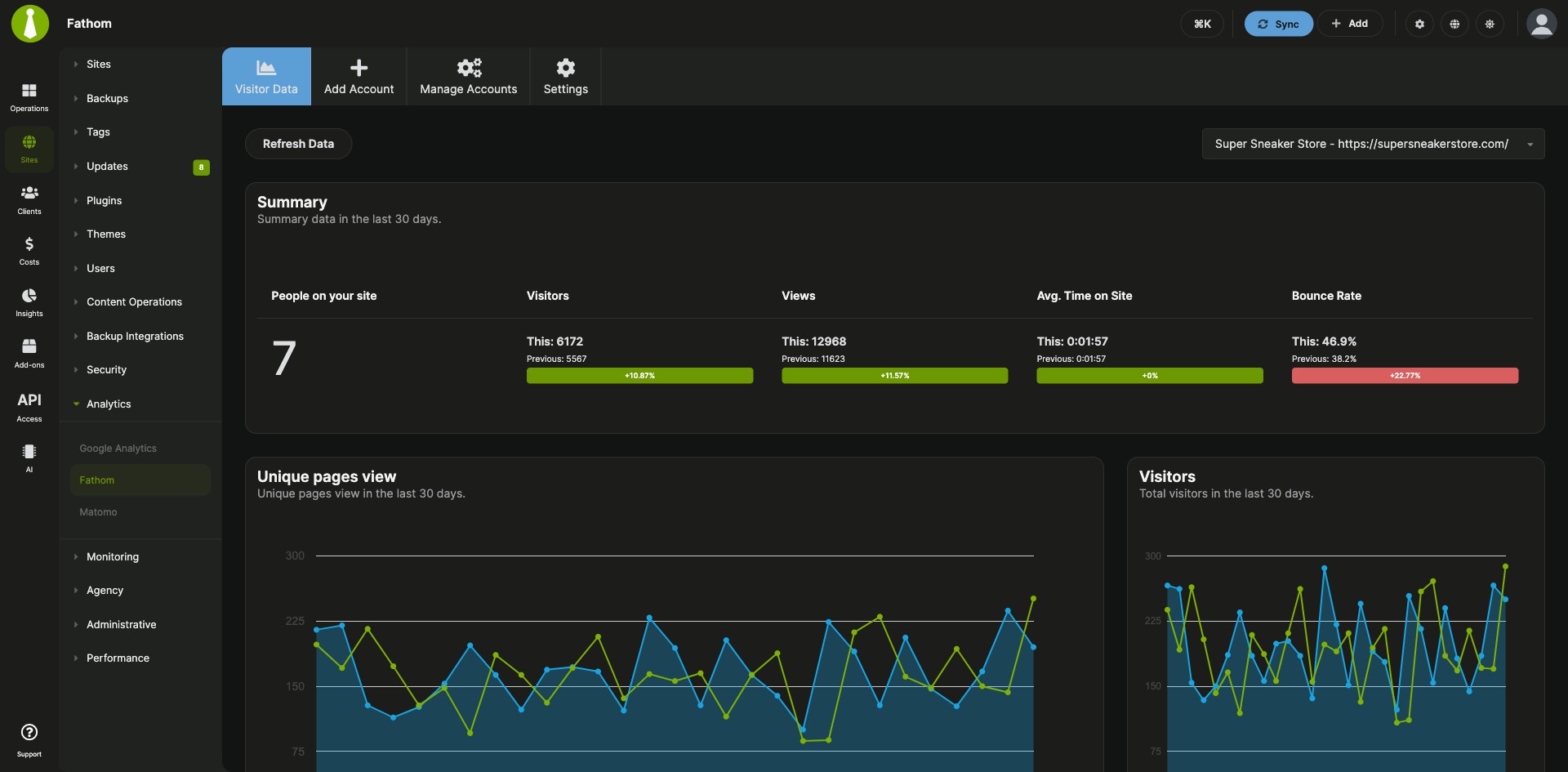
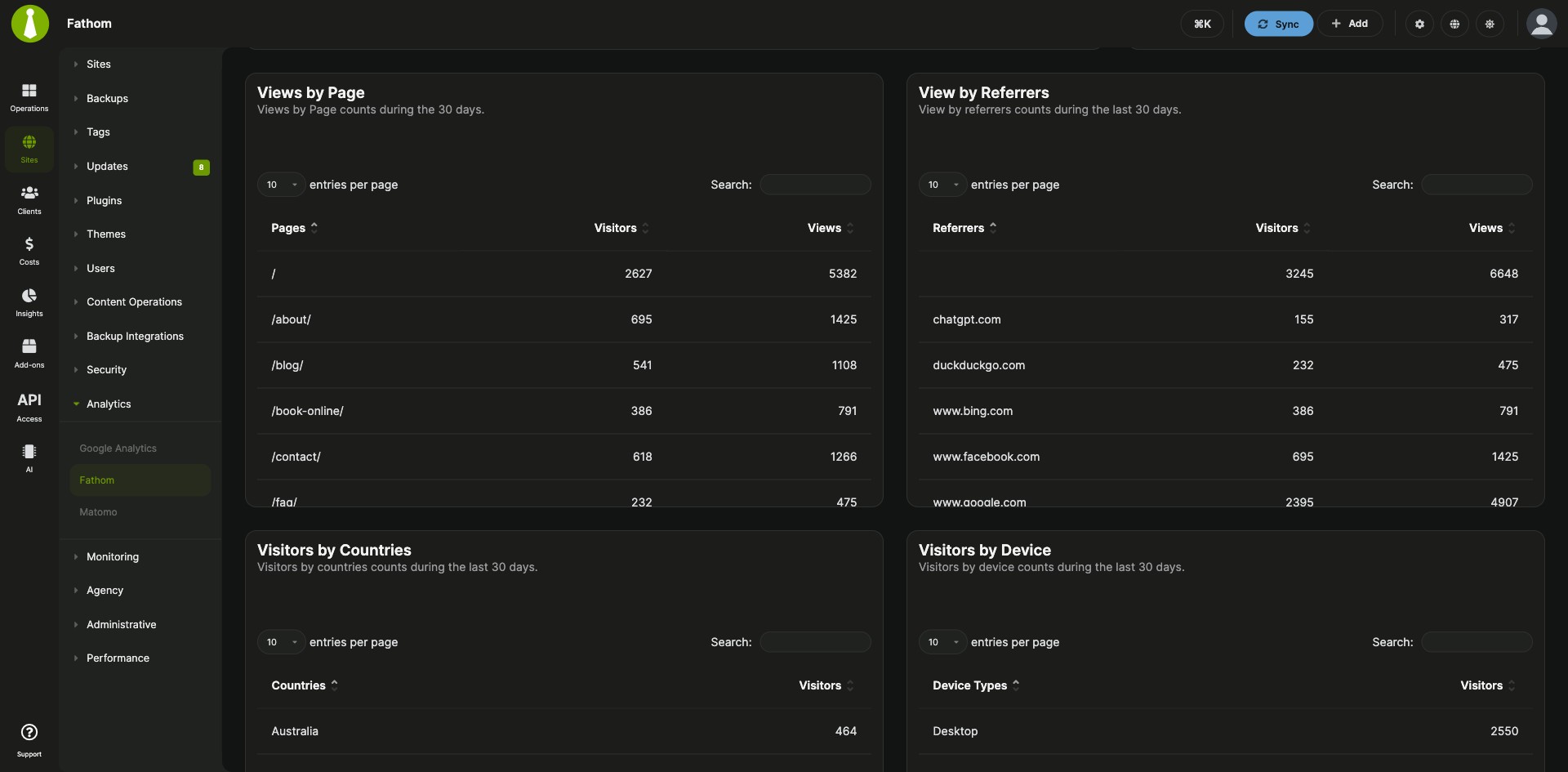
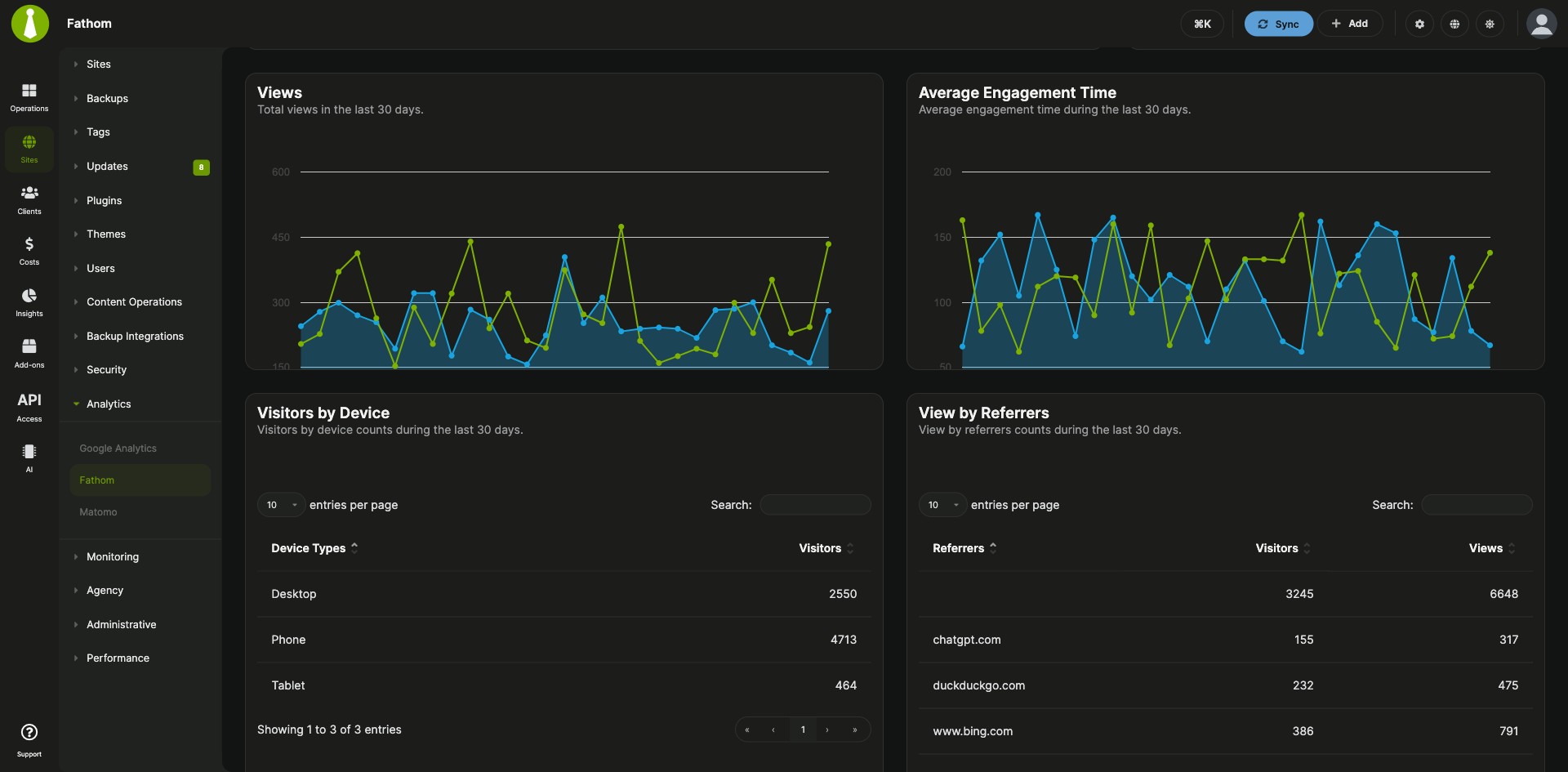
Fathom Analytics stats beside the sites you maintain
The Fathom Integration is a Pro MainWP add-on that shows Fathom Analytics visitor stats for all your child sites in your MainWP Dashboard. You connect your Fathom account once, assign a Fathom site to each child site, and read views, visitors and traffic sources in Dashboard widgets and on one Visitor Data page.
Leaving MainWP to check traffic
Checking a client site’s traffic means leaving MainWP, opening Fathom and finding that site there. The Fathom Integration brings each child site’s Fathom stats into your MainWP Dashboard, on the overview pages and on a Visitor Data page where you pick the site from a dropdown.
Features
The Fathom Integration covers where the stats appear, how fresh they are and how they reach client reports.
| Feature | What it means for you |
|---|---|
| Visitor Data page | See the Fathom stats for every assigned child site under Add-ons > Analytics > Fathom > Visitor Data. Pick a site from the dropdown, and turn widgets on or off and rearrange them in Page Settings. |
| Overview widgets | A Fathom widget shows up on the MainWP Overview page and on each child site’s Overview page. You can turn it on or off and move it in Page Settings. |
| Visitor metrics | Track views, users, unique page views and average engagement time, plus visitors by country, page, device and browser, and views by referrer. |
| Site assignment | Link each child site to the matching site in your Fathom account from the child site’s Edit page. |
| Data refresh frequency | Stats are cached in your Dashboard and refreshed on the schedule you pick: every 1, 3, 9, 15, 18 or 24 hours. |
| Refresh Data button | Clear the cache and fetch fresh stats for all assigned sites right away, from the Settings tab or the Visitor Data tab. |
| Display interval | Choose Week or Month as the time range that widgets and the Visitor Data page show by default. |
| Pro Reports data | Add Fathom data to client reports from the Report Data section of Pro Reports, or with tokens such as [fathom.visits], [fathom.visitors], [fathom.pageviews], [fathom.avg.time], [fathom.bounce.rate] and [fathom.visits.chart]. |
Requirements
The Fathom Integration reads from your own Fathom Analytics account, so the tracking code and the account come first.
| Item | Requirement |
|---|---|
| License | MainWP Pro |
| Fathom account | A Fathom Analytics account with sites you can assign to your child sites |
| Fathom API token | An API token created in Fathom with Permissions set to Admin key |
| Child sites | The Fathom tracking code on each child site, added by hand or with a third-party plugin |
| Client reports (optional) | Pro Reports to include Fathom data in reports |
Setup: connect your account and assign sites
Setting up the Fathom Integration has three parts: the API token, the site assignments and the refresh schedule.
Connect your Fathom account
- In Fathom, go to app.usefathom.com/api and click Create New to create an API token.
- Give the key a name, set Permissions to Admin key, and click Save change.
- In your MainWP Dashboard, go to Add-ons > Analytics > Fathom > Add Account.
- Paste in the API token and click Connect Account.
Assign Fathom sites to your child sites
- Go to Sites > Manage Sites, find the child site, and click the Edit action.
- In the Fathom section, select the matching Fathom site from the dropdown.
- Click Save Settings, then repeat for your other child sites.
- The assigned sites now show up in the dropdown on Add-ons > Analytics > Fathom > Visitor Data.
Choose how often stats refresh
- Go to Add-ons > Analytics > Fathom > Settings.
- Choose a Data refresh frequency and, under Display interval, Week or Month.
- Click Save Settings.
Full instructions, including widgets and Pro Reports tokens: Fathom Integration documentation.
How stats are fetched and cached
The Fathom Integration fetches stats from your Fathom account and caches them in your MainWP Dashboard, so pages load quickly and the Fathom Aggregation API is called on your refresh schedule rather than on every page view. As of version 5.1, automatic refreshes follow the refresh frequency you set, and graph metric requests are combined into a single aggregation request, which cuts API calls and helps you stay under Fathom’s rate limits.
Fathom FAQ
What do I need to pay for?
The Fathom Integration is part of MainWP Pro. You also need an active Fathom Analytics account for the sites you track.
How often does the Fathom Integration update its stats?
The Fathom Integration refreshes its cached stats on the Data refresh frequency you set, from every hour to every 24 hours. For the latest numbers right away, click Refresh Data on the Settings or Visitor Data tab. If you have many child sites or are close to your Fathom API rate limit, choose a longer interval.
What happens to child site settings when I remove a Fathom account?
When you remove a connected Fathom account, the Fathom Integration clears that account’s Fathom site assignments from your child sites and removes the related cached stats, so there is nothing to clean up by hand.
Where do I get support?
The Fathom team handles issues with Fathom Analytics itself. MainWP support handles issues with the integration.