
MainWP Google Analytics Extension
See Google Analytics (GA4) traffic for every child site in your MainWP Dashboard and in client reports.

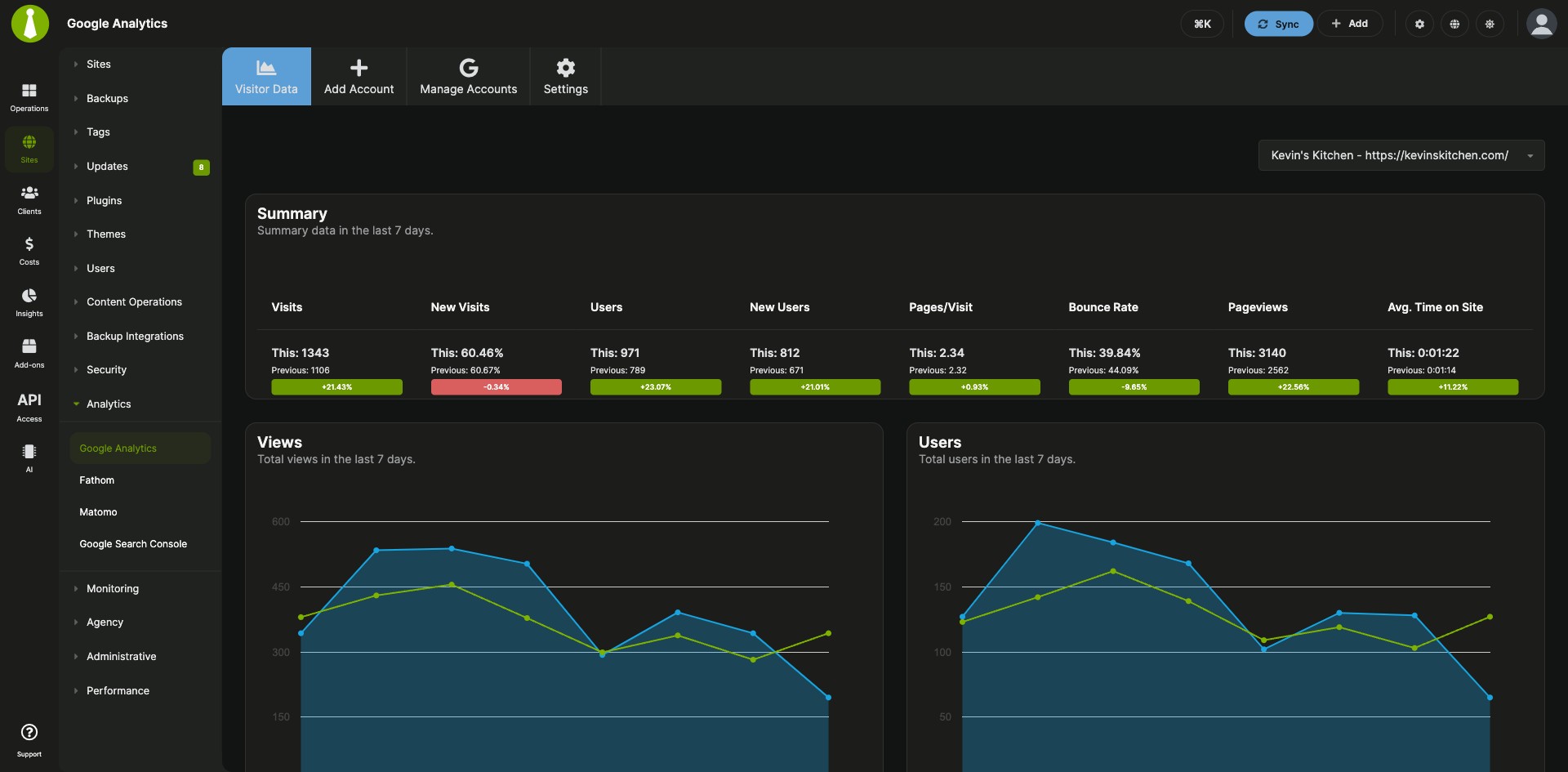


GA4 views, users and traffic sources for each child site
The MainWP Google Analytics Extension is a Pro MainWP add-on that puts Google Analytics (GA4) visitor data for all your child sites in your MainWP Dashboard, so you check every site’s traffic in one place. Views, users, engagement time and traffic sources show for each site, and the numbers can go into client reports.
Checking analytics one property at a time
Checking traffic for client sites usually means opening each site’s analytics on its own in Google Analytics. The MainWP Google Analytics Extension connects each Google Analytics account once, then matches its GA4 properties to your child sites by URL. The data shows up on one Visitor Data page and in widgets on your Overview pages.
Features
The MainWP Google Analytics Extension connects your Google accounts, assigns properties and shows the numbers on your Dashboard and in reports.
| Feature | What it means for you |
|---|---|
| Two ways to connect | Connect with Sign In with Google, or with a Google service account JSON key file. You can use both, and you can connect more than one account. |
| Automatic property assignment | The add-on assigns GA4 properties to child sites by matching URLs. You can also pick the property for a site by hand in that site’s settings. |
| Visitor Data page | See Views, Views by Page, Users, Users by Device, Users by Country, New Users, Average Engagement Time and Sessions by Source for a site, and switch sites from the dropdown. Show, hide and rearrange the widgets in Page Settings. |
| Overview widgets | A Google Analytics widget is available on the MainWP Overview page and on each child site’s Overview page. |
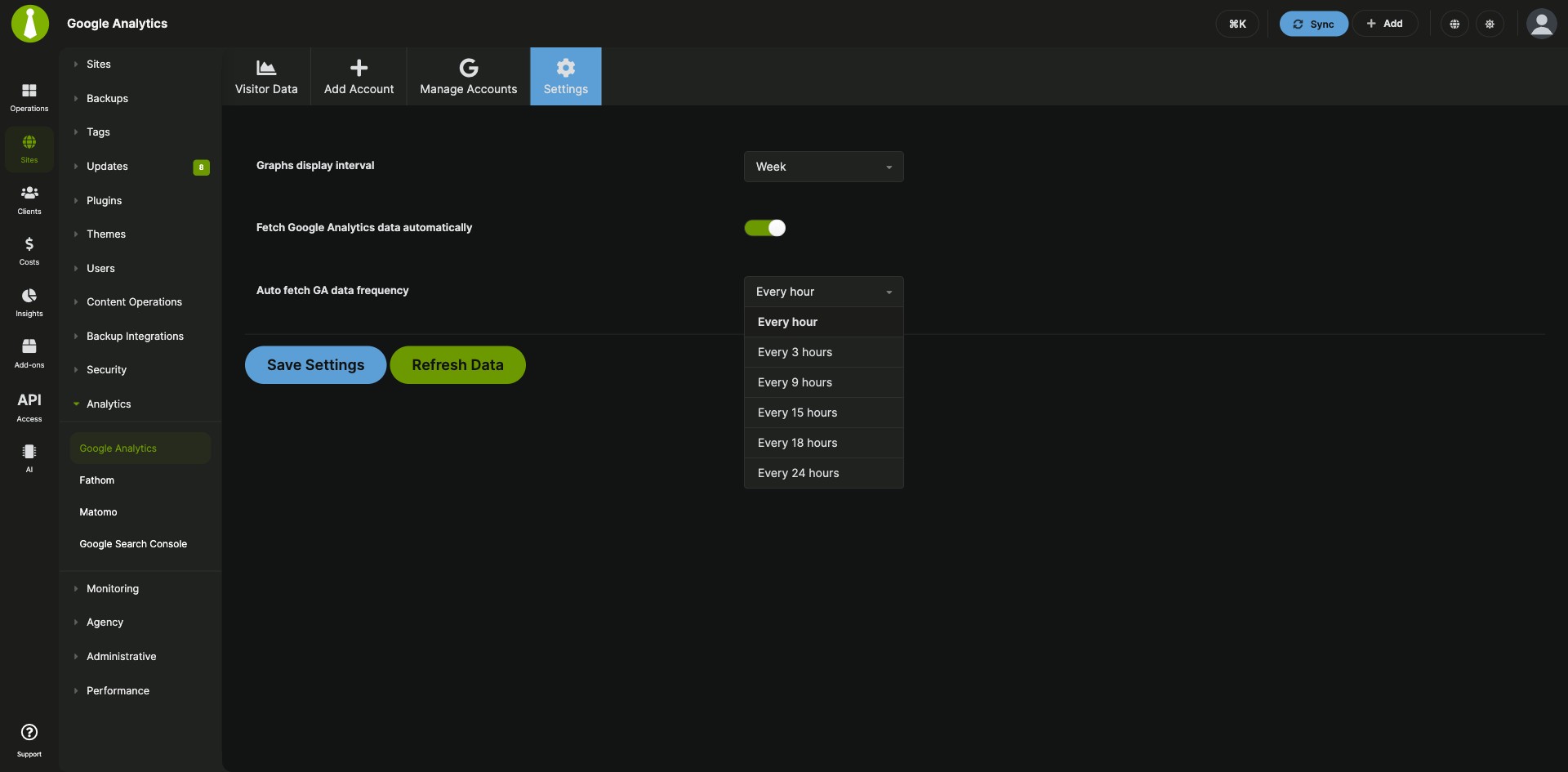
| Scheduled and manual refresh | Turn on Fetch Google Analytics data automatically and set the Auto fetch GA data frequency, or click Refresh Data for new figures right away. Graphs show a week or a month. |
| Account management | Reconnect or refresh an account from Manage Accounts, or select several accounts and use the bulk actions to refresh or remove them. |
| Client report tokens | With Pro Reports, add Google Analytics data to client reports with tokens such as [ga.visits], [ga.pageviews], [ga.new.visits] and [ga.visits.chart]. Since version 6.1, Sign In with Google tokens are refreshed before Pro Reports resume sending. |
Requirements
The MainWP Google Analytics Extension reads data you already collect in GA4, so each child site needs Google Analytics tracking first.
| Item | Requirement |
|---|---|
| License | MainWP Pro |
| Child sites | Google Analytics (GA4) installed on each child site. Add the tracking code by hand or with a third-party plugin. |
| Google account | A Google Analytics account with access to the GA4 properties for your sites |
| Service account connection (optional) | The Google Analytics Admin API, Google Analytics API and Google Analytics Data API enabled in Google Cloud Console |
| Sign In with Google connection (optional) | Your Dashboard’s WordPress REST API root (/wp-json/) reachable, so MainWP Bridge can reach your Dashboard |
| PHP | 8.1 or higher for MainWP Google Analytics Extension 6.1.1, with the bccomp, putenv and getmypid functions enabled. MainWP Dashboard 6.4 needs PHP 8.3 or higher on your Dashboard server. |
| WordPress | 6.2 or higher on your Dashboard site for MainWP Google Analytics Extension 6.1.1 |
| Client report tokens (optional) | MainWP Pro Reports Extension |
Setup: connect an account, assign properties
The MainWP Google Analytics Extension connects through Sign In with Google or a service account key, then assigns properties by URL.
Connect with Sign In with Google
- In your MainWP Dashboard, go to MainWP > Add-ons > Google Analytics > Add Account.
- Keep the Sign In with Google tab selected, click Sign In with Google, and complete Google authorization in the popup window.
- In Select Google Analytics Project, choose the accounts you want to connect and click Continue.
- In Confirm Google Analytics Connection, review the summary and click Confirm. The account appears under Manage Accounts in Accounts by Sign In.
Connect with a service account JSON file
- In Google Cloud Console, open APIs & Services > Enabled APIs & services and enable the Google Analytics Admin API, Google Analytics API and Google Analytics Data API.
- In APIs & Services, click + Create credentials, select Service Account, give it a name, and click Done.
- Open the new service account, go to the KEYS tab, and click Add Key > Create new key > JSON > Create. The JSON file downloads automatically.
- In Google Analytics, open Admin, choose account-level or property-level access, click Add users, paste the service account email, set the role to Viewer, and click Add. For property-level access, repeat this for each GA4 property.
- In MainWP, go to MainWP > Add-ons > Google Analytics > Add Account > Import JSON File, upload the key file, and click Connect Account.
Assign GA4 properties to child sites
- The add-on assigns properties to child sites by URL. To pick one by hand, go to MainWP > Sites > Manage Sites.
- Click the site’s name to open its Settings page.
- In the Google Analytics section, choose the Google Analytics property and click Save Settings.
Full instructions, including troubleshooting: MainWP Google Analytics Extension documentation.
Where the analytics data comes from
The MainWP Google Analytics Extension reads data from your GA4 properties through the Google Analytics API. Sign In with Google uses MainWP Bridge (bridge.mainwp.com) for authentication, and the service account option uses the JSON key you upload. On your MainWP Dashboard, a data refresh cron job runs every 5 minutes and a token refresh cron job runs hourly, and since version 6.1 scheduled refreshes use a temporary lock so each refresh runs once.
Google Analytics FAQ
Should I use Sign In with Google or a service account JSON file?
The MainWP Google Analytics Extension supports both, so use whichever fits your setup. Sign In with Google needs your Dashboard’s /wp-json/ REST API root to be reachable; the extension checks it before any Google OAuth action and flags a blocked /wp-json/ with a red notice on the Add Account and Manage Accounts pages, with the Sign In with Google buttons disabled. If your Dashboard keeps the REST API restricted or sits behind HTTP basic auth, use Import JSON File, because the service account flow works with /wp-json/ kept private.
How do I keep Sign In with Google accounts connected?
Sign In with Google accounts in the MainWP Google Analytics Extension stay connected through an hourly token refresh that runs on WP-Cron, so make sure WP-Cron runs every 5 to 15 minutes, for example with a server cron job that requests wp-cron.php?doing_wp_cron. If an account asks to reconnect, or Pro Reports show no Google Analytics data, reconnect it from MainWP > Add-ons > Google Analytics > Manage Accounts with Reconnect Account and click Refresh Data.
Where does the MainWP Google Analytics Extension store my data?
The MainWP Google Analytics Extension keeps your connected accounts, site assignments and cached statistics in its own tables on your MainWP Dashboard, and it encrypts saved account tokens with a key in your Dashboard’s wp-config.php file. The analytics data comes from Google Analytics, owned by Google LLC, under the Google privacy policy. Sign In with Google authenticates through MainWP Bridge (bridge.mainwp.com), covered by the MainWP Bridge Privacy Policy.
Where do I get support?
MainWP support handles issues with the MainWP Google Analytics Extension itself, at MainWP support. Google handles issues with Google Analytics; see Google Analytics.