
Patchstack Integration
Turn on Patchstack protection for client sites and track their vulnerabilities and attacks in MainWP.


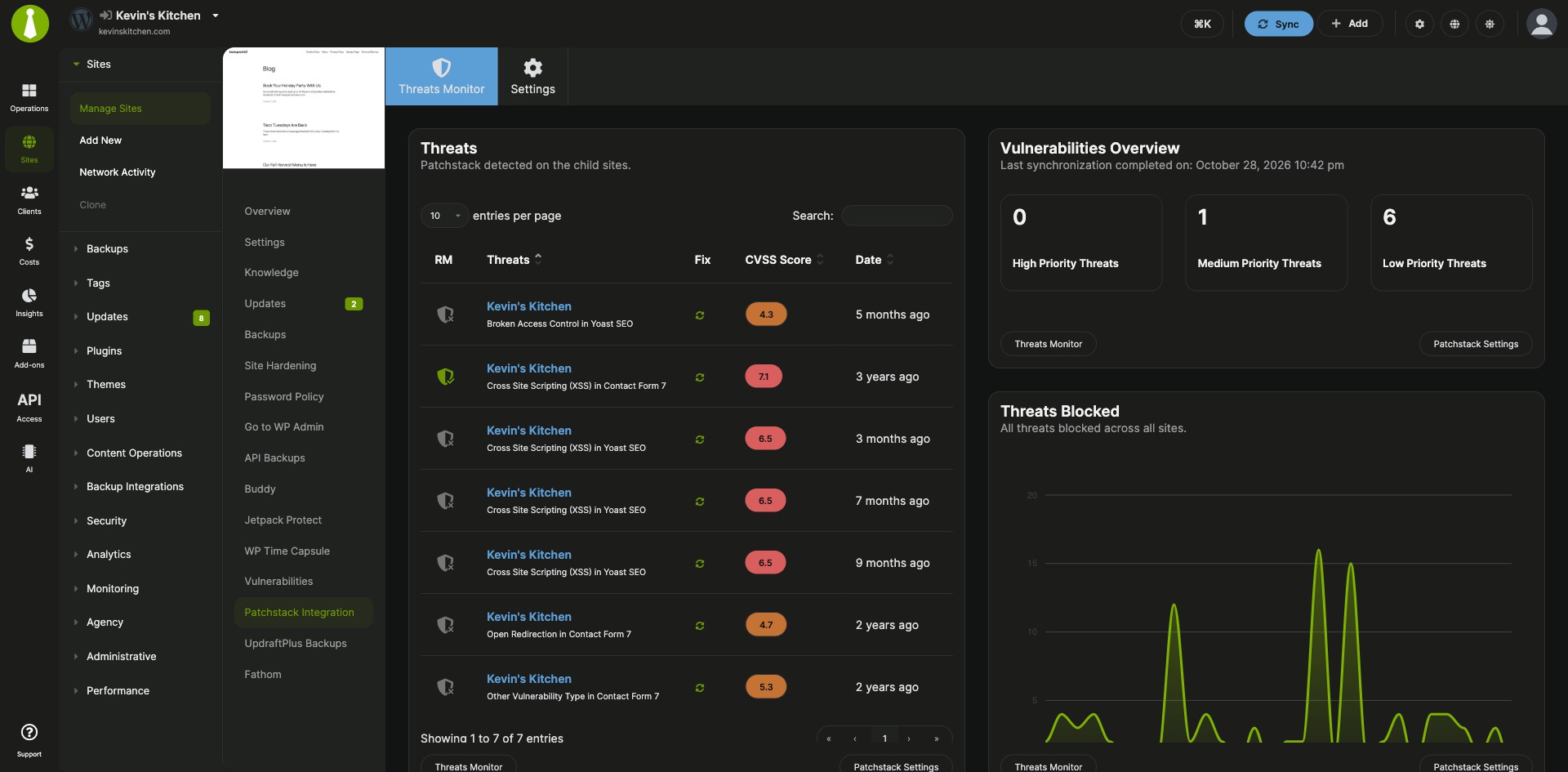


Patchstack firewall protection and threat data for client sites
The Patchstack Integration is a free MainWP add-on that lets you turn on Patchstack firewall protection for the child sites you pick and track their vulnerabilities and blocked attacks from your MainWP Dashboard. Once it’s connected to your Patchstack account, each protected site’s firewall status and outdated components sit next to its threat data.
Per-site firewall setup, handled in bulk
Protecting a client site with Patchstack by hand means installing the Patchstack Security plugin on it, registering it in your Patchstack account, and checking Patchstack’s own dashboard for its threats. The Patchstack Integration does that from MainWP: you select the sites, and it registers each one, installs and activates the plugin, and pulls the security data back into your Dashboard next to the rest of your maintenance work.
Features
The Patchstack Integration handles protection, monitoring and reporting for the sites you add to Patchstack.
| Feature | What it means for you |
|---|---|
| Protect sites in bulk | Pick child sites and click Protect With Patchstack. The integration registers each site with Patchstack, installs and activates the Patchstack plugin, activates the license, and syncs the data. A confirmation shows how many sites you’re adding against your plan allowance. |
| Overview table and status | See each protected site’s firewall status, a 7-day attack sparkline, total vulnerabilities, outdated components and time since last sync. Search by name or URL and sort by attacks, vulnerabilities, updates or last sync. Green means the firewall is active, yellow means the firewall or plugin needs to be installed or turned on, and red means the plugin is deactivated. |
| Threats tab | Review vulnerabilities with mitigation status, fix availability, CVSS score, dates and links, plus high, medium and low priority counts and a chart of attacks blocked over time. |
| Dashboard widgets | Add the Patchstack Security Status widget to the MainWP Overview or a site’s dashboard, and open a child site’s Patchstack Integration page for its own Threats Monitor data. |
| Row and bulk actions | Update the Patchstack plugin, sync API data or remove sites individually or in bulk. Hide or unhide the plugin from an individual site’s row menu. |
| Sync schedule, alerts and overrides | Sync Patchstack data daily, weekly or monthly, get email alerts when Patchstack finds new vulnerabilities, and give specific sites their own API key, schedule or notification settings. |
| Pro Reports data | Include Patchstack stats in client reports with Pro Reports, using tokens such as [ps.vulnerable_high_sum], [ps.vulnerable_medium_sum], [ps.vulnerable_low_sum], [ps.chart] and [ps.vulnerabilities]. |
Requirements
The Patchstack Integration is free in MainWP and connects to a paid Patchstack account.
| Item | Requirement |
|---|---|
| License | Free, included in MainWP Essentials and MainWP Pro |
| Patchstack account | A Patchstack Developer plan or higher with API access. Patchstack is a separate paid service. |
| Plan allowance | The number of sites included in your Patchstack plan, entered in the integration’s settings |
| MainWP Dashboard | Connected to your child sites, with the MainWP Child plugin active on each one |
| WordPress | WordPress 6.7 or later on your Dashboard site |
| Network access | Outbound HTTPS from your Dashboard server to https://api.patchstack.com/monitor |
| Child sites | Publicly accessible websites |
Setup: connect your account, protect your sites
Setting up the Patchstack Integration takes two passes: connecting your Patchstack account once, then protecting the child sites you choose.
Connect your Patchstack account
- Go to Sites > Security > Patchstack Integration > Settings.
- Paste your API key from Patchstack > Settings > Integrations into the Patchstack API key field.
- Enter the number of sites in your Patchstack plan under Plan allowance (sites), or 0 to treat it as unlimited.
- Choose a Patchstack API sync frequency and, if you want alerts, turn on Email notifications.
- Click Save Settings. Saving a new key clears earlier site bindings, so sync again right after.
Protect your child sites
- On the Overview tab of Sites > Security > Patchstack Integration, click Add Sites to Patchstack.
- Choose the child sites and click Protect With Patchstack.
- Review the number of sites and the totals against your plan allowance, then confirm to continue.
- Close the window once every row shows a green check. Run this again when you add new child sites.
Full instructions, including widgets, sync options and settings: Patchstack Integration documentation.
Where the firewall runs and how data syncs
The Patchstack Integration runs on your MainWP Dashboard and connects to your Patchstack account through the Patchstack API. The Patchstack firewall runs on each child site through the Patchstack Security plugin, which the integration installs when you protect the site. Data syncs on the schedule you choose, through WP Cron or another scheduler, and you can sync all sites or a single site at any time.
Patchstack FAQ
What do I need to pay for?
The Patchstack Integration is free, included in MainWP Essentials and MainWP Pro, and it needs a Patchstack Developer plan or higher with API access, which Patchstack sells separately. Adding sites beyond your plan allowance may increase your Patchstack bill, so before any site is added, MainWP shows how many sites you’re adding and the resulting total against the Plan allowance (sites) value in Settings. MainWP asks you to save that allowance before it continues.
What happens when I protect a child site with Patchstack?
The Patchstack Integration registers the site with Patchstack, installs and activates the Patchstack plugin on the child site, activates the Patchstack license, syncs the data, and refreshes the dashboard. After that, the site’s protection and threat data show up in MainWP.
How often does Patchstack data sync to MainWP?
Patchstack data syncs daily, weekly or monthly, depending on the Patchstack API sync frequency you choose in Settings. To sync right away, click Sync Patchstack Data for all linked sites, or use Sync API Data in a site’s row menu.
What does the Patchstack Integration send to Patchstack?
When you protect sites, the Patchstack Integration sends their URLs to the Patchstack API at api.patchstack.com/monitor to register them with your account. It then pulls each site’s vulnerability and attack data back and stores it in your MainWP Dashboard. See the Patchstack privacy policy for how Patchstack handles your data.
Where do I get support?
The Patchstack team handles issues with Patchstack and its Security plugin. See patchstack.com. MainWP support handles issues with the integration.