
MainWP Time Tracker Extension
Charge timed client work to buckets of hours with an hourly rate and track each task’s payment status.

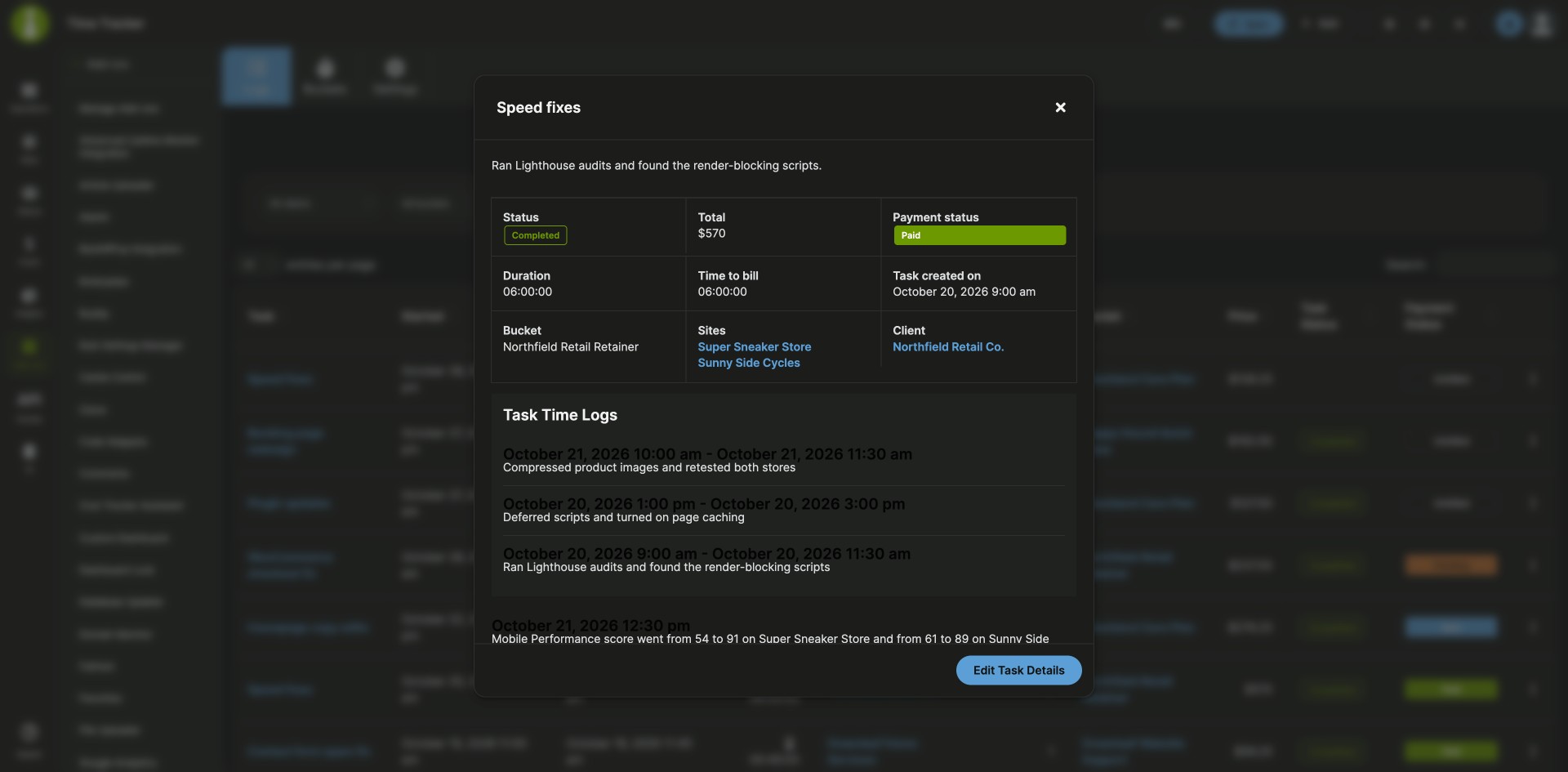

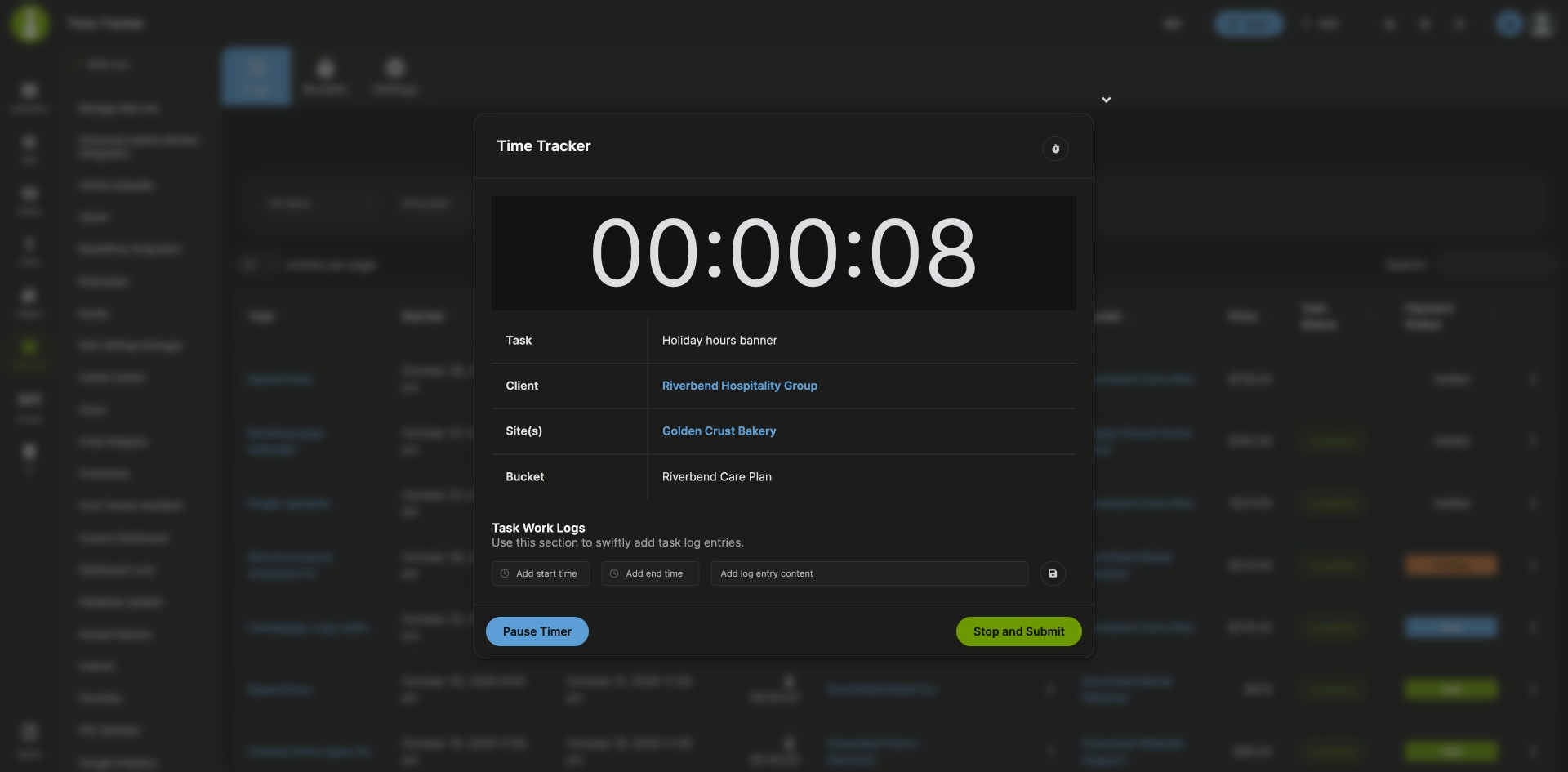


A billable-hours timer next to your client and site records
The MainWP Time Tracker Extension is a Pro MainWP add-on that times the work you do for clients and ties each task to a client, its sites and a bucket of hours with an assigned hourly rate. It works with the MainWP Clients feature, so time, rates and payment status sit in the same Dashboard you use to manage the sites.
Logging client hours in a separate app
Client hours logged in a separate timer app or spreadsheet have to be matched to the right client, site and rate when you bill. The MainWP Time Tracker Extension starts the timer from your MainWP Dashboard header, charges it against the client’s bucket, and tracks each task’s payment status in one log, so each entry already sits with its client.
Features
The MainWP Time Tracker Extension covers the full billing loop: buckets of hours, a timer, a task log with payment statuses, and report tokens.
| Feature | What it means for you |
|---|---|
| Buckets | Create pools of hours with an hourly price for each service you sell and assign them to clients. The Buckets page shows hours, recurrence and pricing, with detailed usage for each bucket. |
| Timer in your MainWP Dashboard header | Click the stopwatch icon, select New Task, pick the client, sites and bucket, and start the timer. Close the window and keep working while it runs. |
| Count up or down, with rounding | Count up from 0, or count down from the time left in the selected bucket. Round entries to the nearest interval, up or down, by the value you choose. |
| Global or per-client settings | Set the default timer mode, currency symbol and position, separators and decimal places once, and adjust settings for individual clients. |
| Task log with payment statuses | Review, edit and delete tasks on the Time Tracker Logs page. Each task carries a Task status and a Payment status such as Unbilled, Sent, Paid, Partially Paid or Overdue. |
| Widgets and Tasks column | Widgets on the individual site and client overview pages list that site’s or client’s tasks. A Tasks column in the Manage Sites and Manage Clients tables shows in-progress and completed task counts. |
| Pro Reports tokens | Add tracked tasks to client reports with the [section.timetracker.tasks] section and tokens such as [timetracker.task.title], [timetracker.task.duration], [timetracker.task.total.price] and [timetracker.task.payment.status]. |
| MainWP Browser Extension and REST API | Track time from your browser with the MainWP Browser Extension, which connects through the Time Tracker REST API. The routes sit under wp-json/mainwp/v1/time-tracker/ and wp-json/mainwp/v2/time-tracker/. |
Requirements
The MainWP Time Tracker Extension is installed on your MainWP Dashboard and builds on its Clients feature, where tasks, buckets and settings are stored.
| Item | Requirement |
|---|---|
| License | MainWP Pro |
| MainWP Dashboard | The MainWP Clients feature, which the extension uses to link tasks and buckets to clients |
| Child sites | Nothing to install. Tasks, buckets and settings are stored on your Dashboard. |
| Third-party plugins or APIs | None |
| Browser and API use (optional) | The MainWP REST API enabled, for the version 1 routes and the MainWP Browser Extension |
| Report tokens (optional) | Pro Reports, also part of MainWP Pro |
Setup: buckets, timer settings and your first task
The MainWP Time Tracker Extension needs a bucket and your billing settings before the first timer runs.
Create a bucket
- Go to Add-ons > Time Tracker > Buckets and click Create Bucket.
- Enter the bucket title, description and the number of hours in the bucket.
- Select the clients to associate with the bucket.
- Enter the hourly price as a number. The currency comes from the settings.
- Click Save Bucket.
Choose your timer and billing settings
- Go to Add-ons > Time Tracker > Settings.
- Set the Default timer mode to Count Up or Count Down.
- Set the currency symbol, its position, the thousand and decimal separators and the decimal places.
- To round time entries, enable Time rounding and choose the Rounding interval and Rounding value.
Track a task
- Click the stopwatch icon in the header actions and select New Task.
- Select the client, sites if applicable and bucket, and enter the task details.
- Choose Counting Up or Counting Down and start the timer.
- To finish, open the Time Tracker Logs page, select Continue from the task’s ellipsis menu, then select Stop and Submit.
Full instructions for buckets, tasks, payment statuses and the REST API: MainWP Time Tracker Extension documentation.
Time Tracker FAQ
How do I stop a timer after I close the Time Tracker window?
In the MainWP Time Tracker Extension, open the Time Tracker Logs page, find the running task, and select Continue from its ellipsis menu. In the window that opens, select Stop and Submit.
Can I include tracked time in client reports?
Yes, the MainWP Time Tracker Extension adds tracked time to client reports through Pro Reports, where the [section.timetracker.tasks] section lists the tasks for a site in the report’s date range, with tokens for each task’s title, duration, hourly price, total price and payment status.
Can I track time from the MainWP Browser Extension?
Yes, the MainWP Time Tracker Extension works with the MainWP Browser Extension, so you can track time from your browser while your MainWP Dashboard stays closed. The two connect through the Time Tracker REST API.