

WPvivid Backup for MainWP
Run and schedule WPvivid backups on every child site and push WPvivid settings to the sites you pick.


Run and schedule WPvivid backups for all your child sites from your MainWP Dashboard
WPvivid Backup for MainWP is a free MainWP add-on that lets you start, schedule and check WPvivid backups on all your child sites from one place. It also syncs WPvivid backup settings to the child sites you choose, so you set them once on your MainWP Dashboard.
What WPvivid Backup for MainWP replaces
WPvivid Backup runs on each child site with its own schedules and settings. Without the add-on, you log in to every site to start a backup, change a schedule or check whether the last backup worked. With WPvivid Backup for MainWP, you do that for all your sites from your MainWP Dashboard.
WPvivid Backup for MainWP features
| Feature | What it means for you |
|---|---|
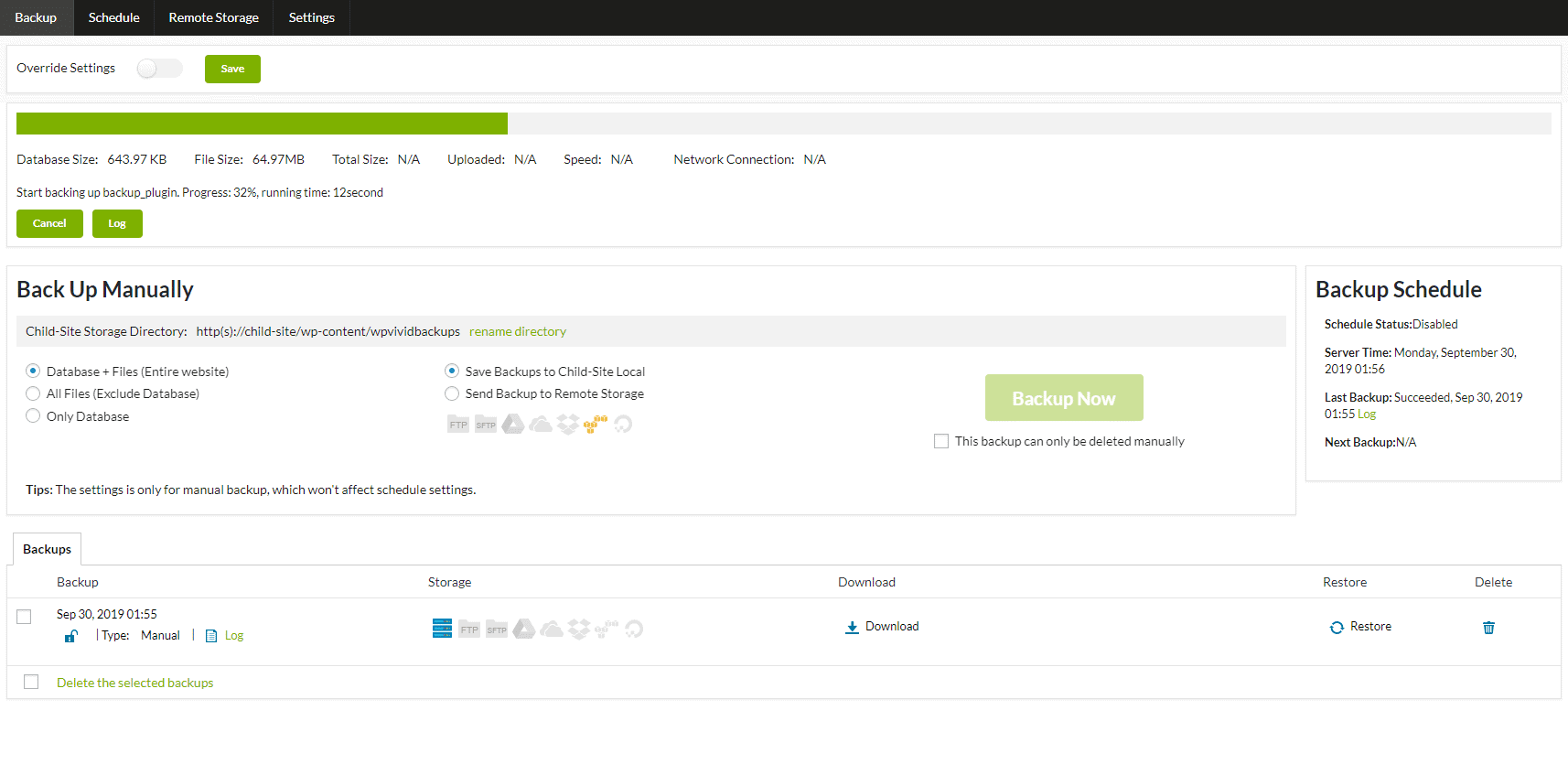
| Backup Now from MainWP | Start a backup for a child site from MainWP > WPvivid Backup. Choose Full Backup, Files Only or Database Only, pick localhost or cloud storage, and watch the task status in MainWP. |
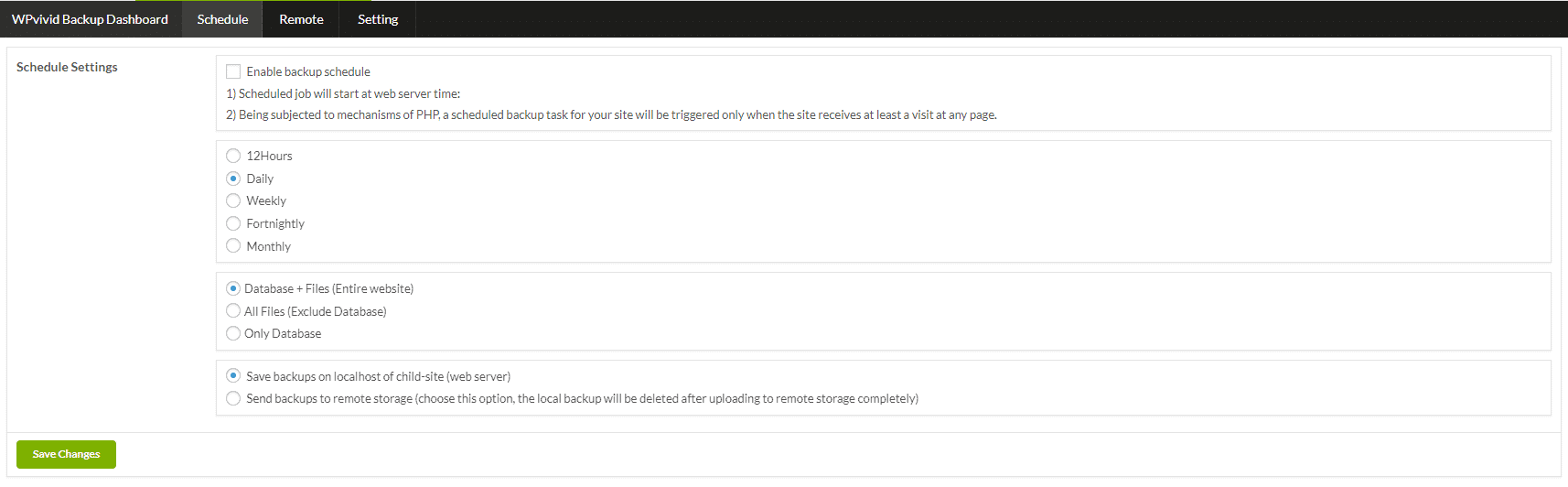
| Central backup schedules | Create schedules that run every 12 hours, daily, weekly, fortnightly or monthly, with their own backup type and destination, and sync them to the child sites you select. |
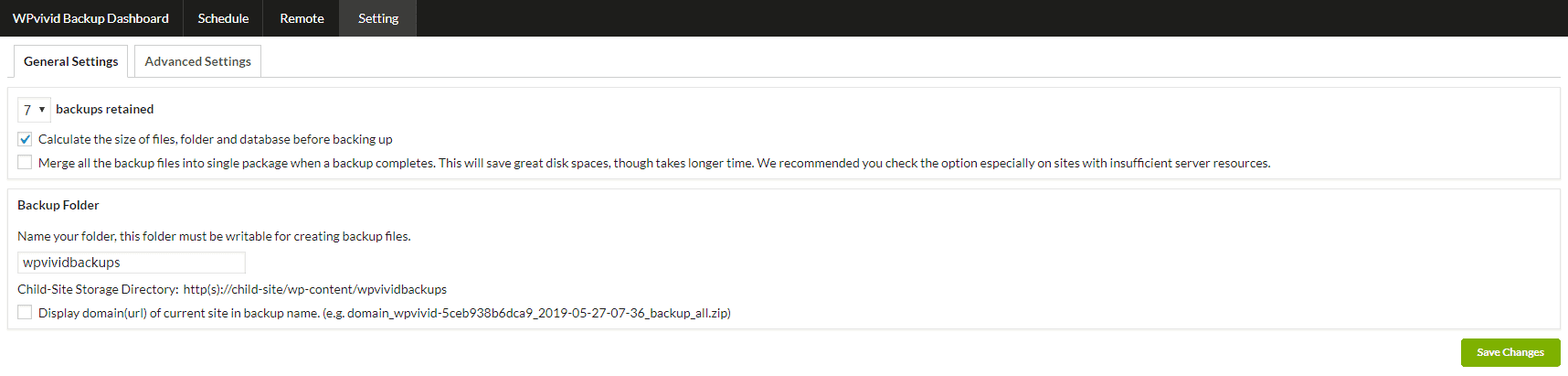
| Settings synced across sites | Set WPvivid’s General and Advanced backup settings once and apply them to the child sites you choose. Version 0.9.40 added Auto Delete Logs, Large Database and Uploads modes, and Backup Performance presets. |
| Remote storage | The add-on includes all of WPvivid’s remote storage providers, with WebDav and NextCloud added in version 0.9.32. |
| Backup monitoring | See each child site’s last 10 backup tasks with time and status, the installed WPvivid version, and a Backup Now button. |
| WPvivid Backup Pro on child sites | Log in to your WPvivid Backup Pro account in the add-on to install, claim and update WPvivid Backup Pro on child sites in bulk. |
| Rollback, staging, email reports and white label | Configure rollback settings and the rollback backup location, install the staging add-on, set backup email reports, and sync white label settings to your child sites. |
| Backups in client reports | Since version 0.9.26, the add-on supports MainWP client reports. With the Pro Reports Extension, reports can include a Backups section while WPvivid Backup for MainWP is active on your Dashboard. |
WPvivid Backup for MainWP requirements
| Item | Requirement |
|---|---|
| License | Free (partner add-on) |
| MainWP Dashboard | WPvivid Backup for MainWP installed and activated on your Dashboard site |
| Child sites | The MainWP Child plugin, and the free WPvivid Backup & Migration plugin installed and activated on each child site |
| WPvivid Backup Pro (optional) | Some advanced features, such as centralized cloud storage management, may need WPvivid Backup Pro |
| Pro Reports (optional) | The Pro Reports Extension, to add backups to client reports |
How to set up WPvivid Backup for MainWP
Install WPvivid Backup on your child sites
- On each child site, go to Plugins > Add New.
- Search for the WPvivid Backup plugin, then install and activate it.
Install the add-on on your Dashboard
- On your MainWP Dashboard site, go to Plugins > Add New and search for WPvivid Backup for MainWP.
- Install and activate it. WPvivid then appears in your MainWP add-on list.
- Sync your sites in MainWP so your Dashboard detects WPvivid on your child sites.
Run a backup and sync settings
- Go to MainWP > WPvivid Backup and click Backup Now for a child site.
- Select the backup type and destination, then click Backup Now.
- To apply the same settings to several sites, go to MainWP > WPvivid Backup > Settings, adjust the General and Advanced settings, click Save Changes and Sync, and select the target child sites.
Full instructions from the developer: Using the WPvivid MainWP extension.
How WPvivid Backup for MainWP works
WPvivid Backup for MainWP runs on your MainWP Dashboard and sends backup commands to the WPvivid Backup plugin on each child site. The backups run on the child site’s server, so their speed depends on that site’s hosting. Restores also run on the child site, and MainWP takes you to the right page to start one. MainWP also has integrations for BackWPup, UpdraftPlus, Solid Backups and WP Time Capsule.
WPvivid Backup for MainWP FAQ
Do I need WPvivid Backup on each child site?
Yes, each child site needs the free WPvivid Backup & Migration plugin installed and activated, along with the MainWP Child plugin. WPvivid Backup for MainWP goes on your Dashboard site.
How do I restore a WPvivid backup from MainWP?
Restores run on the child site, and MainWP sends you there. Go to MainWP > WPvivid Backup, click Backup Now for the site, find the backup on the child site’s backup page, and click Restore. A restore overwrites the site’s current data, so check the backup version first.
Is WPvivid Backup for MainWP free?
WPvivid Backup for MainWP is free, and it works with the free WPvivid Backup & Migration plugin on your child sites. Some advanced features, such as centralized cloud storage management, may need WPvivid Backup Pro. If you have a WPvivid Backup Pro account, you can install, claim and update it on your child sites in bulk from the add-on.
WPvivid doesn’t show up in MainWP or backups don’t sync. What should I check?
Run a full MainWP site sync first. Then check that your Dashboard can reach the child sites, and that WPvivid and the MainWP plugins are updated to their latest versions.
Where do I get support?
WPvivid, the developer, supports this add-on. Contact WPvivid support with the errors and logs you see, or post in the support forum on the add-on’s WordPress.org page. MainWP’s support policy for third-party add-ons explains how support works for add-ons that other developers build.