

Easy Plugin Manager
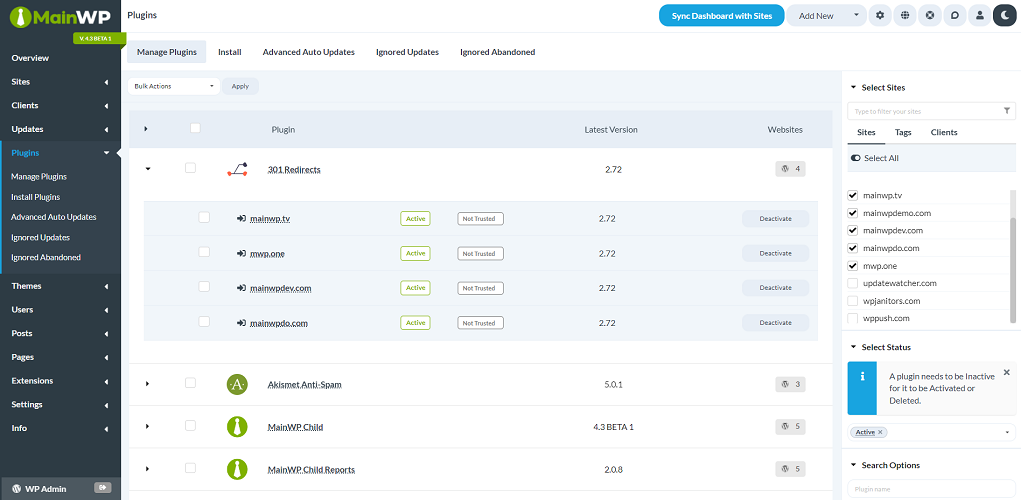
Easy WordPress Plugin Manager
- Manage Plugins in Bulk or Individually
- Check for Abandoned Plugins
- Auto Update WordPress Plugins
- Group Frequently Used Plugins
- Deactivate & Delete Plugins
- Install & Activate Plugins
Manage Plugins in Bulk or Individually
Controlling WordPress plugins at the same time is one of the key features of MainWP, as it allows you to manage all plugins across your Child Sites from one place.
So, stop wasting time updating your plugins manually on each WordPress site separately.

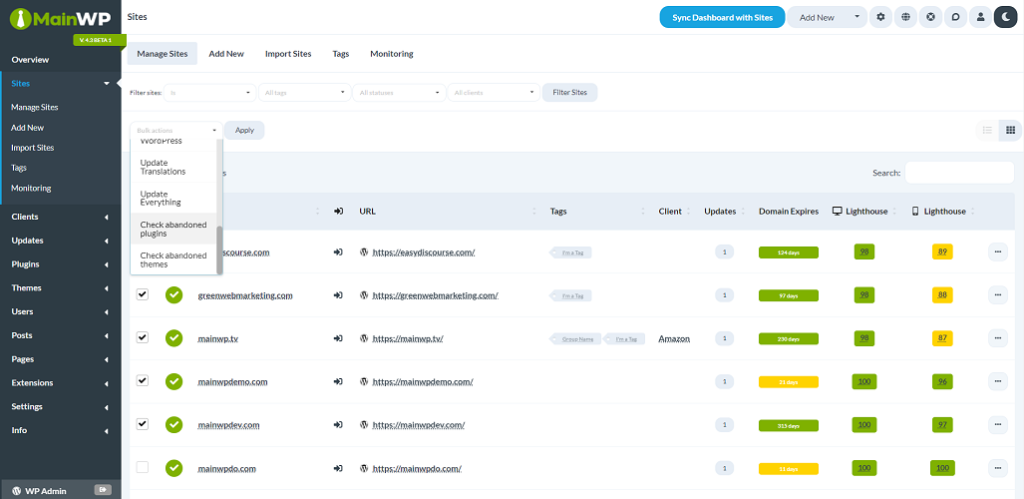
Auto-check for Abandoned Plugins
It checks the last updated status of plugins and alerts you if they are not updated in a specific amount of time. This gives you insight into if the author may have abandoned a plugin.
By default, MainWP Dashboard checks for possibly abandoned plugins and themes once per day.
Group Frequently Used Plugins
The quickest and easiest way to bulk install your frequently used plugins to another Child Site is to create a group of favorite plugins, and pull them on a Child Site(s).
So, no more searching or trying to remember the name of all the plugins that you use regularly!

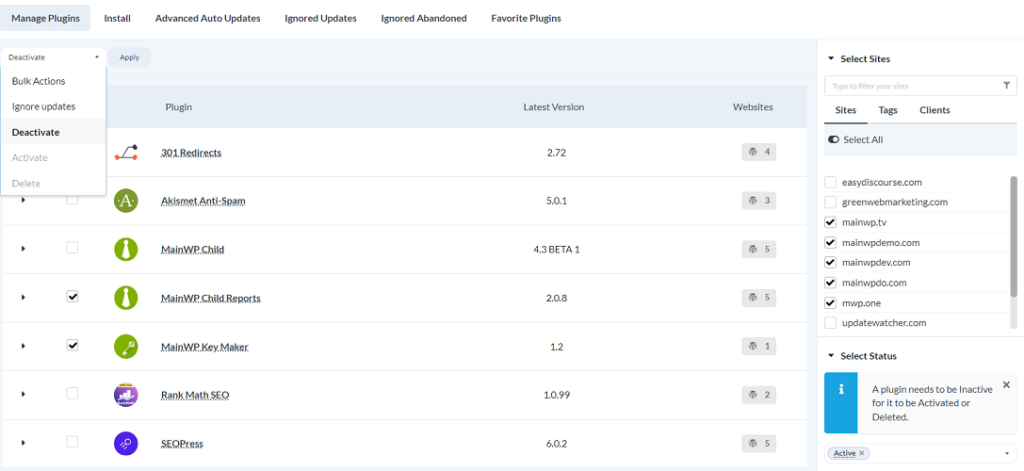
Deactivate & Delete Plugins
With the easy plugin manager by MainWP, you can deactivate plugins on each website or search for a plugin on selected Child Sites, then deactivate it in just a click.
Once deactivated, you can easily delete plugins in bulk or individually on selected Child Sites.
Install & Activate Plugins
Bulk installing and activating plugins is one of the essential features of MainWP. Search from the repository, upload a zip file, or install from your favorite plugin’s directory.
In just a few seconds, you can install a WordPress plugin on one, a few, or all of your connected Child Sites.
