
MainWP Advanced Uptime Monitor Integration
Add an uptime monitor to every client site in one click, then check each site’s uptime from your MainWP Dashboard. Works with your Uptime Robot, Better Uptime, NodePing or Site24x7 account.


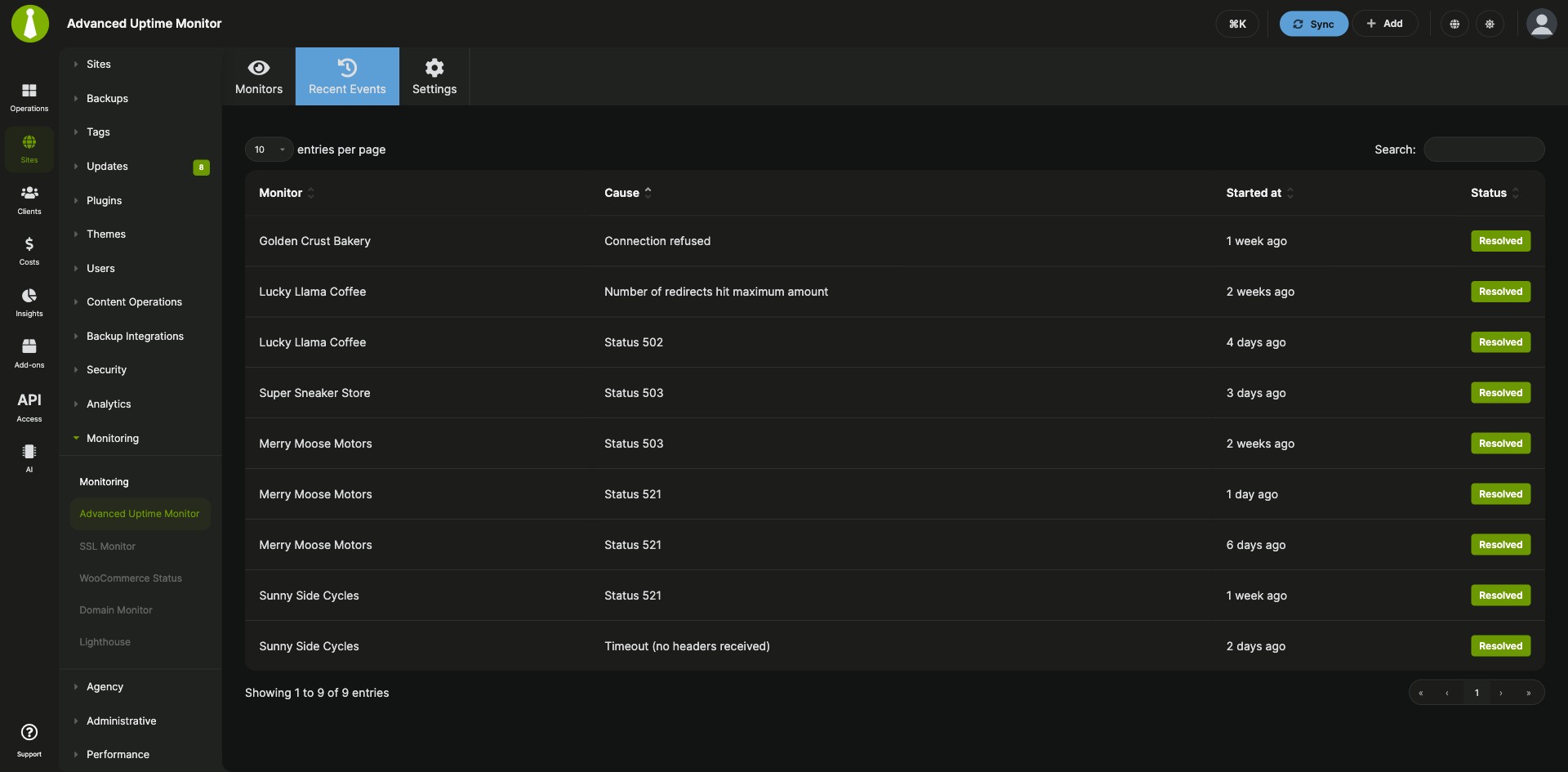


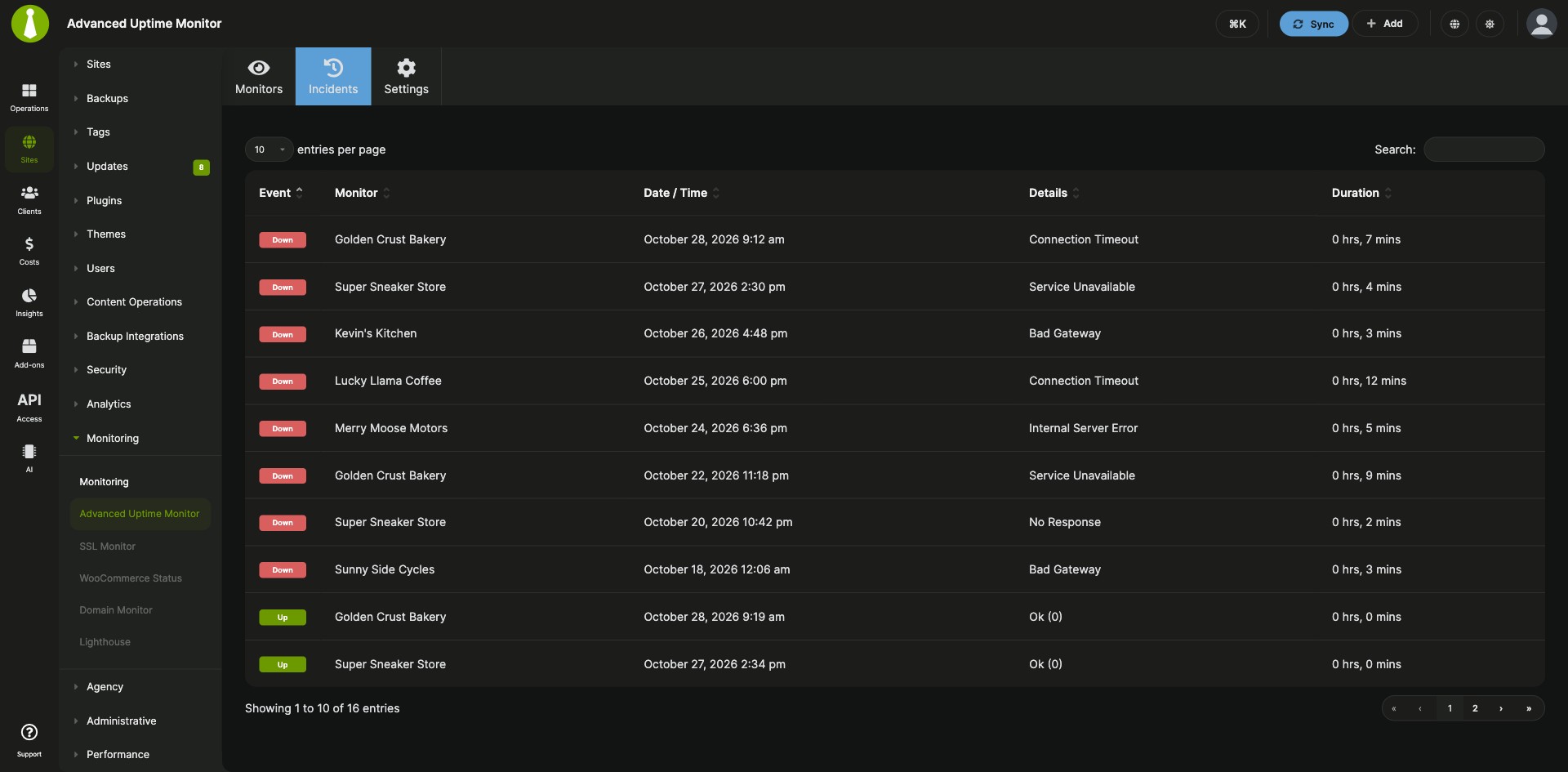
Add, pause and check uptime monitors without leaving MainWP
The MainWP Advanced Uptime Monitor Integration is a free MainWP add-on that lets you create and track uptime monitors for all your child sites from your MainWP Dashboard through Uptime Robot, Better Uptime, NodePing or Site24x7. One screen handles creating, editing, starting, pausing and deleting monitors, and shows each site’s uptime there instead of in the monitoring service’s dashboard.
Adding a monitor for each new client site
Each new client site means signing in to your monitoring service, adding a monitor by hand, and checking that site’s uptime in the service’s own dashboard. The MainWP Advanced Uptime Monitor Integration lets you manage your service’s monitors from your MainWP Dashboard. One click creates monitors for every child site that still needs one, and the monitors, their uptime and their statistics sit in your Dashboard.
Features
The MainWP Advanced Uptime Monitor Integration handles monitors, uptime figures, team access and client reporting for the service you connect.
| Feature | What it means for you |
|---|---|
| Four monitoring services | Connect Uptime Robot, Better Uptime, NodePing or Site24x7 from the Settings tab and manage that service’s monitors from MainWP. |
| Monitor management | Create, edit, start, pause and delete monitors from the Monitors tab. The Info action shows a monitor’s statistics. |
| Create Monitors for All Sites | Create monitors in one step for every child site that still needs one. |
| Monitor types and alerts | Monitor fields vary by service. For Uptime Robot, choose an HTTP(s), Keyword, Ping or TCP Ports monitor, set the friendly name, URL or IP and check interval in minutes, and pick who gets alerted, including Slack and other integrations set up in your Uptime Robot account. |
| Uptime ratios | The monitor list shows each Uptime Robot monitor’s uptime over the last 24 hours, kept current by an hourly background refresh. Reload Uptime Robot data fetches fresh figures on demand. |
| Recent incidents | For Uptime Robot and Better Uptime, see recent incidents across your sites in one list, with the cause and start time of each. |
| Uptime Robot key checks | The key is checked when you save it. If Uptime Robot rejects a key, your previous key stays in place. A read-only key lets you view monitors and statistics, with the editing controls turned off. |
| Team Control permissions | With the Team Control Extension, users in a restricted role see the monitors for the child sites their role allows. |
| Uptime data in Pro Reports | Show clients their site’s uptime for the last 7, 15, 30, 45 or 60 days with [aum.uptime7], [aum.uptime15], [aum.uptime30], [aum.uptime45], [aum.uptime60] and [aum.stats]. |
Requirements
The MainWP Advanced Uptime Monitor Integration works through an account and API credentials from one of the four supported services.
| Item | Requirement |
|---|---|
| License | Free, included in MainWP Essentials and MainWP Pro |
| MainWP Dashboard | The MainWP Dashboard plugin installed and activated on the site that runs the add-on |
| Monitoring service account | An account with Uptime Robot, Better Uptime, NodePing or Site24x7 |
| API credentials | Uptime Robot: the main API key. Better Uptime: the REST API token. NodePing: the API token. Site24x7: the data center, Client ID and Client Secret. |
| Child sites | Nothing to install. The integration works through your monitoring service’s API. |
| Scheduled refresh (Uptime Robot) | WP-Cron on your Dashboard site, or a server cron for the direct worker file if WP-Cron is disabled |
Setup: connect a service and create monitors
The MainWP Advanced Uptime Monitor Integration takes three steps: get your service’s credentials, connect it, and create the monitors.
Get your API credentials
- Uptime Robot: log in, open My Settings, scroll to API Information, click Create the main API key, then click the Create the main API key button.
- Better Uptime: log in, go to Integrations > APIs, and copy the REST API token.
- NodePing: have your NodePing API token ready.
- Site24x7: have your data center, Client ID and Client Secret ready.
Connect your monitoring service
- In your MainWP Dashboard, go to MainWP > Add-ons > Monitoring > Advanced Uptime Monitor and open the Settings tab.
- Select your monitoring service and enter its API key or credentials. For Site24x7, also complete the Administrator, Reports and Operations authorization steps.
- Click Save Settings. For Uptime Robot, select a Default alert contact after the account connects and click Save Settings again.
Create monitors for your child sites
- Open the Monitors tab.
- Click Create Monitors for All Sites to add a monitor for every child site that still needs one.
- To add a single monitor, click Create New Monitor and complete your service’s fields. For Uptime Robot, set the monitor type, friendly name, URL or IP, monitoring interval and alert contacts.
Full instructions for each service, monitor actions and API key permissions: MainWP Advanced Uptime Monitor Integration documentation.
Where the uptime checks run
The MainWP Advanced Uptime Monitor Integration runs on your MainWP Dashboard and talks to your monitoring service through its API. The service runs the uptime checks and sends the alerts, while MainWP shows the results and manages the monitors. For Uptime Robot, an hourly background job refreshes uptime figures and brings recent incidents into your Dashboard. To check sites from your MainWP Dashboard itself, with no service account, use the built-in MainWP Uptime Monitoring.
Advanced Uptime Monitor FAQ
Do I have to add a monitor for each client site by hand?
No. On the Monitors tab, Create Monitors for All Sites adds a monitor for every child site that doesn’t have one yet. When you take on new clients, click it again and it covers only the new sites.
Can I limit team members to the monitors for their own sites?
Yes, with the Team Control Extension, team members in a restricted role see the monitors for their allowed child sites. Each role’s Allowed Child Sites setting decides which monitors its users see. Monitors tied to no child site, such as IP-based ones, stay visible to everyone.
Where do I get support?
Each monitoring service’s team handles issues with its own service: Uptime Robot, Better Uptime, NodePing or Site24x7. MainWP support handles issues with the integration.