
WP Rocket Integration
Apply WP Rocket settings to your child sites, override them per site, and clear and preload their cache.




One set of WP Rocket settings for all your client sites
The WP Rocket Integration is a Pro MainWP add-on that lets you set WP Rocket options once for all your child sites and clear and preload their cache from your MainWP Dashboard. Where one site needs something different, you give it its own settings.
Per-site cache and settings work, done from one page
WP Rocket keeps its settings and cache on each site, so changing a file optimization option, turning on a CDN or clearing the cache after an update means logging in to every site. The WP Rocket Integration saves the settings once in MainWP for all your sites and runs cache actions on all of them from one page.
Features
The WP Rocket Integration gives you a site list, shared and per-site settings, and cache actions for every child site that runs WP Rocket.
| Feature | What it means for you |
|---|---|
| WP Rocket Dashboard | See every child site that has WP Rocket installed in one list, with a notice when the plugin has an update or is deactivated. From a site’s actions menu you can clear its cache, open WP Rocket on the child site, open the site in MainWP, hide or unhide WP Rocket, and update or activate the plugin. |
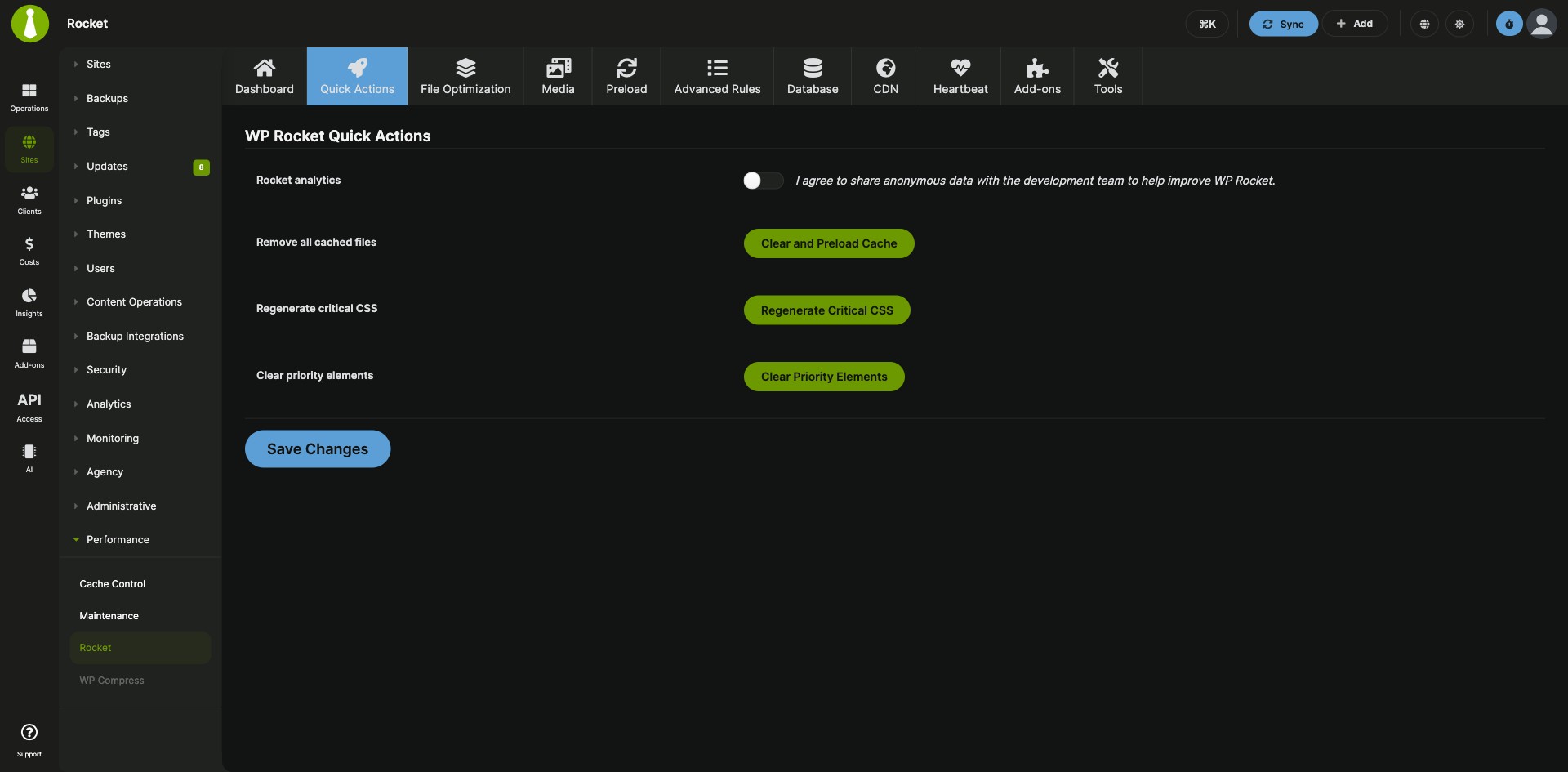
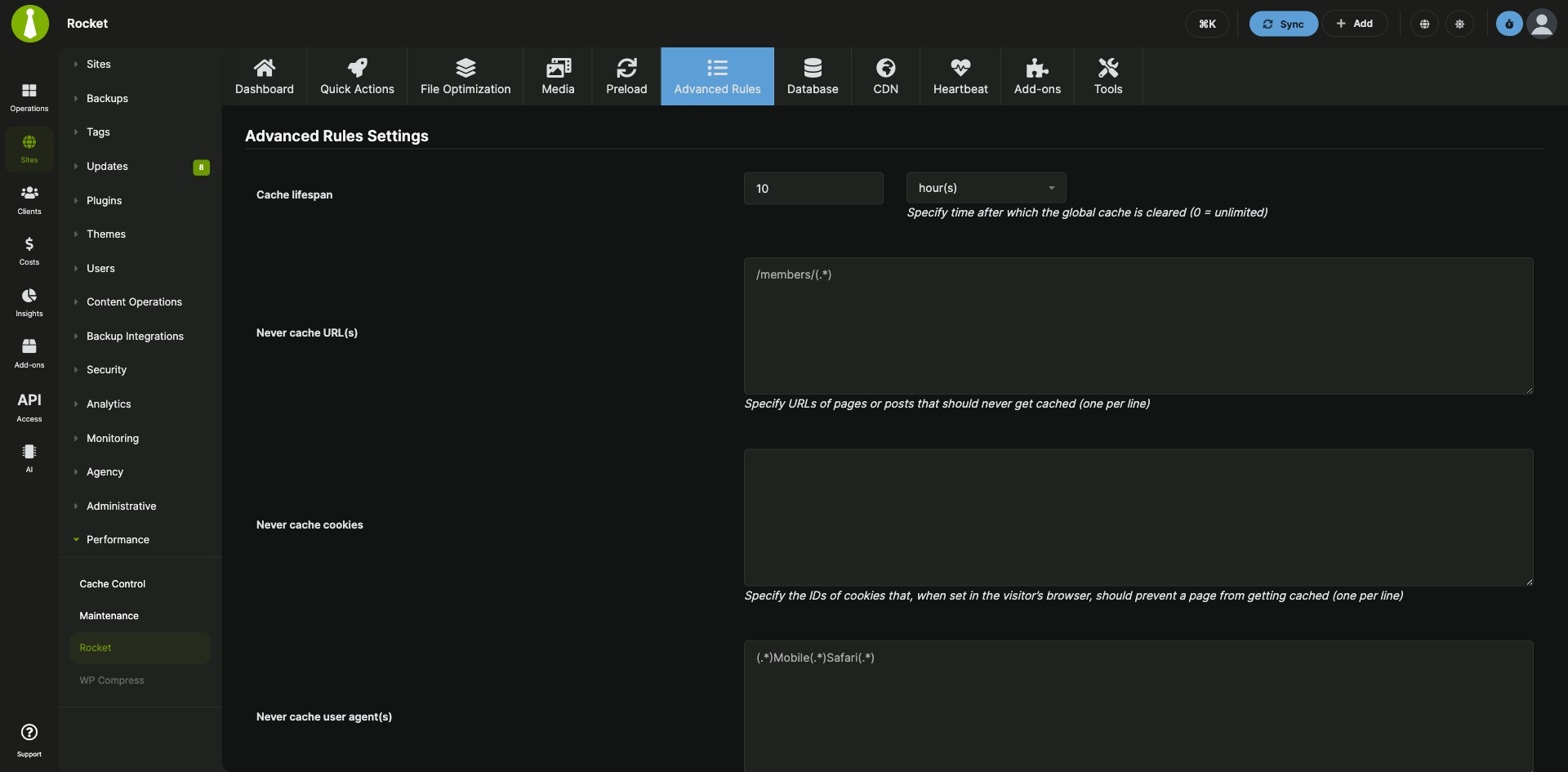
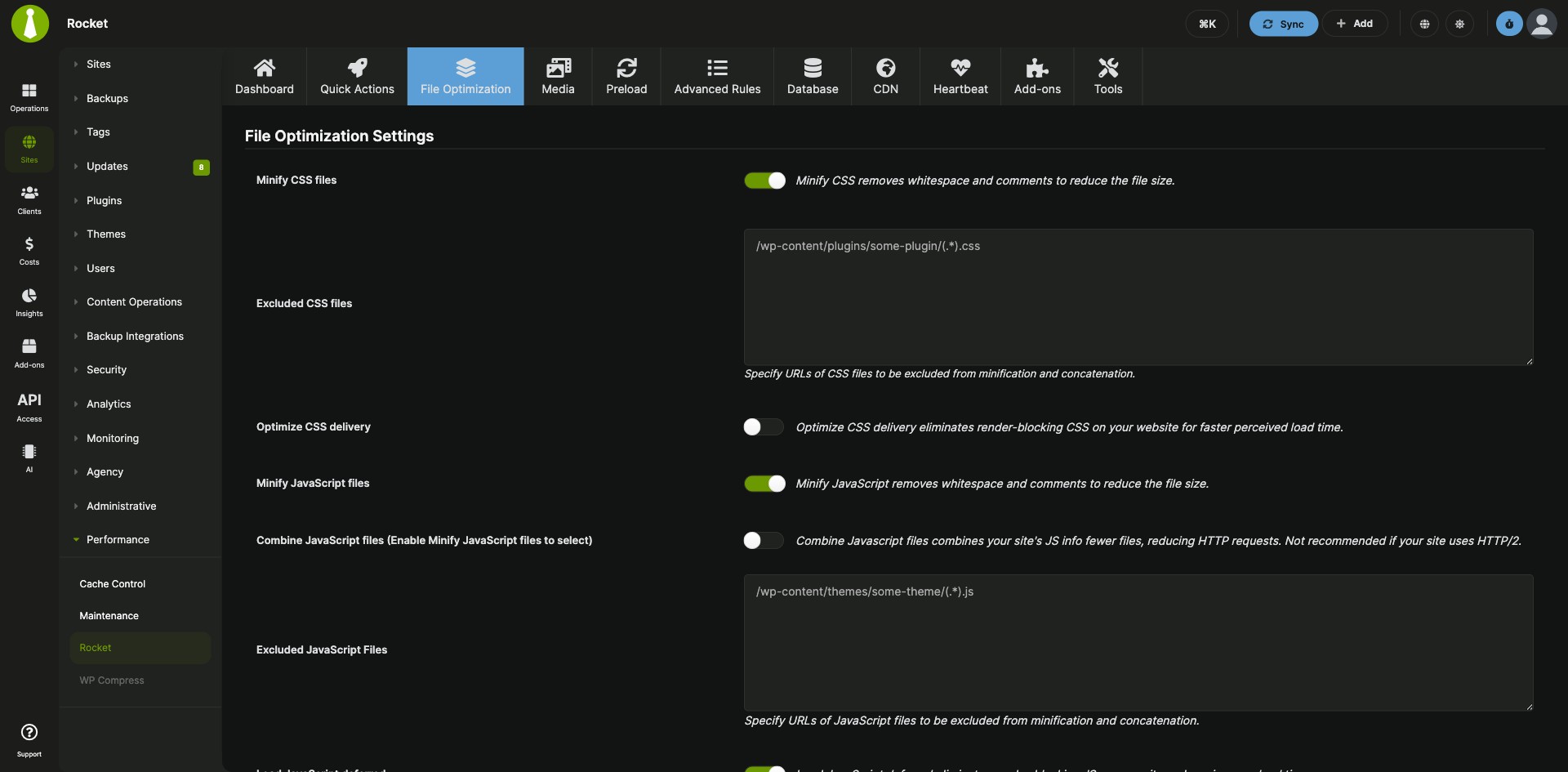
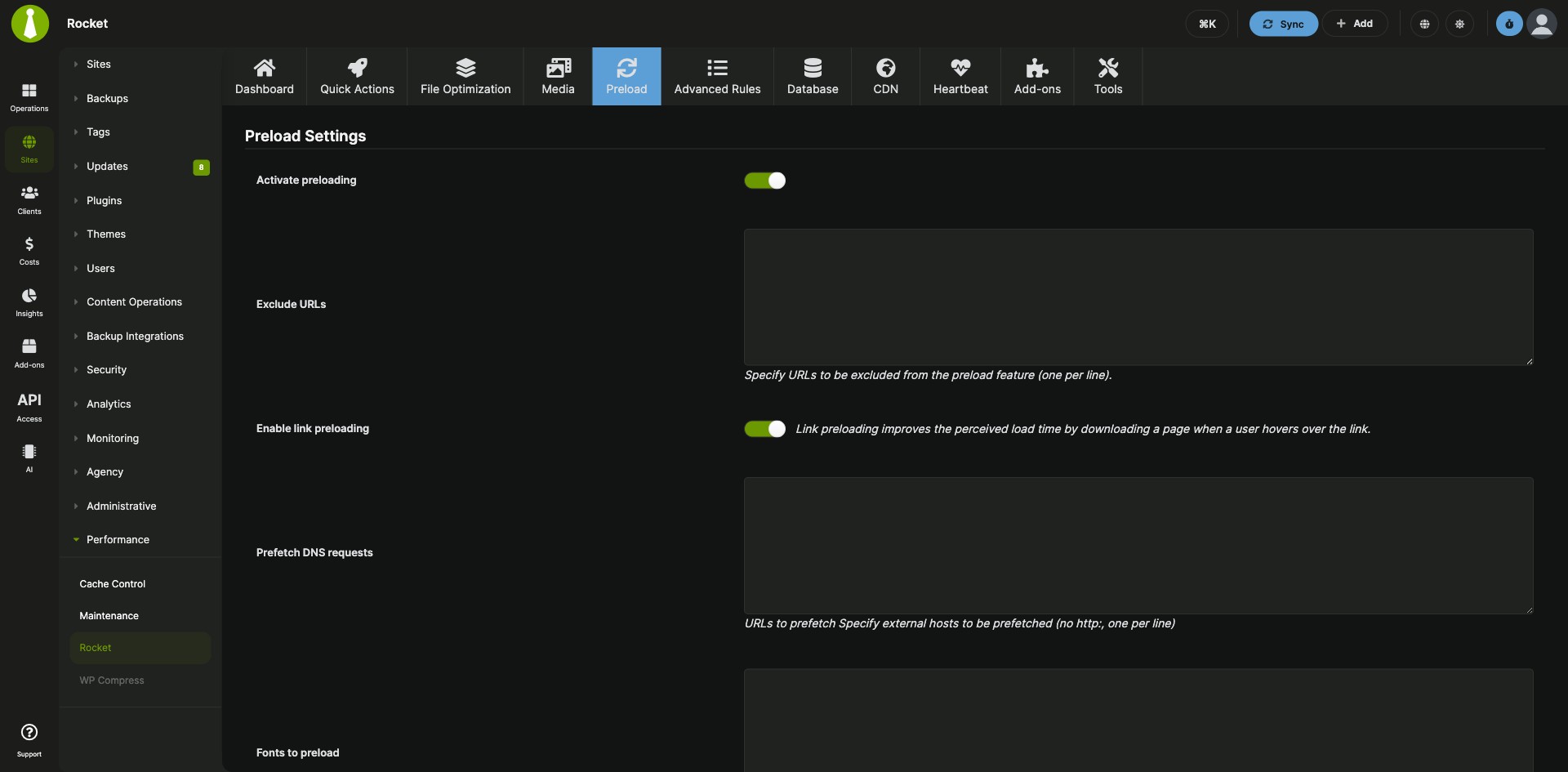
| WP Rocket settings for all sites | Manage the Quick Actions, File Optimization, Media, Preload, Advanced Rules, Database, CDN, Heartbeat, Add-ons and Tools settings once, and save them to all your sites. |
| Per-site overrides | Turn on Override general settings on a site’s WP Rocket tab to give that site its own WP Rocket settings. |
| Clear and Preload Cache | Clear and preload the cache on every child site that runs WP Rocket with one button. Since version 5.1, clearing and preloading are one action, matching the current WP Rocket workflow. |
| Critical CSS and priority elements | Regenerate critical CSS or clear priority elements on your child sites from the Quick Actions tab. |
| Performance options | Set page caching, cache preload, CSS delivery optimization, self-hosted Google Fonts, LazyLoad, JS and CSS minification, missing image dimensions, deferred JavaScript loading, delayed JavaScript execution with Safe Mode, CDN and DNS prefetching. |
| Inclusion and exclusion lists | Manage WP Rocket’s inclusion and exclusion lists from MainWP, added in version 5.1. |
Requirements
The WP Rocket Integration goes on your MainWP Dashboard, and the WP Rocket plugin goes on each child site you manage.
| Item | Requirement |
|---|---|
| License | MainWP Pro |
| MainWP Dashboard | The WP Rocket Integration installed on your Dashboard site |
| Child sites | The WP Rocket plugin installed and activated on each child site you want to manage |
Setup: install, save shared settings, override one site
Setting up the WP Rocket Integration means installing it and WP Rocket, then saving your shared settings and any per-site overrides.
Install the integration and the WP Rocket plugin
- Install the WP Rocket Integration on your MainWP Dashboard, the same way as any other MainWP add-on.
- In MainWP, go to Sites > Plugins > Install Plugins, click Upload Now, and upload the WP Rocket plugin.
- Select your child sites, make sure Activate after installation is enabled, and click Complete Installation.
- Sync your MainWP Dashboard so it detects the plugin.
Update WP Rocket settings on all your sites
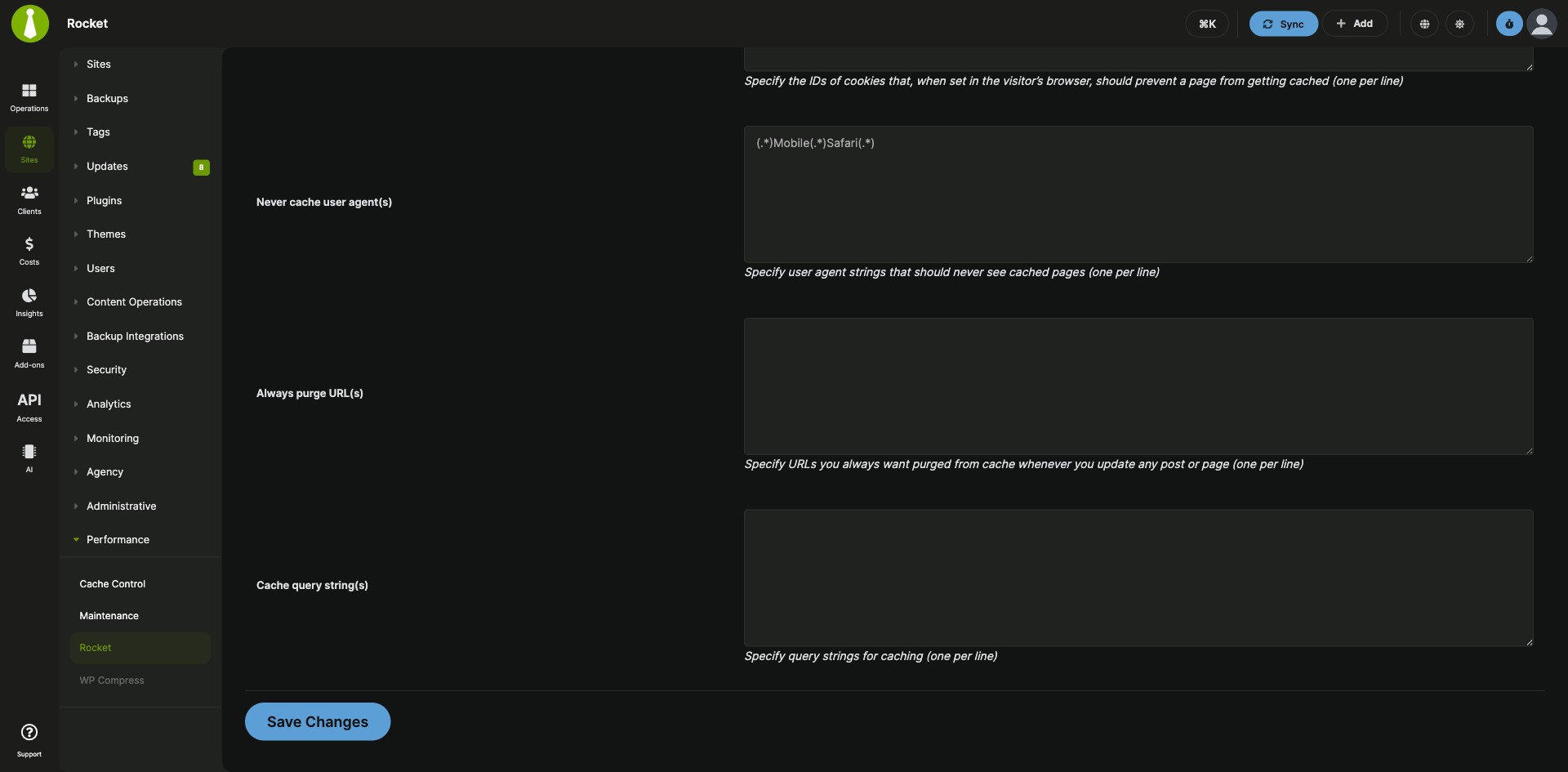
- Go to MainWP > Add-ons > Performance > Rocket.
- Find the options you want to change and set your preferences.
- Click Save Changes.
Update WP Rocket settings on one site
- Go to MainWP > Sites > Manage Sites, find the site, and click the Edit action under the Site column.
- Open the WP Rocket tab, enable Override general settings, and click Save.
- Set your preferences and click Save Changes at the bottom of the page.
Full instructions for the dashboard, settings and cache actions: WP Rocket Integration documentation.
What the integration changes on each site
The WP Rocket Integration runs on your MainWP Dashboard and manages the WP Rocket plugin on each child site. WP Rocket on the child site does the caching and optimization, and the integration changes its settings and starts its cache actions. As of version 5.1.5, the integration loads its scripts and styles just on the MainWP admin pages that use them. To purge WP Rocket’s cache automatically after MainWP updates core, themes or plugins, see the MainWP Cache Control Integration, which supports WP Rocket.
WP Rocket FAQ
Can one site use different WP Rocket settings from the rest?
One site can use its own WP Rocket settings when you enable Override general settings on its WP Rocket tab. Open the site’s edit screen from Sites > Manage Sites to find the tab. That site then keeps its own WP Rocket preferences.
How do I clear and preload the cache on all my child sites?
The WP Rocket Integration does it with one button: click Clear and Preload Cache on the Quick Actions tab of MainWP > Add-ons > Performance > Rocket. It clears and preloads the cache on every child site where WP Rocket is installed.
How do I get a child site onto the WP Rocket Dashboard list?
Sync your sites again. Your MainWP Dashboard learns that WP Rocket is installed and activated on a child site when that site syncs, and the site then shows in the WP Rocket Integration list.
Where do I get support?
The WP Rocket team handles issues with the WP Rocket plugin itself. See the WP Rocket documentation. MainWP support handles issues with the integration.