
MainWP Staging Extension
Test updates on WP Staging copies of your child sites before you run them on the live sites.


Create and refresh WP Staging copies of your child sites
The MainWP Staging Extension is a Pro MainWP add-on that works with the WP Staging plugin to create, update and delete staging copies of your child sites from your MainWP Dashboard. Every copy shows up in MainWP as a staging site, ready for testing updates before they reach the live site.
Staging copies, one site at a time
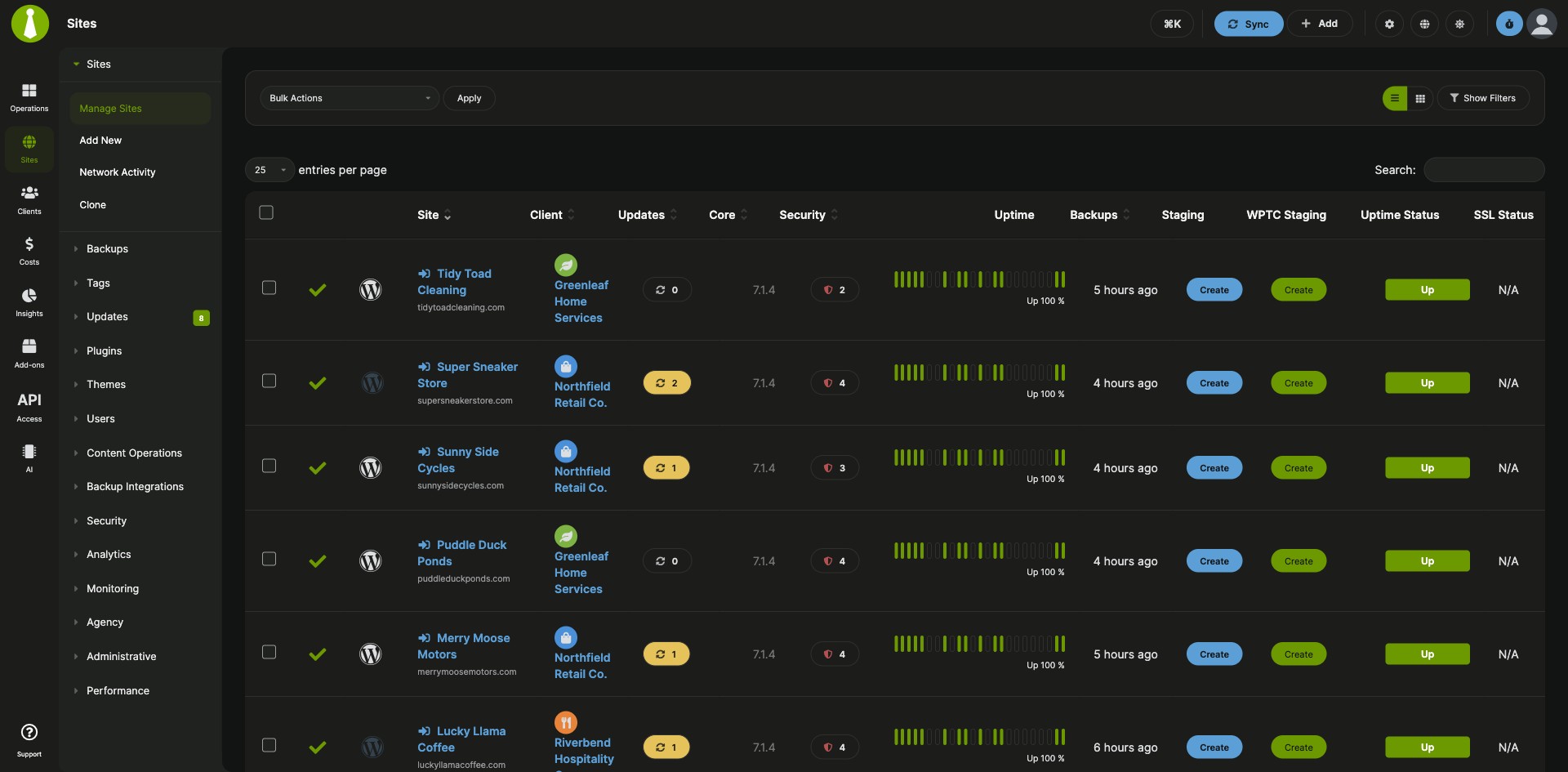
Building staging copies site by site means opening each child site and starting WP Staging there. The MainWP Staging Extension starts the copy from your MainWP Dashboard, adds it to MainWP as a staging site, and lets you send updates to your staging sites first from the Updates page.
Features
The MainWP Staging Extension handles the life of each staging copy, from creating and refreshing it to testing updates on it.
| Feature | What it means for you |
|---|---|
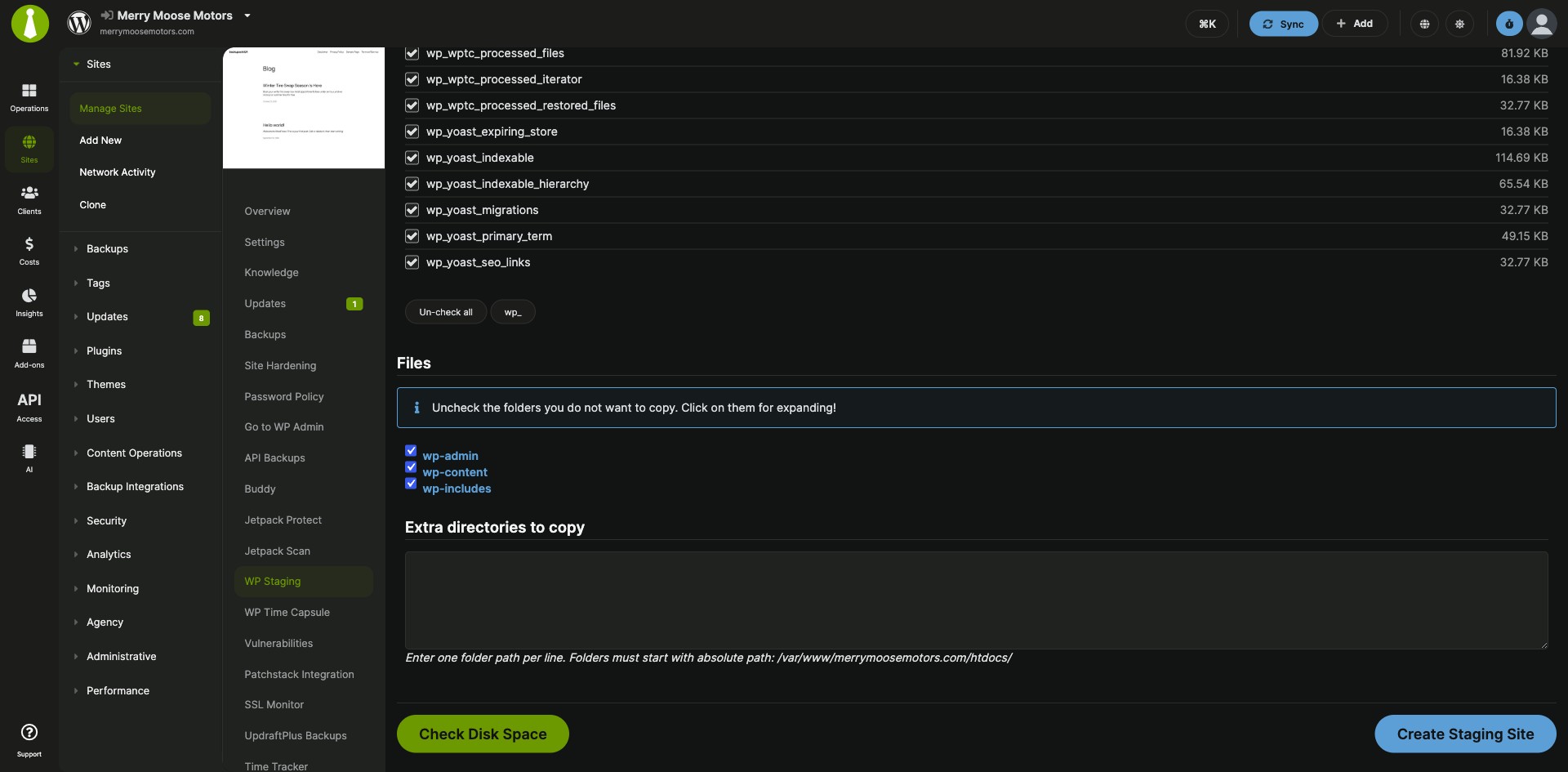
| Create staging sites | Start a staging copy of any child site from the Staging page. Name it and choose which database tables and files to include or exclude. |
| Staging sites in your Dashboard | MainWP adds each new staging URL to your Dashboard as a staging site and places it in the Staging Sites tag when that tag exists. |
| Update staging sites | Copy the selected database tables and files from the live site to its staging site again to refresh the copy. |
| Delete staging sites | Remove a staging site when you’re done with it from the child site’s Manage Staging Sites page. |
| Updates on staging first | Select Staging sites on the Updates page to run updates on staging sites first, then run them on production once you’ve checked the results. |
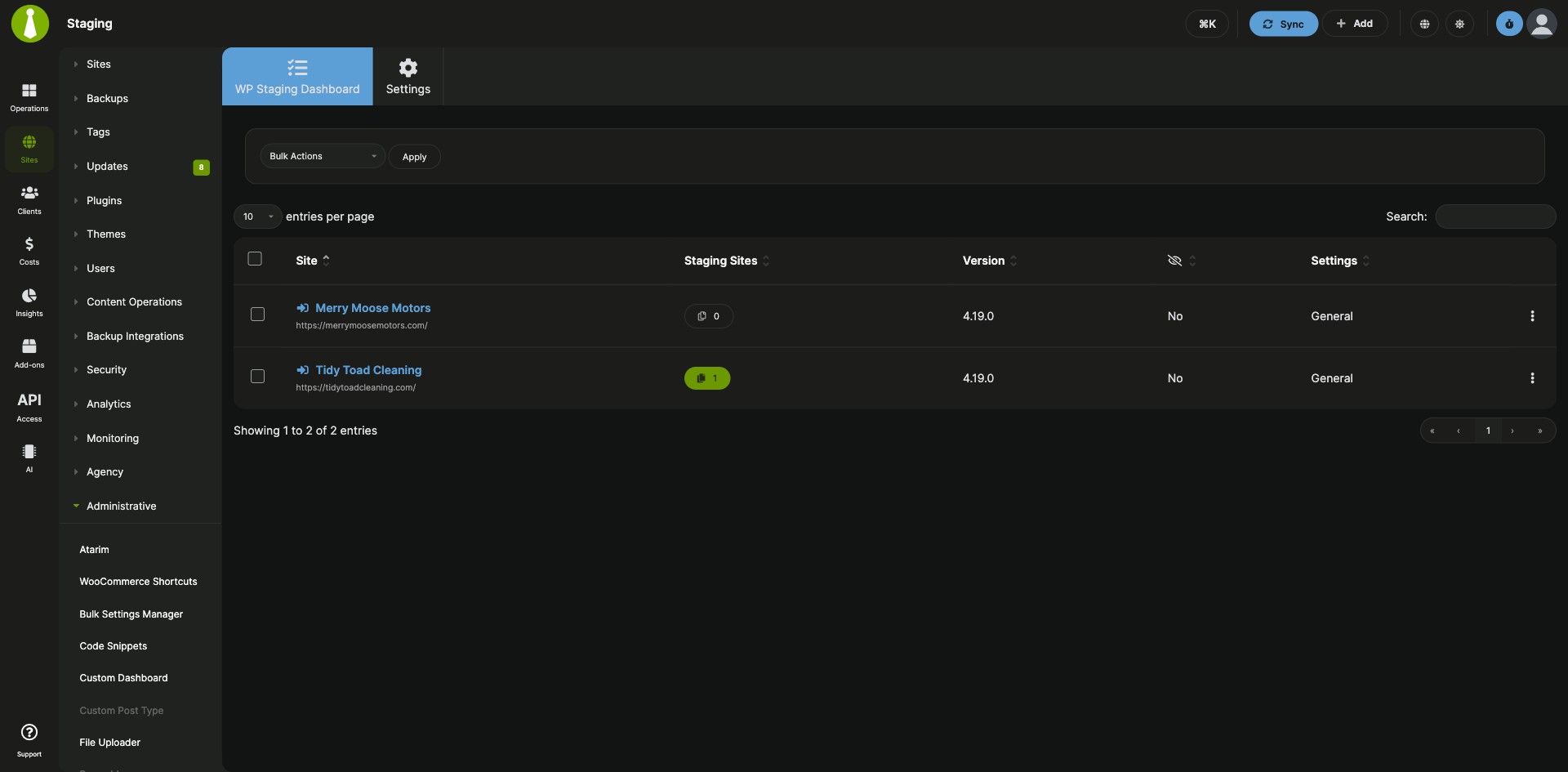
| Staging overview | The Staging Sites column shows how many staging sites each child site has. |
| Bulk install of WP Staging | The extension finds child sites that still need WP Staging and offers to install the plugin on them in bulk. |
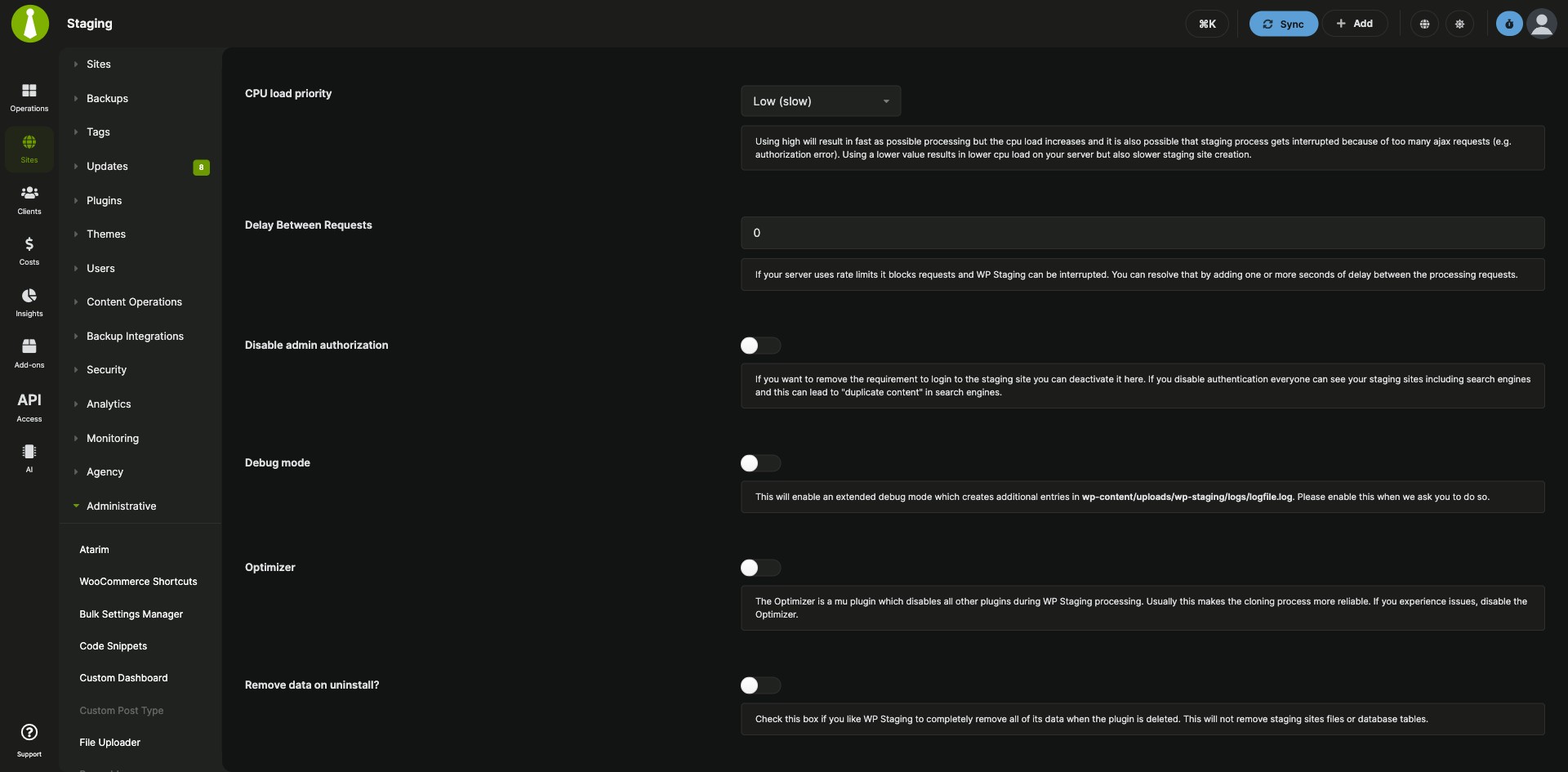
| WP Staging settings | Save WP Staging plugin settings from your Dashboard, including settings for individual sites, with a progress bar while the settings sync. |
Requirements
The MainWP Staging Extension goes on your MainWP Dashboard, and WP Staging on each production child site does the copying.
| Item | Requirement |
|---|---|
| License | MainWP Pro |
| MainWP Dashboard | The MainWP Staging Extension installed on your Dashboard site |
| Child sites | WP Staging Free or WP Staging Pro installed and activated on each production child site, then a sync so your Dashboard detects it |
| Push to live (optional) | WP Staging Pro with a WP STAGING plan that includes Push to Live |
Setup: install WP Staging and create a staging site
Getting started with the MainWP Staging Extension takes three steps: put WP Staging on your child sites, create a first staging site, and point your updates at it.
Install the extension and WP Staging
- Install the MainWP Staging Extension on your MainWP Dashboard, the same way as any other MainWP add-on.
- Go to MainWP > Sites > Plugins > Install Plugins, search for WP Staging, and select Install this Plugin. For WP Staging Pro, use the ZIP package from your WP STAGING account instead.
- Select your child sites, keep Activate after installation selected, and complete the installation.
- Sync your MainWP Dashboard so it detects the plugin.
Create a staging site
- Go to MainWP > Add-ons > Administrative > Staging.
- Find the child site in the list and click the Create Staging Site action.
- Enter the Staging Site Name and choose the database tables and files to include or exclude.
- Click the Create Staging Site button.
Test updates on staging sites
- Go to MainWP > Sites > Updates.
- Select Staging sites. Updates now run on your staging sites alone.
- Once everything works on the staging sites, run the updates on your production sites.
Full instructions for updating and deleting staging sites and for publishing changes through WP Staging Pro: Staging documentation.
How the staging copy is built
The MainWP Staging Extension tells WP Staging on the child site to build the copy. WP Staging copies the site’s files to a subdirectory and duplicates the selected database tables under a new prefix, and within a couple of seconds you have a replica of the child site. MainWP then adds the staging URL to your MainWP Dashboard as a staging site.
Staging Extension FAQ
How do I push changes from a staging site to the live site?
Staging changes go live through WP Staging Pro on the production child site, with a WP STAGING plan that includes Push to Live. In the MainWP Staging Extension, go to MainWP > Add-ons > Administrative > Staging and choose Go to WP Staging in the production site’s action menu, then open WP STAGING > Start / STAGING and select Push Changes on the staging copy. Create and verify a fresh production backup first.
What happens when I update a staging site?
Updating a staging site in the MainWP Staging Extension copies the selected database tables and files from the live site to the staging site again. The refreshed copy replaces changes you made on staging.
What do I need to pay for?
The MainWP Staging Extension is part of MainWP Pro. WP Staging Free is enough to create, update and delete staging sites from MainWP. To push staging changes to a live site, you need WP Staging Pro with a WP STAGING plan that includes Push to Live.
Where do I get support?
The WP STAGING team handles issues with the WP Staging plugin itself; see wp-staging.com. MainWP support handles issues with the MainWP Staging Extension.