

Jetpack Scan Integration
Request Jetpack Scan runs on your child sites and fix the threats it finds from your MainWP Dashboard.

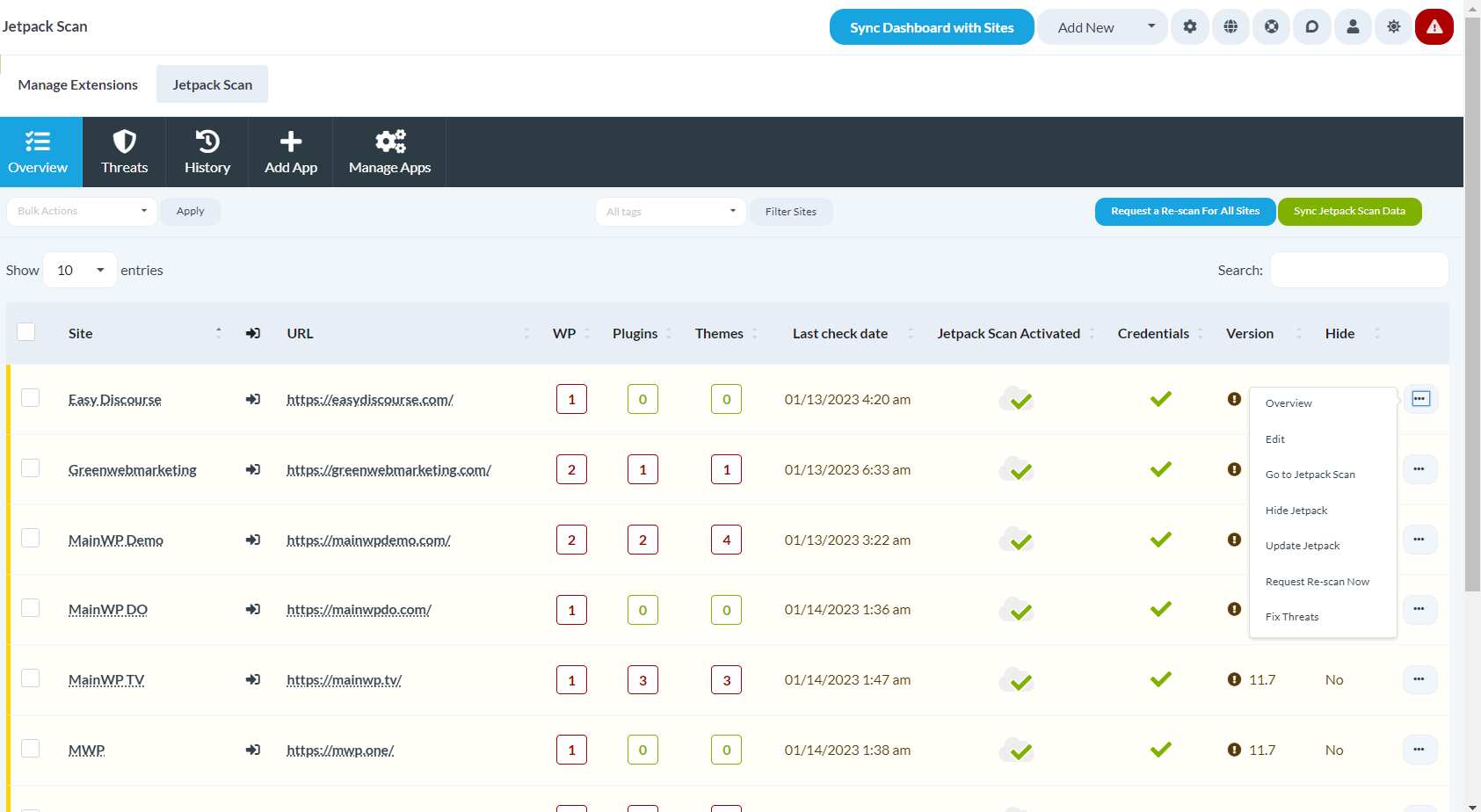
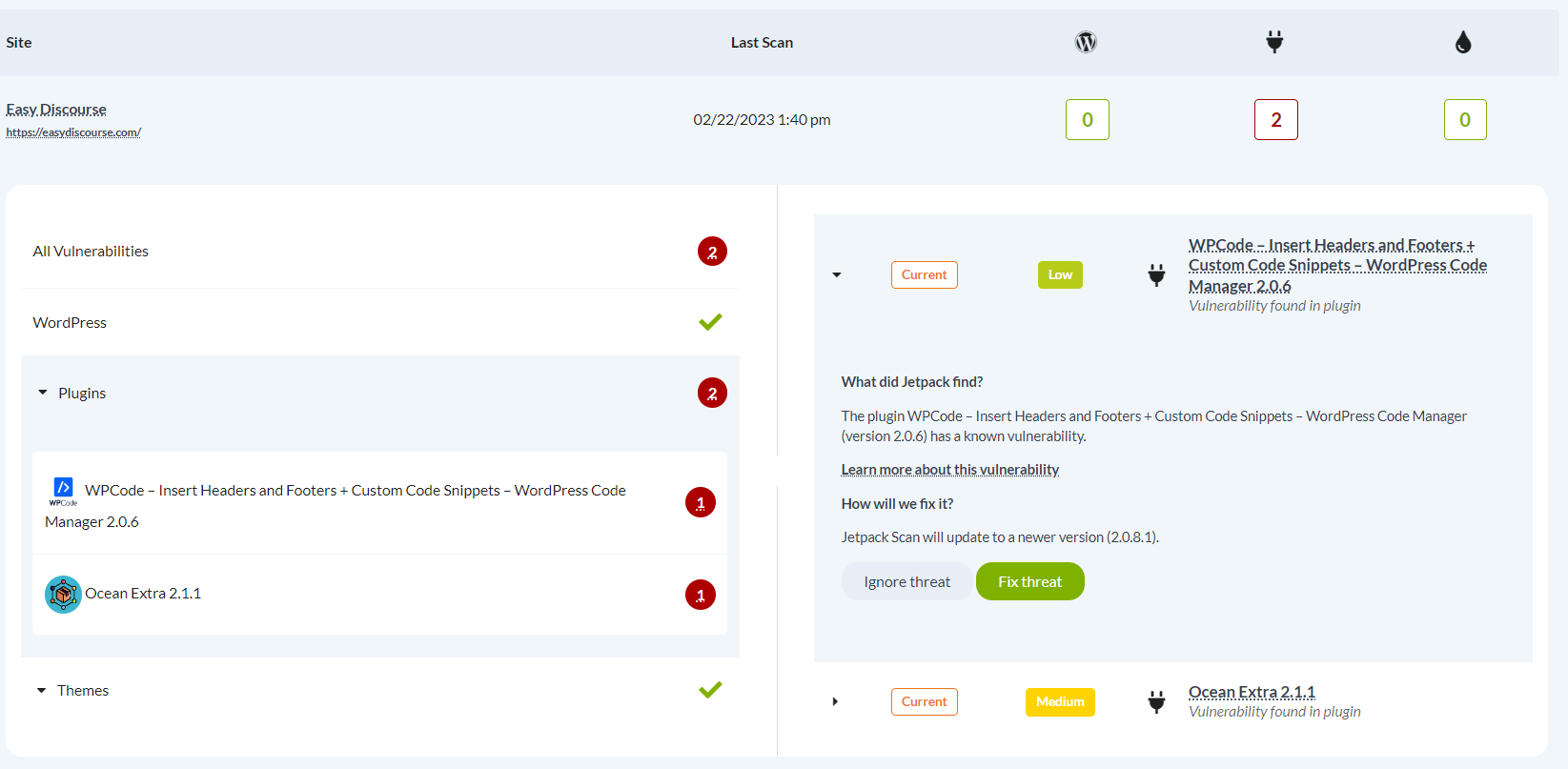

Scan all your child sites with Jetpack Scan and fix threats from your MainWP Dashboard
The Jetpack Scan Integration is a Pro MainWP add-on that lets you review Jetpack Scan results, request new scans, and fix or ignore threats for all your child sites from your MainWP Dashboard. You see vulnerabilities in WordPress core, plugins and themes for every site in one table instead of opening each site.
What the Jetpack Scan Integration replaces
Jetpack Scan runs on each child site, so without the integration you check its results and handle its threats one site at a time. The Jetpack Scan Integration lists every child site with Jetpack Scan active in one table, with vulnerability counts for core, plugins and themes. You request scans for one site, a selection, or all sites at once, and work through threats on a single Threats page.
Jetpack Scan Integration features
| Feature | What it means for you |
|---|---|
| Overview of all sites | See every child site with Jetpack Scan active in one table. The WP, Plugins and Themes columns count the vulnerabilities found on each site, and the Credentials column shows whether Jetpack can fix threats there. From the row menu or Bulk Actions you can hide or update the Jetpack plugin on child sites. |
| On-demand scans | Request a re-scan for one site from its row menu, for selected sites from Bulk Actions, or for all sites with one button. Sync Jetpack Scan Data fetches the latest results into your Dashboard. |
| Threat fixes | Click a vulnerability count on the Threats page, expand a threat, and choose Fix Threat or Ignore Threat. When Jetpack has no fix for a threat, the fix button shows as disabled. |
| Threat history | Fixed and ignored threats move to the History page, which uses the same layout as the Threats page, so you can check what was handled on each site. |
| Multiple Jetpack apps | Connect more than one WordPress.com app from the Add App page. On Manage Apps you can request account access again or remove an app. |
| Jetpack Scan coupons | Request coupons for 40% off the first year of a Jetpack Scan subscription, up to the number of child sites on your Dashboard. |
| Jetpack Scan widget | A widget on the MainWP Overview page summarizes scan results for WordPress core, plugins and themes. |
| Report tokens | With Pro Reports, add [jetpack.scan.wp], [jetpack.scan.plugins] and [jetpack.scan.themes] to list detected vulnerabilities in client reports, or [jetpack.scan.plugins.count] and [jetpack.scan.themes.count] to show the counts. |
Jetpack Scan Integration requirements
| Item | Requirement |
|---|---|
| License | MainWP Pro (included in the Pro Bundle) |
| Jetpack Scan subscription | A Jetpack Scan subscription. You can get it at a discount with coupons requested from the add-on. |
| Child sites | The Jetpack Protect plugin with the Jetpack Scan feature activated. The Jetpack plugin also works, but Jetpack Protect is preferred unless you need other Jetpack modules. |
| WordPress.com app | An application created in your WordPress.com Developer account, using the Redirect URL shown on the add-on’s Add App page |
| Fixing threats | SSH, SFTP or FTP server credentials for each child site, added in Jetpack |
| Coupons | Jetpack Scan Integration 4.0.3 or later |
| Report tokens (optional) | The Pro Reports add-on |
How to set up the Jetpack Scan Integration
Prepare your child sites
- Install the Jetpack Protect plugin on your child sites.
- Activate the Jetpack Scan feature on each site. Jetpack’s help article covers the steps.
Install the add-on
- In your MainWP Dashboard, go to MainWP > Add-ons and click Install Add-ons.
- Select the Jetpack Scan Integration and click Install.
- When the installation finishes, click Activate Add-ons.
Connect the add-on to Jetpack
- Open the Add-ons > Jetpack Scan > Add App page and note the Redirect URL value.
- In your WordPress.com Developer account, fill in the form to create an application, using that Redirect URL.
- To connect more apps, repeat the process on the Add App page. All apps appear on the Manage Apps page.
Let Jetpack fix threats
- Add SSH, SFTP or FTP credentials for each child site in Jetpack, following Jetpack’s credentials guide.
- Click Sync Jetpack Scan Data to fetch the latest data. The Credentials column on the Overview page shows a green checkmark for sites with valid credentials.
Full instructions for scans, threats and coupons: Jetpack Scan Integration documentation.
How the Jetpack Scan Integration works
The Jetpack Scan Integration runs on your MainWP Dashboard and gets scan data from Jetpack through the Jetpack Scan API, using the WordPress.com apps you connect. Scans and fixes run through Jetpack. A fix can take several minutes, and depending on the Jetpack products active on a child site, a backup may run before the fix. For free vulnerability scanning with the Jetpack Protect plugin, see the Jetpack Protect Integration. MainWP also has security add-ons for Wordfence, Solid Security, Sucuri, Virusdie, Patchstack and Security Ninja, plus the Vulnerability Checker.
Jetpack Scan Integration FAQ
Do I need the Jetpack plugin on my child sites?
You need the Jetpack Protect plugin with the Jetpack Scan feature activated on each child site you want to scan. The full Jetpack plugin also works, but Jetpack Protect is the better choice unless you need other Jetpack modules.
Do I need a Jetpack Scan subscription?
Yes, the Jetpack Scan Integration needs a Jetpack Scan subscription in addition to MainWP Pro. Go to Add-ons > Jetpack Scan and click Get Jetpack Scan Coupon to request coupons for 40% off the first year, up to the number of child sites on your Dashboard.
Why can’t Jetpack fix a threat on one of my child sites?
Jetpack needs SSH, SFTP or FTP credentials for a child site before it can fix threats there. A red X in the Credentials column on the Overview page means the credentials are missing or not valid. Add them in Jetpack, then click Sync Jetpack Scan Data. If Jetpack has no fix for a threat, the fix button is disabled.
How long does it take to fix a threat?
A fix can take several minutes because it runs through the Jetpack API. You can leave the page and come back later. Depending on the Jetpack products active on the child site, a backup may run before the fix.
Where do I get support?
The Jetpack team handles issues with Jetpack Scan and the Jetpack Protect plugin. See jetpack.com. MainWP support handles issues with the integration.