
MainWP Time Capsule Extension
Back up, restore and stage your child sites with WP Time Capsule from your MainWP Dashboard.

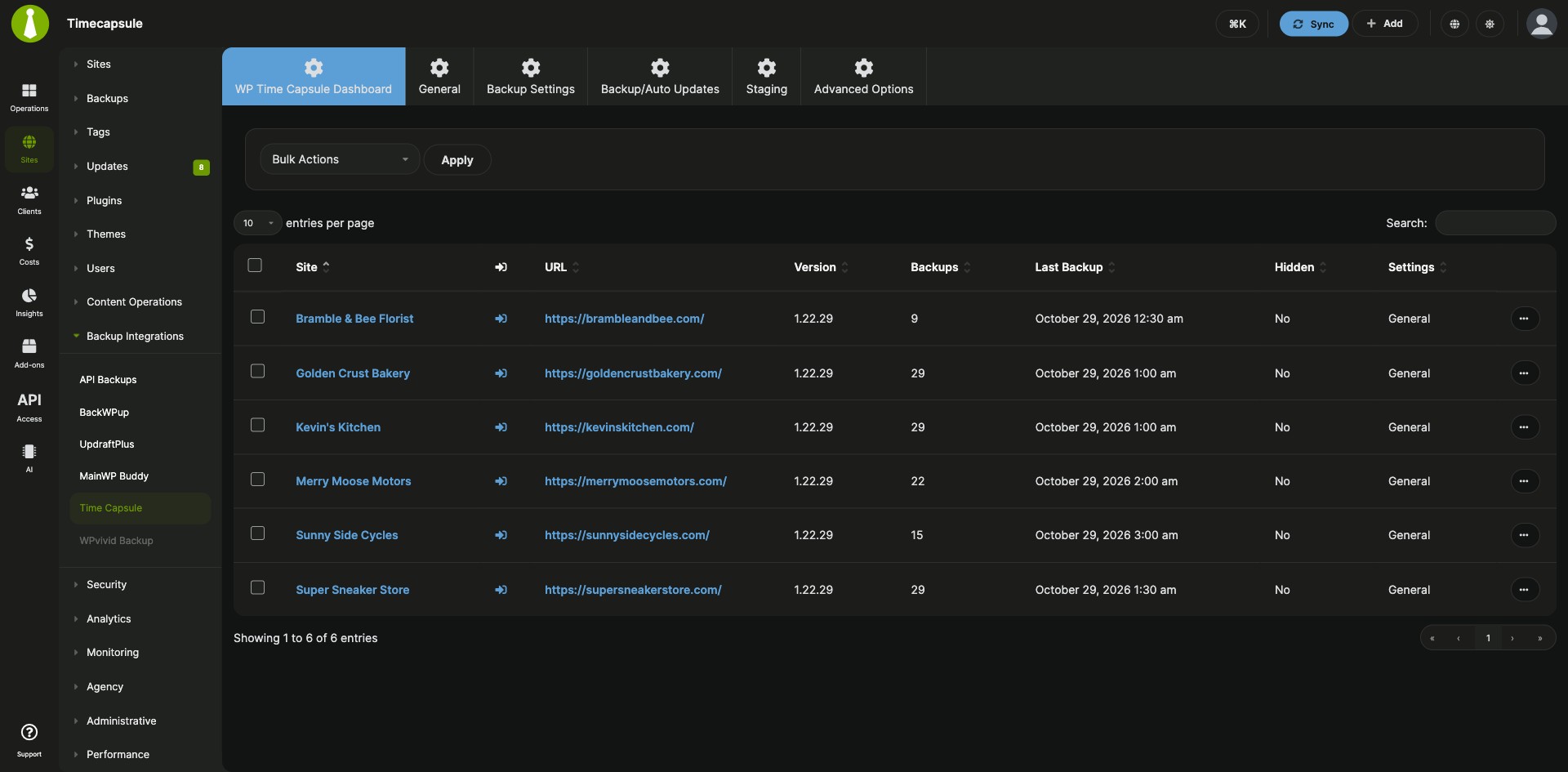
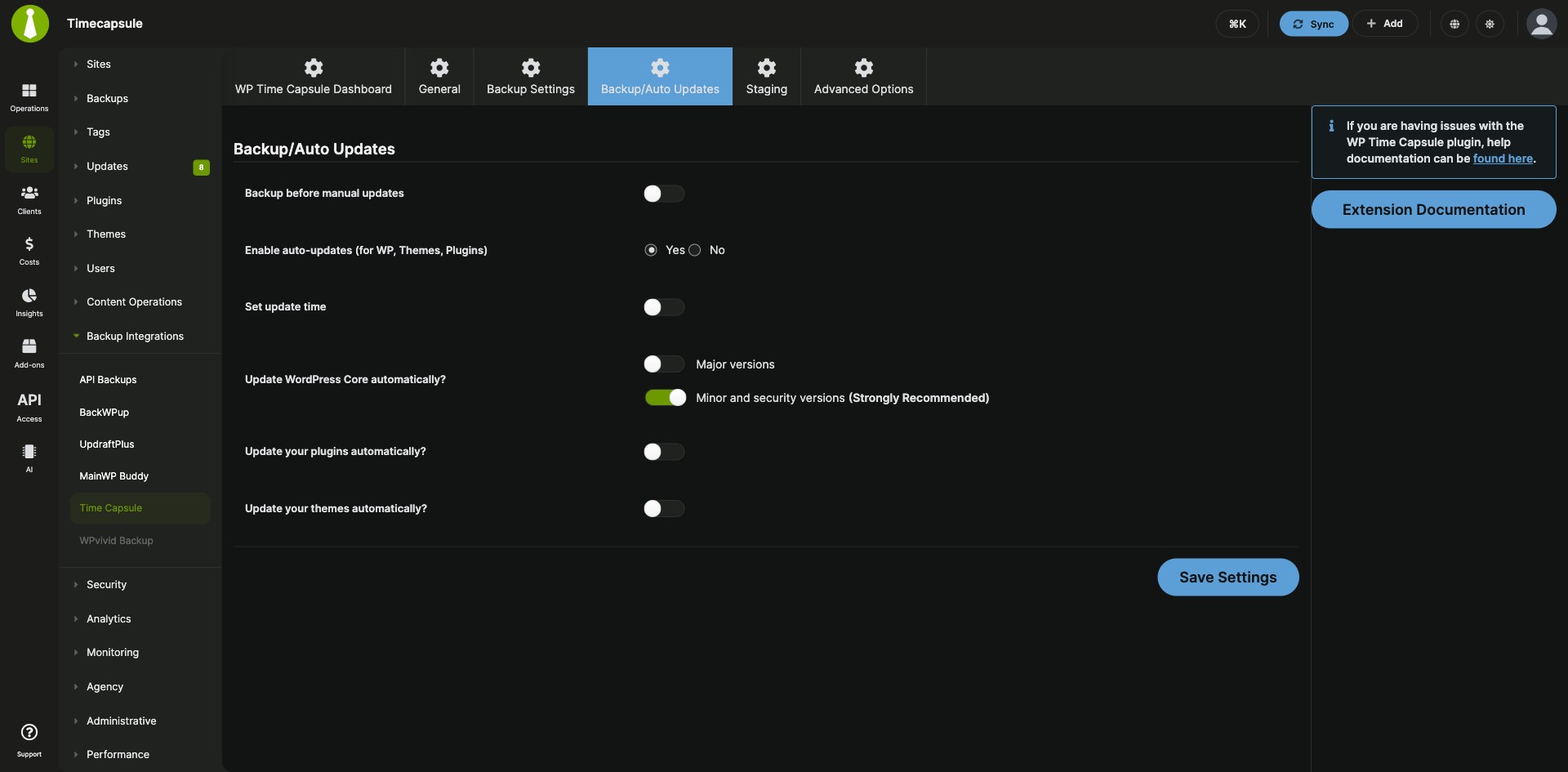
Incremental WP Time Capsule backups and restores for child sites
The MainWP Time Capsule Extension is a free MainWP add-on that lets you back up, restore and stage all your child sites with WP Time Capsule from your MainWP Dashboard. From one Dashboard you run and schedule incremental backups, roll a child site back to an earlier restore point, and create staging sites.
Backups handled in each site’s WP Admin
When WP Time Capsule runs on each client site, its backups, restores and staging are handled in that site’s WP Admin, one site at a time. The MainWP Time Capsule Extension starts backups for all your sites at once, sets the backup schedule in one place, and opens any child site’s backups and staging from its page in MainWP.
Features
The MainWP Time Capsule Extension brings WP Time Capsule’s settings, backups, restores and staging into your MainWP Dashboard.
| Feature | What it means for you |
|---|---|
| Central WP Time Capsule control | Manage the WP Time Capsule plugin settings for all your child sites from your MainWP Dashboard. |
| Real-time incremental backups | Changes on a child site trigger a backup as they happen, and storing just the changes keeps backup storage use low. |
| Remote storage | Store backups in Dropbox, Amazon S3 or Google Drive. |
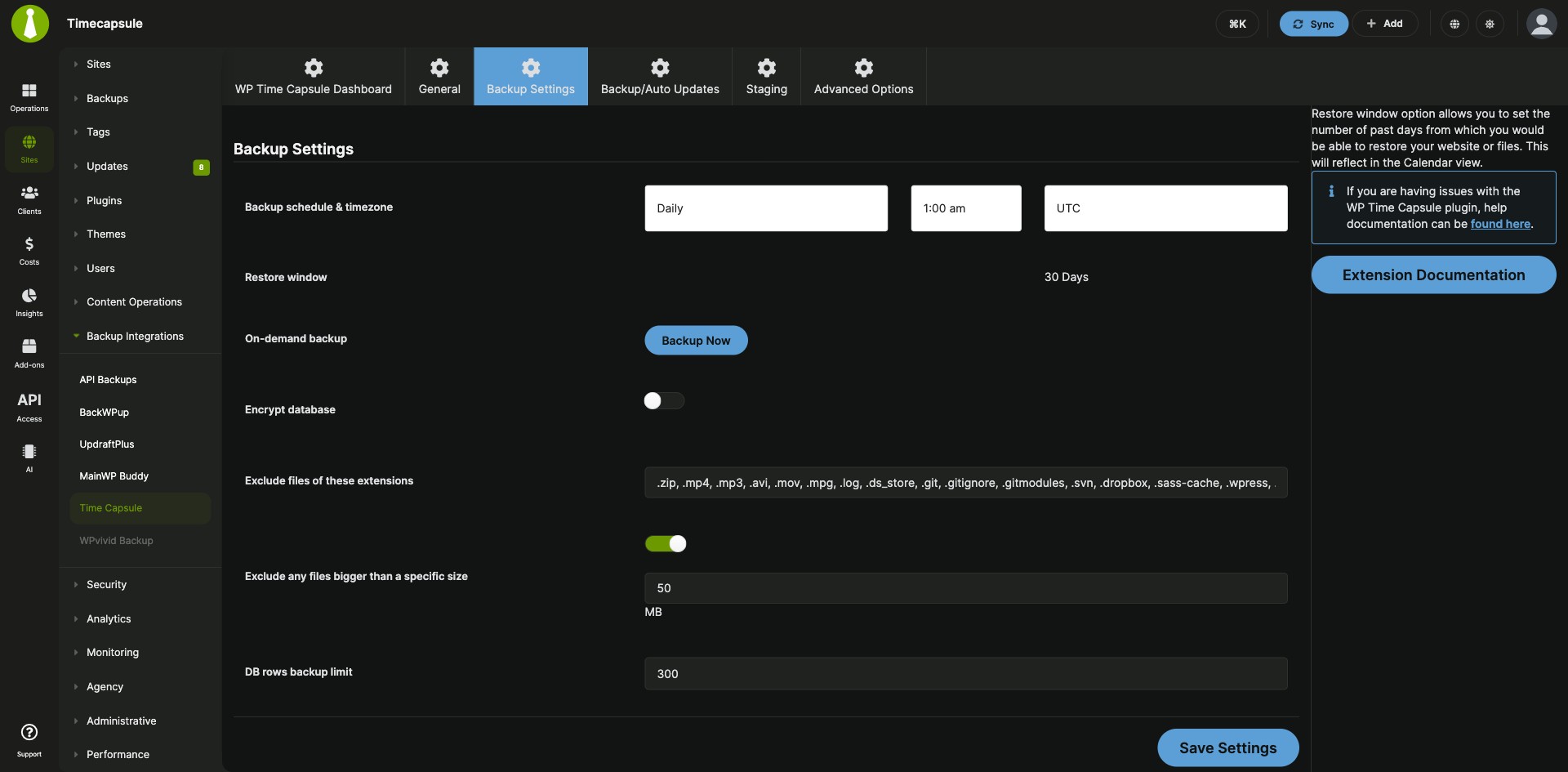
| Backup Now for all sites or one | Start a backup of all your sites from Sites > Backups > Time Capsule > Backup Settings, or back up a single site from the WP Time Capsule > Backups tab on that site’s page in MainWP. |
| Backup schedule | Set the backup schedule and timezone on the Backup Settings page. |
| Restore points | Pick a restore point on a child site’s Backups tab, choose your restore preferences, and restore the site to that point. |
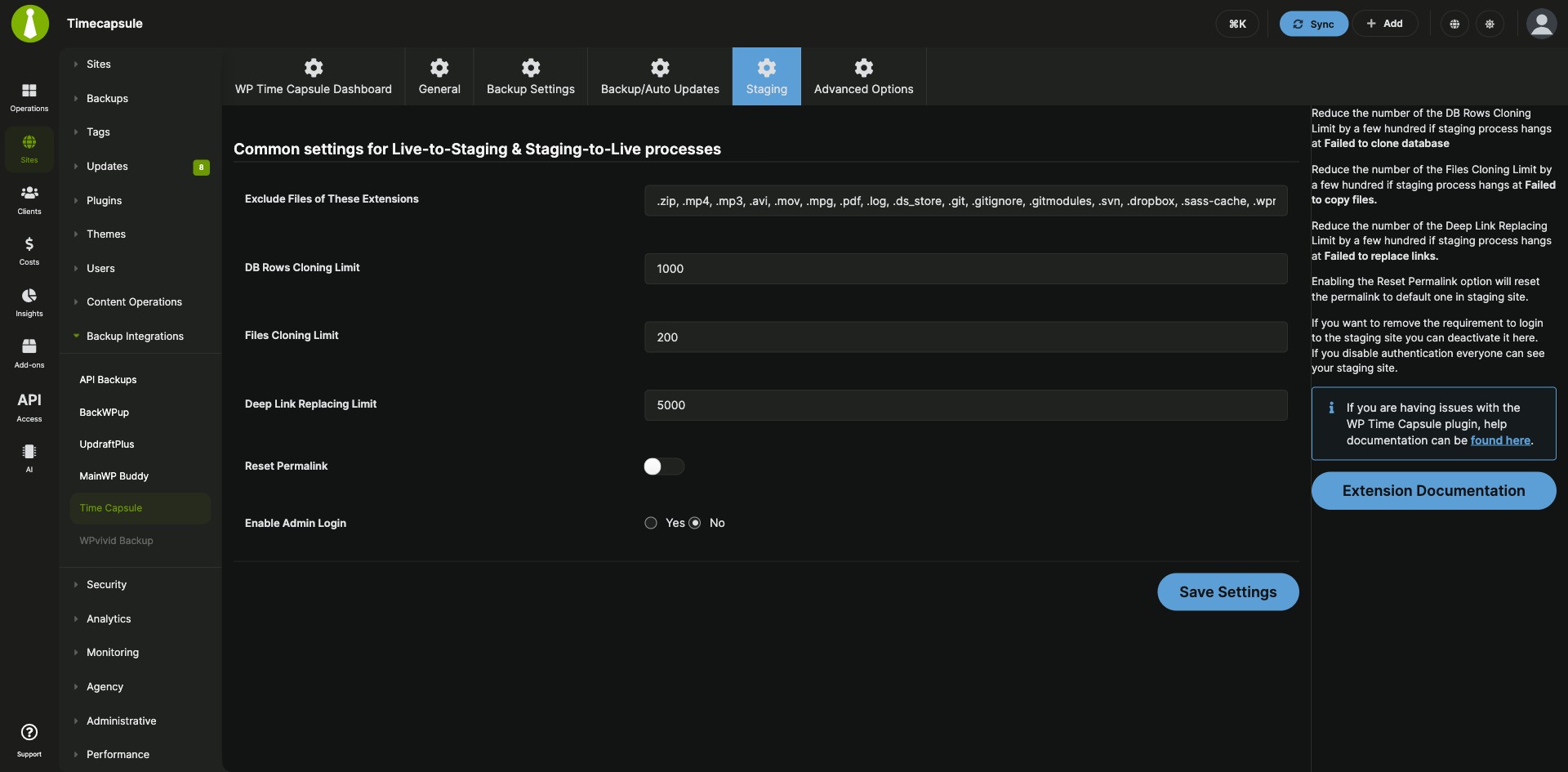
| Staging sites | Create a staging copy of a child site from its WP Time Capsule > Staging tab. |
Requirements
The MainWP Time Capsule Extension works with the WP Time Capsule plugin and service, so each child site needs the plugin and a connected cloud storage account.
| Item | Requirement |
|---|---|
| License | Free, included in MainWP Essentials and MainWP Pro |
| MainWP Dashboard | The MainWP Time Capsule Extension installed on your Dashboard site |
| Child sites | The WP Time Capsule plugin installed and activated on each child site |
| WP Time Capsule account | An active WP Time Capsule subscription, with the account email and password to log in from MainWP |
| Cloud storage | A Dropbox, Amazon S3 or Google Drive account connected in WP Time Capsule on each child site |
Setup: plugin, account login and schedule
The MainWP Time Capsule Extension setup puts the plugin on your child sites, logs your Dashboard in to WP Time Capsule, and sets the schedule.
Install the extension and the WP Time Capsule plugin
- Install the MainWP Time Capsule Extension on your MainWP Dashboard, the same way as any other MainWP add-on.
- Go to Sites > Plugins > Install Plugins, search for WP Time Capsule, and select Install this Plugin.
- Select your child sites, keep Activate after installation selected, and complete the installation.
- Sync your sites so your Dashboard detects the plugin.
Connect your WP Time Capsule account
- Go to Sites > Backups > Time Capsule > General.
- Enter your WP Time Capsule email and password and click Login.
- On each child site, open the WP Time Capsule page and complete the cloud storage connection flow.
Schedule backups
- Go to Sites > Backups > Time Capsule > Backup Settings.
- Find the Backup schedule & timezone option and set your preferences.
Full instructions for backups, restores and staging: Time Capsule documentation.
Where the backups go
The MainWP Time Capsule Extension controls the WP Time Capsule plugin on each child site. The plugin backs up changes as they happen and sends them to the Dropbox, Amazon S3 or Google Drive account connected on that site. Once that storage is connected, backup, restore and staging actions for the site run from your MainWP Dashboard. While the add-on is active on your Dashboard, Pro Reports client reports can include a Backups section.
Time Capsule Extension FAQ
Should you use the MainWP Time Capsule Extension or MainWP Built-In Backups?
Use the MainWP Time Capsule Extension if your sites already run WP Time Capsule and you’d like to keep using it. For a new setup, MainWP Built-In Backups back up and restore every site from your MainWP Dashboard with no backup plugin on your child sites, and they’re part of the free MainWP Core. Choose your primary backup system in Backup Settings.
How do I restore a child site to an earlier point?
In the MainWP Time Capsule Extension, open the site from Sites > Manage Sites with the Edit action and go to the WP Time Capsule > Backups tab. Click the restore point you want, choose your restore preferences, and click Restore The Site to This Point, then follow the instructions on the next screen.
Can I create a staging site with the MainWP Time Capsule Extension?
Yes, the MainWP Time Capsule Extension creates a staging copy of a child site: open it from Sites > Manage Sites, go to the WP Time Capsule > Staging tab, set the Staging Path, and click Start Staging.
What do I need to pay for?
The MainWP Time Capsule Extension is free, included in MainWP Essentials and MainWP Pro. You also need an active WP Time Capsule subscription, and the backups go to your own Dropbox, Amazon S3 or Google Drive account.
Where do I get support?
The WP Time Capsule team handles issues with the WP Time Capsule plugin itself; see wptimecapsule.com. MainWP support handles issues with the MainWP Time Capsule Extension.