

MainWP Built-In Backups
MainWP 6.4 builds backups right into your MainWP Dashboard. MainWP Built-In Backups back up and restore every WordPress site you manage, send copies to storage you own and test-restore each site’s newest backup every week. They’re part of the free MainWP Core, with no backup plugin to install on your sites.
Over 20,000 MainWP Dashboards manage over 700,000 child sites, and MainWP has over 2,200 five-star reviews on WordPress.org.
Backing up client sites one at a time means setting up a backup plugin on every site, logging in to each site to check its last backup, and taking a backup by hand before each round of updates. MainWP Built-In Backups move that work to your MainWP Dashboard.
| Backup work on each site today | With MainWP Built-In Backups |
|---|---|
| Install and configure a backup plugin on every site | The MainWP Child plugin already on each site creates the backup. |
| Connect each site to your cloud storage | Add your storage once on your MainWP Dashboard, and every backup task can use it. |
| Log in to each site to check its last backup | Backup Health on your MainWP Dashboard shows every site’s backup status. |
| Take a backup by hand before running updates | When you update from Manage Sites, MainWP checks each site for a recent backup and offers to back up the sites that are due. |
| Find out whether a backup restores when a site needs it | Test Restore rebuilds each site’s newest backup every week, so you know ahead of time. |
What do MainWP Built-In Backups include?
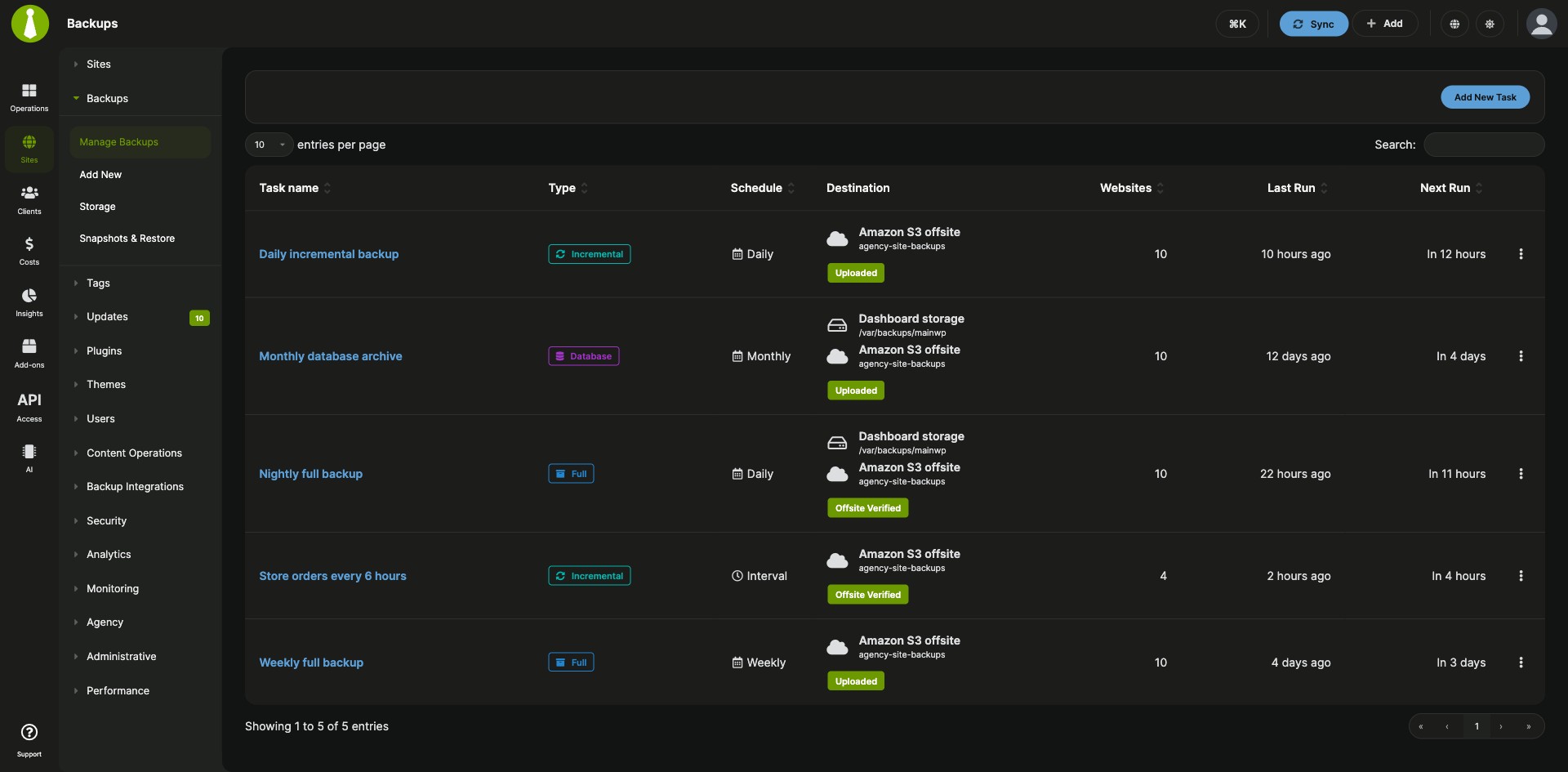
MainWP Built-In Backups run from your MainWP Dashboard. The MainWP Child plugin on each site creates the database dump and the archive, and your MainWP Dashboard downloads it, stores it and sends copies to your storage.
| Feature | What it means for you |
|---|---|
| Full, Database, Files Only and Incremental backups | Back up a whole site, only its database or only its files. After one full backup, Incremental backups copy only the files that changed, plus a fresh database dump each run. |
| Scheduled backup tasks | Back up chosen sites or every site with a tag, daily, weekly, monthly or every few hours, at the time you pick. |
| Back Up Now | Take a full backup of one site whenever you need it, such as before a big change. |
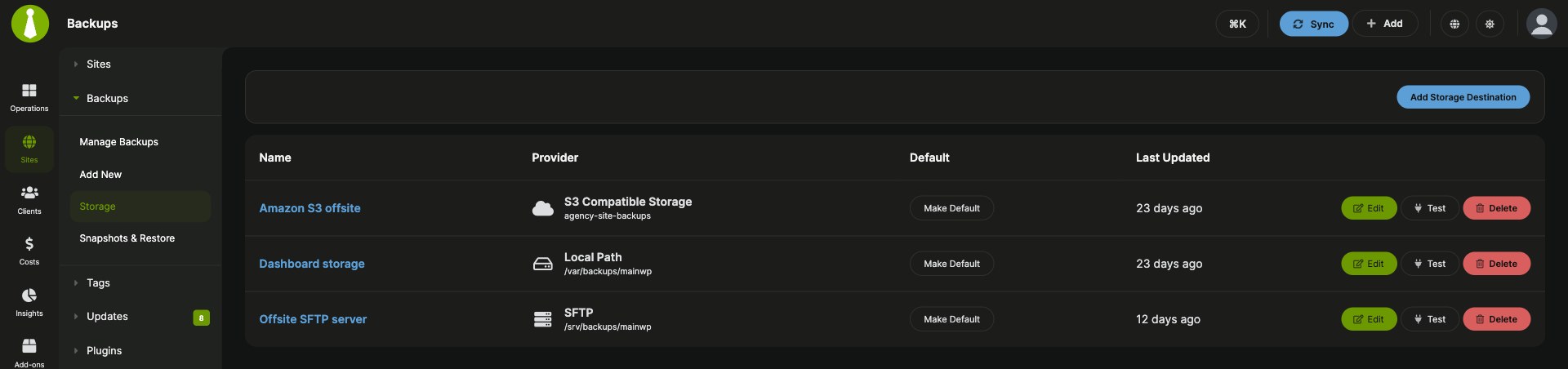
| Storage destinations | Send copies to accounts you own on Amazon S3, Cloudflare R2, Backblaze B2 or another S3-compatible service, Google Cloud Storage, Dropbox or any SFTP server. |
| Encryption | Encrypt each archive with AES-256-GCM on your MainWP Dashboard before uploading, so your storage provider holds encrypted files. |
| Retention rules | Keep a set number of backups, remove backups older than a set number of days, or cap a task’s storage. MainWP always keeps each site’s most recent backup. |
| Offsite Verified | MainWP checks each copy after it reaches your storage and marks it Offsite Verified. |
| Excludes | Keep archives smaller by leaving out cache folders, other backup plugins’ folders, non-WordPress folders and Zip files, plus any paths you add. |
How do you restore a WordPress site with MainWP?
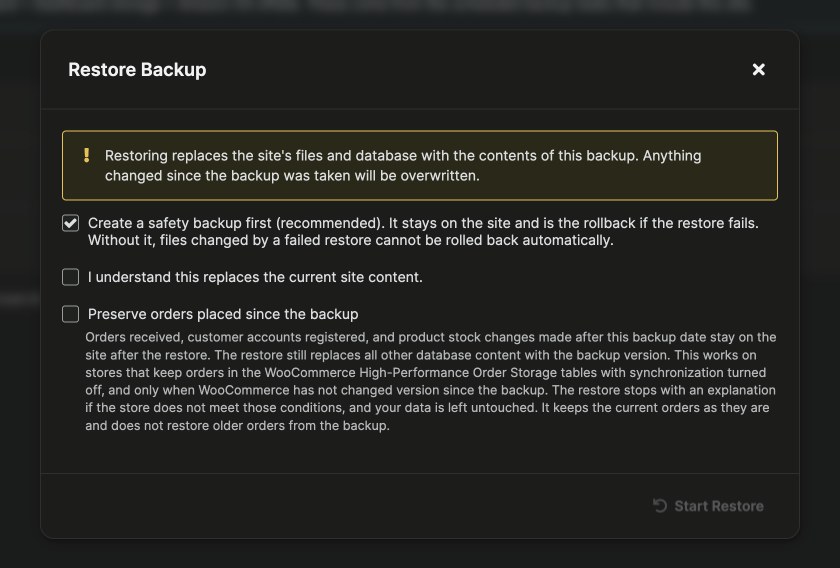
To restore a site with MainWP, open its Snapshots & Restore page, pick a backup and click Restore. MainWP first takes a safety backup of the site as it is now, so you can use Roll Back to return the site to that point.
A Full backup restores the files and database, a Database backup restores the database, and a Files Only backup restores files and keeps the current database. MainWP restores from the copy on your MainWP Dashboard or from your storage, and shows each step as it runs, through to checking the restored site.
For a WooCommerce store, choose Preserve orders placed since the backup. MainWP keeps the store’s live orders and re-adds new customer accounts and reapplies stock changes after the restore, so the sales that came in after the backup stay in the store.
Can MainWP require a backup before updates?
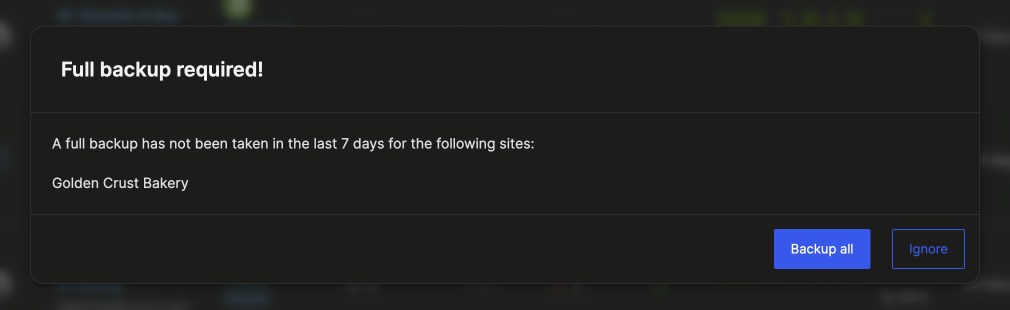
Yes. Turn on Require a backup before an update, and when you update plugins, themes or WordPress from Manage Sites, MainWP first checks each site for a recent backup. You set how many days count as recent, and you can require a verified copy on offsite storage.
MainWP lists the sites that are due for a backup and offers Backup all, so each site has a fresh backup before you proceed. Automatic updates follow the same rule: when a site is due for a backup, MainWP takes a full backup first, then runs its updates. The Updates page marks each covered site as Backup ready.
How do you check backups across all your sites in MainWP?
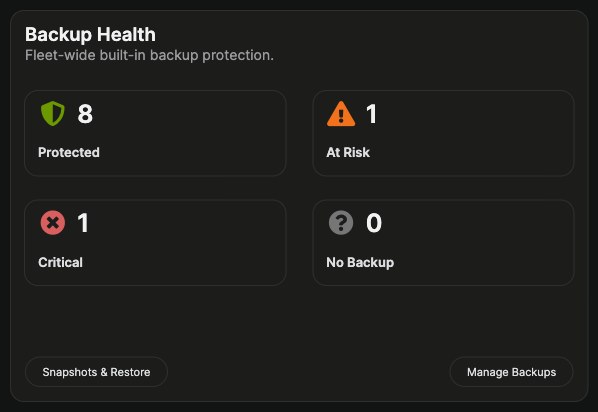
The Backup Health widget on your MainWP Dashboard counts your sites by backup status. A site is Protected when it has a backup from the last 24 hours with a verified offsite copy. Each count opens its list of sites, so you can see which sites to back up next, and Manage Sites has a Backup Health column you can filter by.
Every week, MainWP Test Restore rebuilds each site’s newest backup in a temporary database and folder on your MainWP Dashboard server, away from the live site. The Snapshots & Restore page marks the backup as Test-Restored, so you know it restores before a client needs it.

Can AI assistants and scripts run MainWP backups?
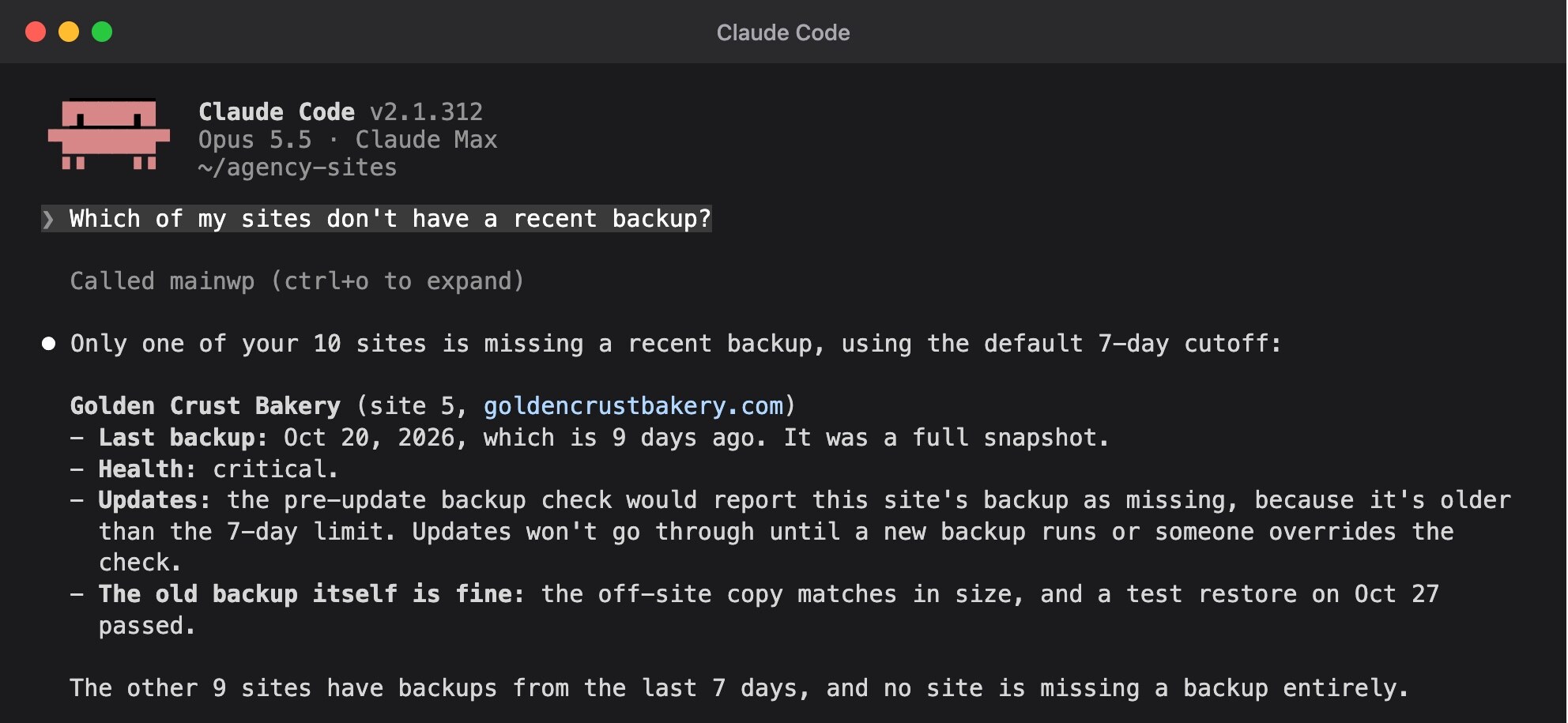
Yes. MainWP 6.4 adds over 30 backup abilities to the WordPress Abilities API, so you can ask an AI assistant which sites are due for a backup, or script backups and restores, using the same actions as your MainWP Dashboard.
- AI assistants: Claude and other AI tools connect through MainWP MCP to check backup status, run backups and backup tasks, manage storage and restore sites.
- Safe previews: every ability that changes something can run first as a preview, and runs for real once it’s confirmed.
- Scripts: MainWP Control and the WordPress Abilities REST API run the same abilities, and WP-CLI restores a backup with
wp mainwp backup restore. - Teams: with MainWP Team Control, you decide which team members can run, download and restore backups and manage backup tasks.
Are MainWP Built-In Backups right for your sites?
MainWP Built-In Backups work on any MainWP Dashboard running 6.4 or later. Here’s what you need:
| What you need | Details |
|---|---|
| License | MainWP Core, which is free. Built-In Backups come with your MainWP Dashboard, so there’s no add-on to install. |
| MainWP Dashboard | MainWP 6.4 or later, on PHP 8.3 or later and WordPress 6.2 or later. WordPress 6.9 or later adds the AI and scripting abilities. |
| Child sites | MainWP Child 6.4 or later on each site. |
| Scheduling | WP-Cron turned on for your MainWP Dashboard, so backup tasks run on schedule. |
| Disk space | Room for backups on your MainWP Dashboard server, and room on each site to build its archive. |
| Offsite storage | An S3-compatible, Google Cloud Storage, Dropbox or SFTP account for offsite copies. |
| Your current backups | MainWP also works with BackWPup, UpdraftPlus, WP Time Capsule, Solid Backups, WPvivid and your host’s backups, and you choose the primary backup system. |
How do you set up MainWP Built-In Backups?
Setting up MainWP Built-In Backups takes six steps in your MainWP Dashboard:
- Update your MainWP Dashboard and the MainWP Child plugin on your sites to 6.4.
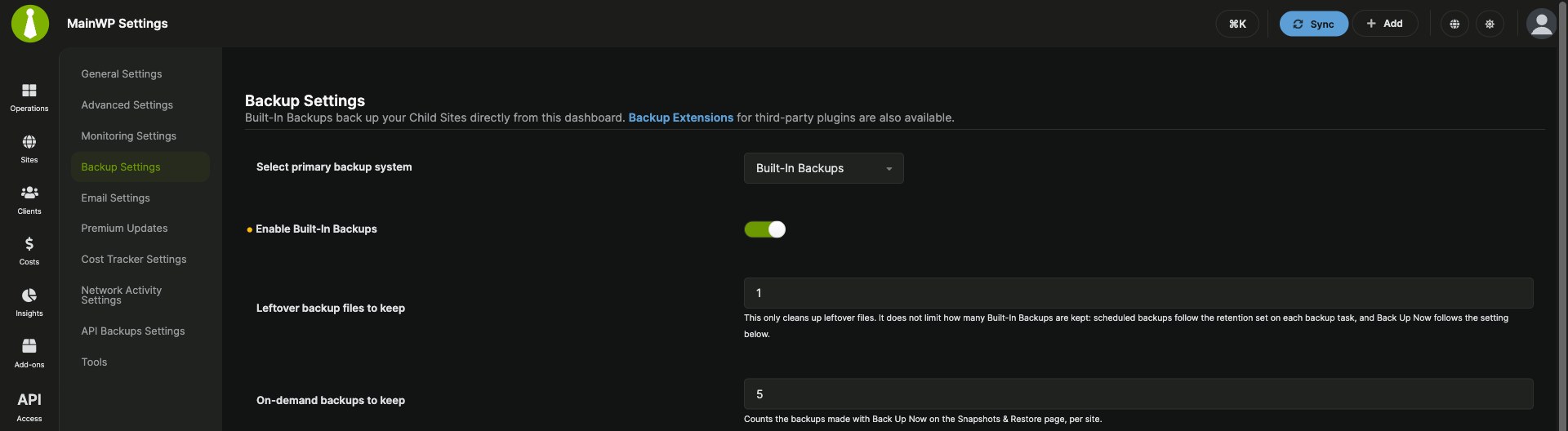
- Go to MainWP Settings > Backup Settings and switch on Enable Built-In Backups.
- To encrypt your backups, set a backup recovery passphrase on the same page and switch on Encrypt backup archives.
- Go to Sites > Backups > Storage, add your storage and click Test Connection & Save.
- Go to Sites > Backups > Add New, pick the backup type, schedule, sites or tags, storage and retention, and click Schedule Backup.
- To back up before updates, switch on Require a backup before an update under General Settings > Updates.
The MainWP Built-In Backups guide covers each setting.

MainWP Built-In Backups FAQ
Are MainWP Built-In Backups free?
Yes. MainWP Built-In Backups are part of the free MainWP Core, with no license and no limit on sites. See everything MainWP includes for free.
What do child sites need for MainWP Built-In Backups?
Each child site needs the MainWP Child plugin, version 6.4 or later. MainWP Child creates the backup on the site, so the site needs no other backup plugin.
Can you keep using your current backup plugin with MainWP?
Yes. MainWP has free add-ons for BackWPup, UpdraftPlus, WP Time Capsule, Solid Backups and WPvivid, and MainWP API Backups covers your host’s backups on cPanel, Plesk, Kinsta, Cloudways, GridPane, Vultr, Akamai (Linode) and DigitalOcean. Pick Built-In Backups or another option as your primary backup system in Backup Settings.
How does MainWP back up large WordPress sites?
MainWP backs up large sites with incremental backups: after the first full backup, each run copies only the files that changed since the last one. Large sites also switch from Zip to Tar GZip archives automatically, and backup tasks can leave out cache and backup folders.
Where are MainWP backups stored?
MainWP stores every backup in a private folder on your MainWP Dashboard server, outside the WordPress folder, and sends copies to the S3-compatible, Google Cloud Storage, Dropbox, SFTP or local path destinations you add. Your backups stay on servers and accounts you own.
Can you download a MainWP backup?
Yes. Full, Database and Files Only backups on your MainWP Dashboard download as one archive from the Snapshots & Restore page.
How do you see why a MainWP backup needs attention?
Each backup task on Manage Backups shows notes from its last run, and MainWP emails you when a scheduled backup needs attention. Network Activity keeps a record of every backup upload and restore, and Backup Settings can record run diagnostics for you to export.
Where can you get help with MainWP Built-In Backups?
The MainWP Built-In Backups guide covers storage, backup tasks, Backup Health, restores and backups before updates, plus troubleshooting tips. The MainWP Built-In Backups video shows backups being scheduled, stored and restored.
What happens to your backups if you turn off Built-In Backups?
Turning off MainWP Built-In Backups pauses scheduled backups. Your backup tasks and saved backups stay on your MainWP Dashboard and in your storage, ready for when you turn Built-In Backups back on.