
Lighthouse Integration
Audit every child site’s performance, accessibility and SEO with Lighthouse from your MainWP Dashboard.

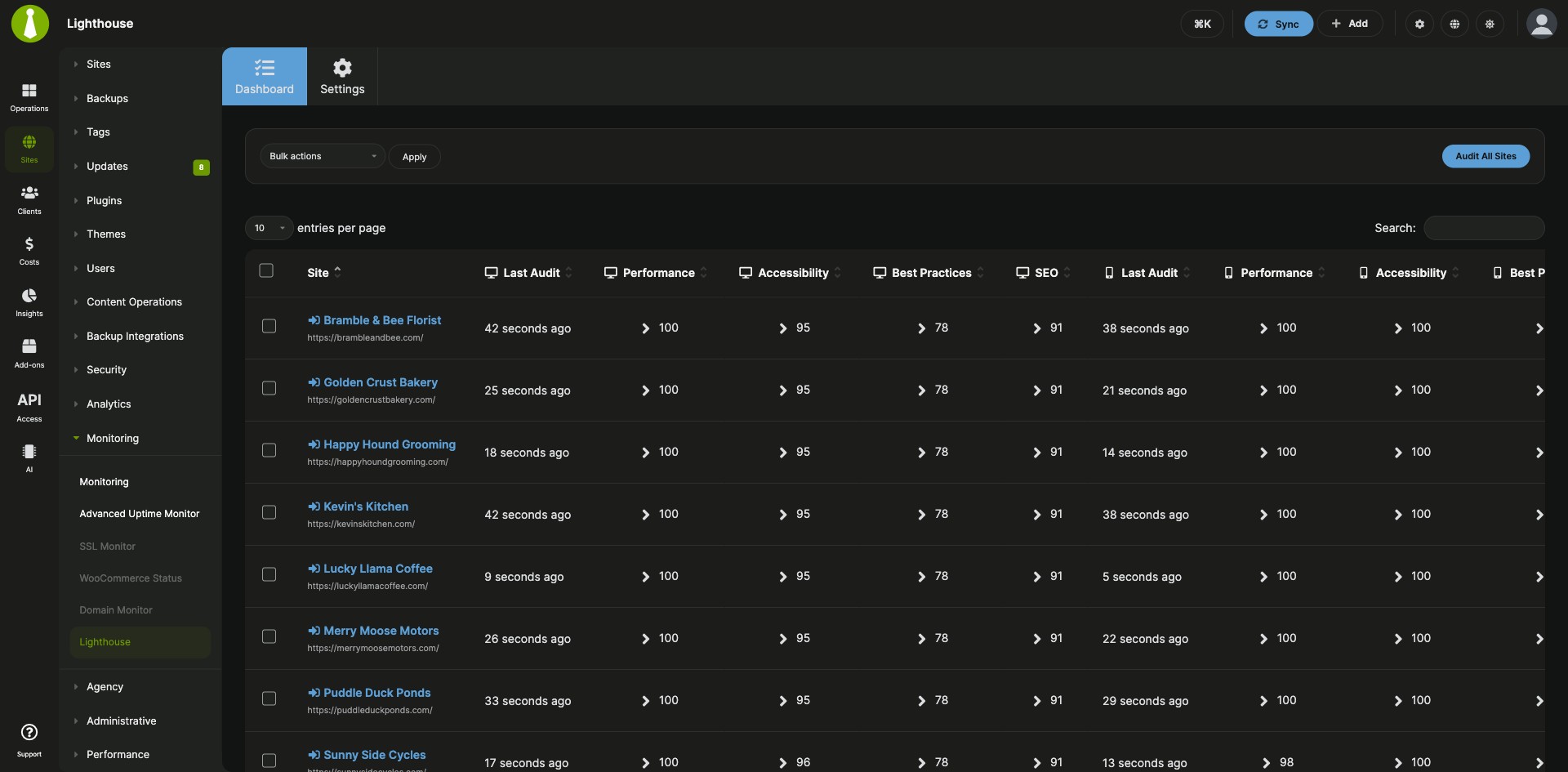

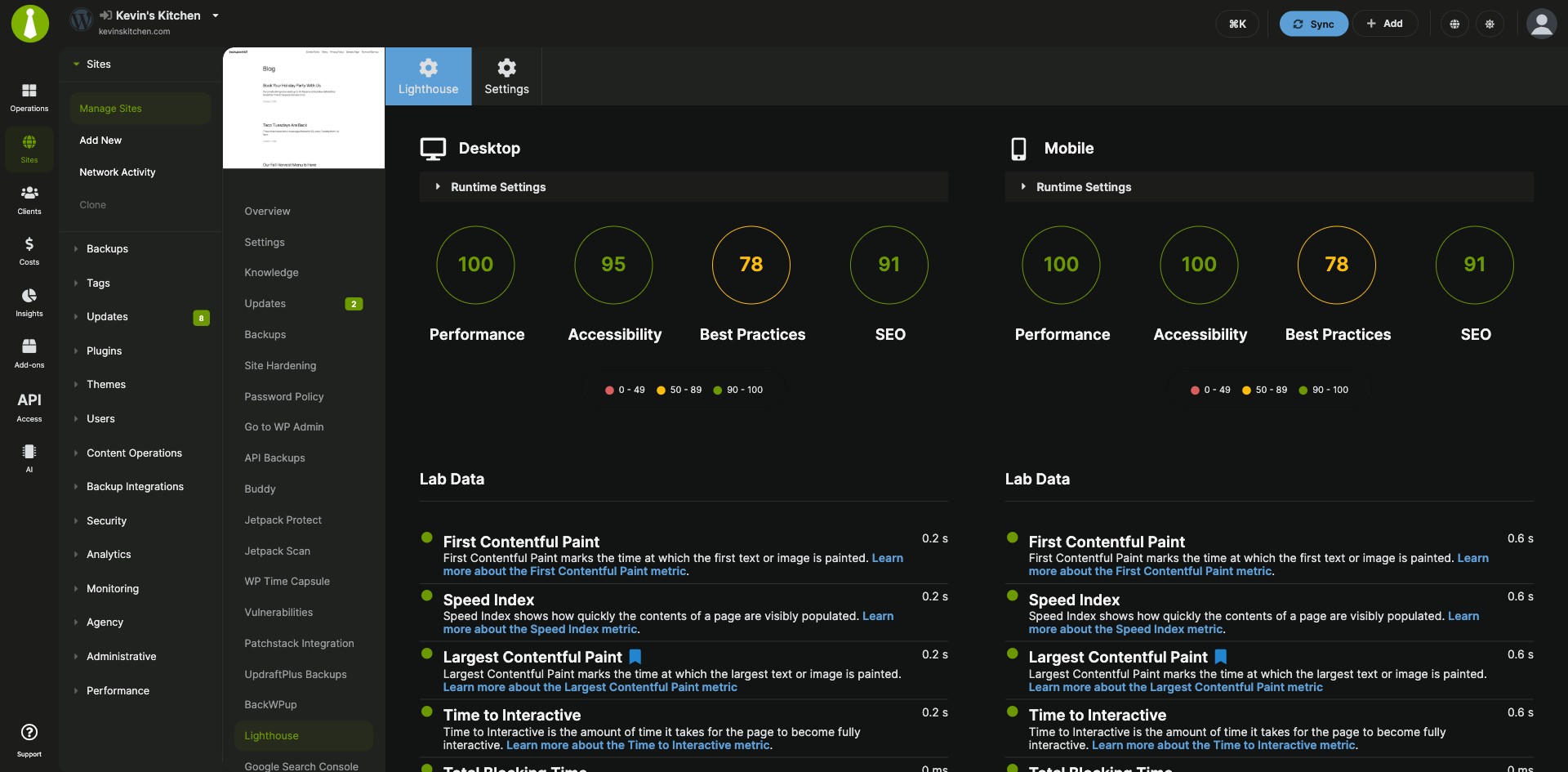
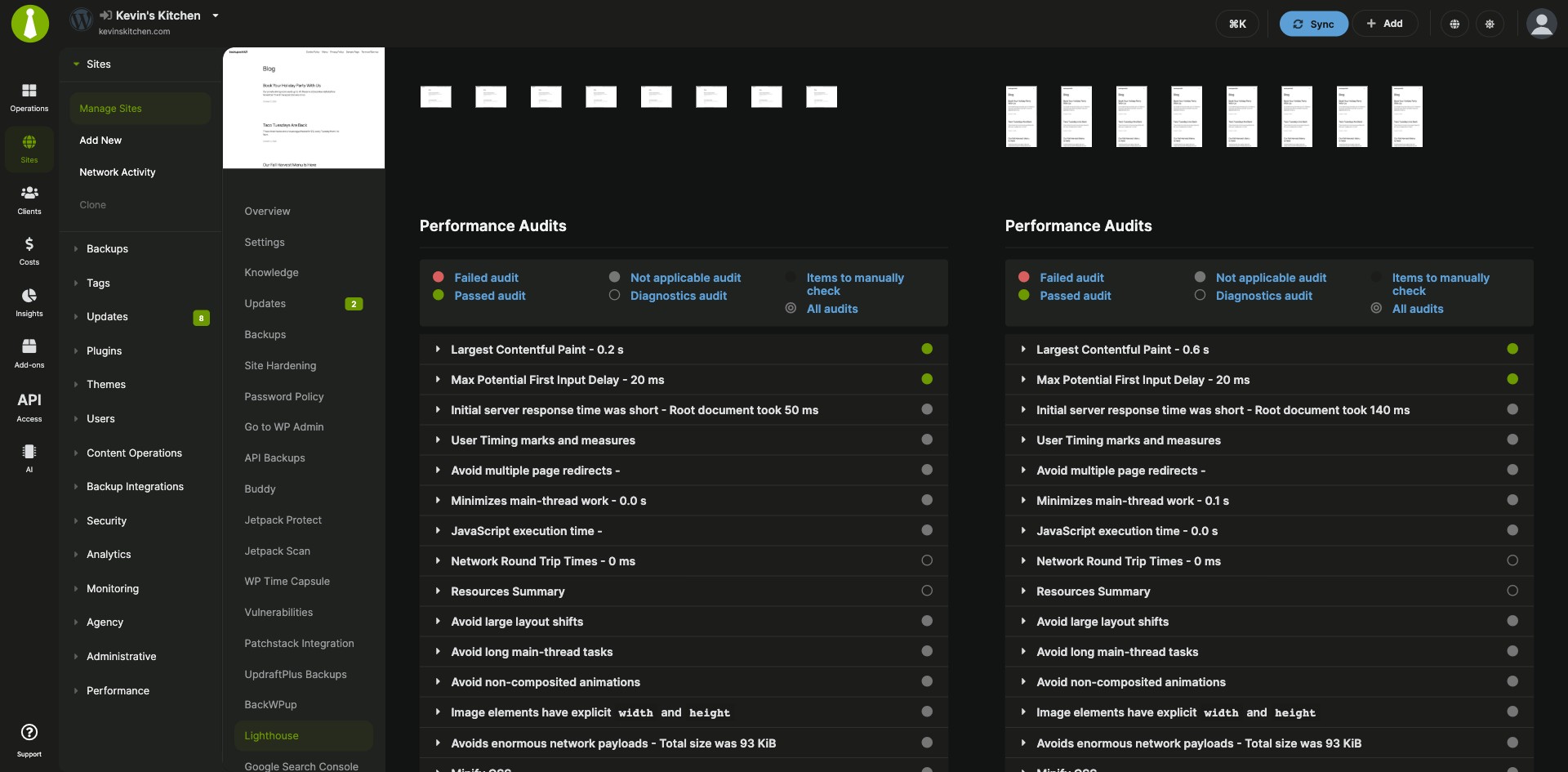
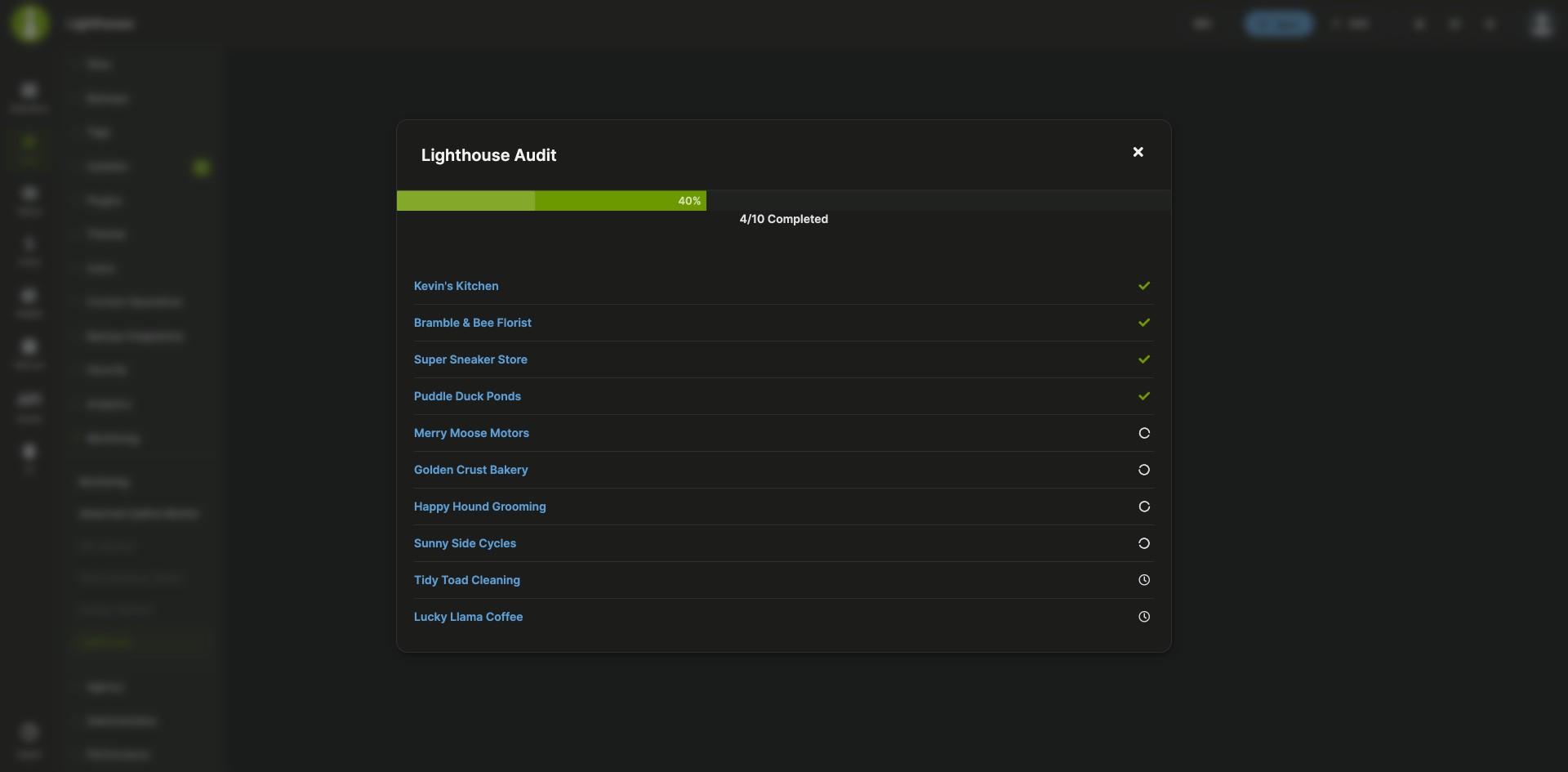

Run Lighthouse audits on all your child sites from your MainWP Dashboard
The Lighthouse Integration is a Pro MainWP add-on that audits the performance, accessibility, best practices and SEO of your child sites through the Google PageSpeed Insights API. You run audits for every site at once or on a schedule, read each site’s Lighthouse report, and see the scores in your sites list without testing sites one by one.
What the Lighthouse Integration replaces
Without the integration, you test each site on its own and keep its scores in a separate tab. With the Lighthouse Integration, one Dashboard page lists the latest scores for all your sites. You start audits from that page or let them run on a schedule, and the scores also show up in the Manage Sites table, in widgets, and in client reports.
Lighthouse Integration features
| Feature | What it means for you |
|---|---|
| Audits for all, some, or one site | Click Audit All Sites on the Lighthouse Dashboard, pick sites from the Bulk Actions menu, or use the Audit Site action on a single site. Each audit scores performance, accessibility, best practices and SEO. |
| Scheduled audits | Turn on Automatically audit sites and set the Automated audit frequency, and audits run without you starting them. |
| Lighthouse reports | Open the Lighthouse Report action on any site to see the full report. Choose the report language and whether audits use the Desktop strategy, the Mobile strategy, or both. |
| Score columns in your sites list | Add Performance Score columns for Desktop and Mobile to the Manage Sites table from the Page Settings menu. The Manage Sites and Monitoring tables also show First Contentful Paint and whether a score went up or down since the last audit. |
| Widgets | The Operations page widget lists your best and worst performing sites. The widget on a child site’s Overview page shows its Desktop and Mobile scores and how they changed since the previous audit. |
| Score notifications | Set a Notifications threshold. When any tracked Lighthouse score is at or below that value, the add-on can send a Lighthouse notification. |
| WP-CLI and REST API | Run audits and read results from the command line with wp mainwp-lighthouse audit and wp mainwp-lighthouse results, or through the MainWP REST API. |
| Client report tokens | With Pro Reports, add Desktop and Mobile scores, the audit list and the last check time to client reports with tokens such as [lighthouse.performance.desktop], [lighthouse.seo.mobile] and [lighthouse.lastcheck.desktop]. |
Lighthouse Integration requirements
| Item | Requirement |
|---|---|
| License | MainWP Pro (included in the Pro Bundle) |
| Google PageSpeed Insights API key | Required to run audits. You create it in your Google account and paste it into the add-on settings. |
| Third-party plugins | None. The add-on connects your MainWP Dashboard to the Google PageSpeed Insights API, so no third-party WordPress plugin is required. |
| Client report tokens (optional) | MainWP Pro Reports Extension |
| REST API v1 (optional) | Send audit requests to /wp-json/mainwp/v1/lighthouse/audit as POST. Since version 5.3 the endpoint no longer accepts GET. |
How to set up the Lighthouse Integration
Install the add-on and add your API key
- In your MainWP Dashboard, go to Add-ons > Manage Add-ons and click Install Add-ons.
- Select the Lighthouse add-on, click Install, then click Activate Add-ons.
- Go to Add-ons > Monitoring > Lighthouse > Settings, paste your Google PageSpeed Insights API key, and click Save Settings.
Get a Google PageSpeed Insights API key
- Log in to your Google account and open the PageSpeed Insights API getting started page.
- Click Get a Key, select an existing project or create a new one, and click Next.
- Copy the API key, click Done, and paste the key into the add-on settings.
Run your first audit
- Go to Add-ons > Monitoring > Lighthouse > Dashboard.
- Click Audit All Sites and wait until the add-on completes the process.
- To audit only some sites, use the Bulk Actions menu. To audit one site, use the Audit Site action in its Action Menu.
Schedule automatic audits
- Go to Add-ons > Monitoring > Lighthouse > Settings.
- Enable Automatically audit sites and set the Automated audit frequency.
- Click Save Settings.
Full instructions for settings, widgets, WP-CLI and the REST API: Lighthouse Integration documentation.
How the Lighthouse Integration works
The Lighthouse Integration runs on your MainWP Dashboard and uses the Google PageSpeed Insights API, with your API key, to audit each child site. As of version 5.2, the Lighthouse Dashboard table loads and filters its data on the server, and processing is limited to 50 items per run to reduce memory use. MainWP’s other monitoring add-ons are the MainWP Advanced Uptime Monitor Integration, the MainWP SSL Monitor Extension and the MainWP Domain Monitor Extension.
Lighthouse Integration FAQ
Do I need a Google PageSpeed Insights API key?
The Lighthouse Integration needs a Google PageSpeed Insights API key to run audits. Create one from the PageSpeed Insights API getting started page in your Google account, then paste it under Add-ons > Monitoring > Lighthouse > Settings.
How do I run Lighthouse audits automatically?
Turn on Automatically audit sites under Add-ons > Monitoring > Lighthouse > Settings, set the Automated audit frequency, and save. The add-on then audits your sites at that interval.
Can I run Lighthouse audits from WP-CLI or the REST API?
You can run Lighthouse audits and read their results from WP-CLI or through the MainWP REST API. Use wp mainwp-lighthouse audit 125,126 or wp mainwp-lighthouse audit --all to run audits, and wp mainwp-lighthouse results with site IDs or --all to view them. For REST API v1, send requests to /wp-json/mainwp/v1/lighthouse/audit as POST.
My Lighthouse audits don’t finish. What should I check?
Increase Maximum execution time under Add-ons > Monitoring > Lighthouse > Settings first. If scans still don’t finish, raise Maximum script run time until you reach the maximum your server allows. On slow web servers, a longer Throttling delay time slows reporting down but may give more accurate results.
What do I need to pay for?
The Lighthouse Integration is a Pro add-on, so you need MainWP Pro, which includes it in the Pro Bundle. You also need a Google PageSpeed Insights API key, which you create in your Google account.
Do I need to install anything on my child sites?
You don’t need to install a third-party WordPress plugin on your child sites for the Lighthouse Integration. The add-on runs on your MainWP Dashboard and audits each site through the Google PageSpeed Insights API.
Where do I get support?
Google handles the PageSpeed Insights API itself. See the PageSpeed Insights API documentation. MainWP support handles issues with the integration.