Cameron Dornon
Cameron Dornon is a marketer at MainWP, specializing in content that helps WordPress professionals streamline site management and improve their workflows.

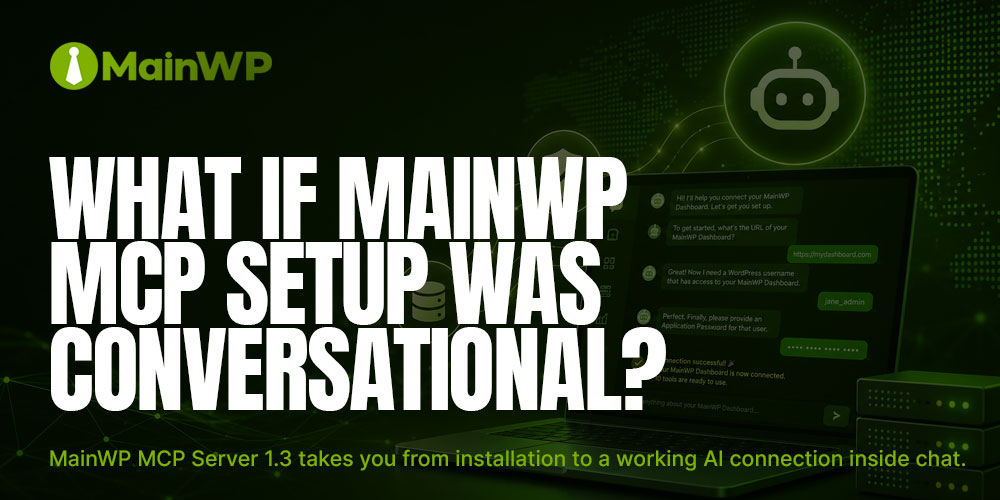
Here is what connecting your MainWP Dashboard to an AI assistant looks like now:
Install the MainWP MCP Server, open a chat, and say, “Set up my MainWP connection.” The assistant asks for your Dashboard URL, WordPress username, and Application Password, checks the credentials against your Dashboard, and saves them.
Your MainWP tools appear, and your next question can be as simple as:
“Which sites have updates waiting?”
There is no configuration file to edit during initial setup and, in clients that support MCP tool-list updates, no restart between “installed” and “working.”
The MainWP MCP Server is the free MainWP project that connects Claude, Cursor, and other MCP-compatible AI assistants to your Dashboard. Versions 1.2 and 1.3 were released last week, adding capabilities that make getting connected and starting to work with your sites easier.
Here is what you can now do.
Version 1.3 moves setup into the chat.
Start the server with nothing configured, and it opens in setup mode, ready to connect. Ask your assistant to connect, and it walks you through the three things the server needs:
Provide them in the conversation, and the server verifies the credentials against your Dashboard before saving anything.
That means a typo in the URL or an incorrect password surfaces immediately, while you are still in the conversation and can correct it. Once the connection is verified, the credentials are saved to a configuration file in your home directory with owner-only file permissions, and the full MainWP toolset becomes available.
In clients that support MCP tool-list updates, the tools appear in the same session, making setup and first use one continuous conversation. Other clients pick them up on the next reconnect.
Setup is also one-way by design.
A conversation can connect a server that does not have a Dashboard configured yet, but it cannot use the setup process to change an existing connection. Once the server is connected, chat setup will not modify those credentials or point the server to a different Dashboard.
Changing where the server connects remains a deliberate action: edit the configuration file or your client’s environment settings and restart.
Version 1.2 introduced a Claude Code plugin.
If you use Claude Code, installation takes two commands:
/plugin marketplace add mainwp/mainwp-mcp
/plugin install mainwp@mainwp-mcp
That registers the MCP Server along with ten ready-made workflow commands and a built-in MainWP skill.
Combined with version 1.3’s conversational setup, the path from installing the plugin to asking questions about your sites is now two commands and one short setup conversation.
The plugin’s /mainwp:* commands turn common Dashboard workflows into commands you can start directly from Claude Code.
Here are three examples:
/mainwp:security-auditChecks your managed sites for outdated WordPress core, plugins, and themes and identifies where updates may require attention.
/mainwp:update-workflowHelps plan an update run before changes are made, including what needs updating, which sites are affected, and the order in which to approach the updates.
/mainwp:site-reportPulls together an individual site’s overview, pending updates, and health information, then provides suggested next actions.
The remaining commands cover network summaries, maintenance sweeps, backup coverage, performance indicators, troubleshooting individual sites, viewing what your Dashboard exposes, and diagnosing the MCP connection itself.
Each command can also serve as a starting point. Run the command, review what it finds, and follow up in plain language about anything you want to explore further.
The Claude Code plugin also includes a built-in skill: a set of MainWP-specific instructions the assistant reads before working with your Dashboard.
It covers how MainWP is structured, child sites and syncing, how updates flow, and how the MCP Server’s tools map to Dashboard operations.
The practical benefit is that you do not have to start every conversation by explaining basic MainWP concepts.
Ask about “disconnected child sites” or “sites tagged production,” for example, and the assistant has the MainWP context needed to understand what you mean.
Dashboards occasionally go offline. Hosts restart, and maintenance windows happen.
With version 1.3, if your Dashboard is unreachable when the MCP Server starts, the server stays running rather than requiring you to start over.
When the Dashboard becomes available again, ask your assistant to check the connection. The server can pick it back up in the same session without requiring you to restart your AI client.
The MainWP MCP Server Quickstart covers setup for supported AI tools, including the Claude Code plugin and manual configuration.
The MainWP MCP Server is a free MainWP Labs project, and your Dashboard credentials stay where they belong: in the direct connection from your machine to your Dashboard.

Manage Unlimited WordPress Sites from One Dashboard!


